What "irresistible" means on YouTube
Nobody meets your thumbnail the way you do. You see it full size in your editor, and you already know what the video is about. A viewer sees it small, for about a second, between other videos on the same topic. In the sidebar next to the video they're watching, it's 168 pixels wide.
So the irresistible thumbnail isn't the prettiest one. It's the one that passes two tests in that second:
- The viewer gets it. They can tell what the video is about, and they can read every word.
- The viewer wants more. The picture raises a question, or makes a promise, that only the video answers.
ThumbnailPeak's AI critique breaks those two tests into ten checks. Seven are about the picture:
- Legibility: every word and the key detail read at 168×94.
- Hierarchy: one thing clearly dominates, so the eye knows where to go first.
- Subject clarity: what the thumbnail shows is obvious at a glance.
- Contrast: the subject and the text stand out from the background.
- Curiosity value: the picture itself gives a reason to click.
- Distinctiveness: it wouldn't be mistaken for every other video in the genre.
- Trust & polish: it looks clean and deliberate, and never misleading.
And three are about how the picture works with your title:
- Topic match: it's visibly about what the video is about.
- Promise consistency: it promises only what the video delivers.
- Title complementarity: it adds something the title doesn't already say.
Keep that list in mind. The seven steps below are a way to pass all ten before you upload, using tools that are mostly free.
Step 1: Study what's breaking out in your niche
Most creators start by searching their topic and looking at the top results. The trouble is that the most-viewed videos mostly belong to the biggest channels, and those get millions of views whatever their thumbnail looks like. Copying them copies the picture, not the audience.
The videos worth studying are breakouts: videos that did far better than their own channel usually does. When a channel with 1,500 subscribers gets 243,000 views, its subscribers can't explain it. The idea, the title and the thumbnail did the work.
Breakouts finds them. Its Categories tab is free, with no account: it holds hundreds of recent breakouts in each of twelve YouTube categories, and it updates itself every week. Its Search tab, with a free account, takes your own topic and sorts what YouTube returns by how far each video beat its channel's usual views.
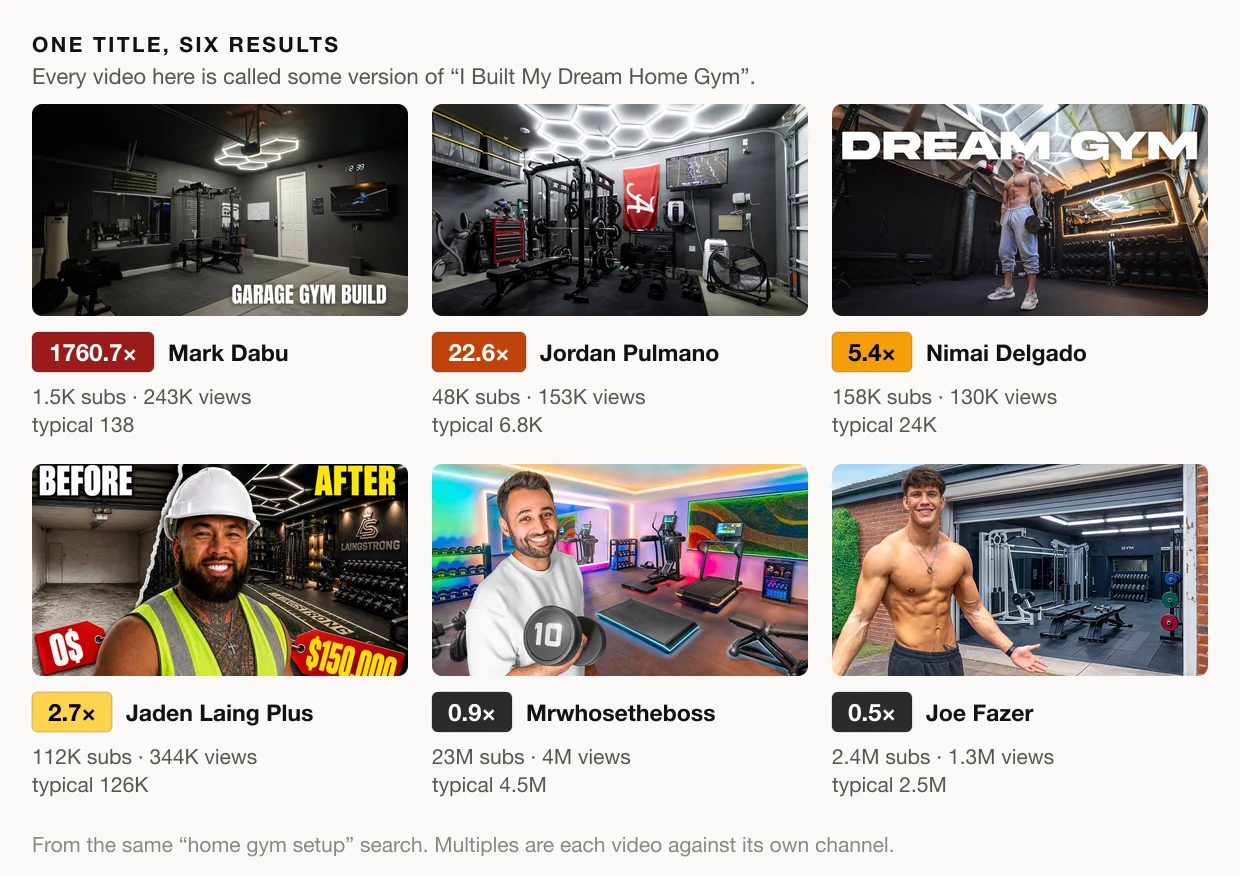
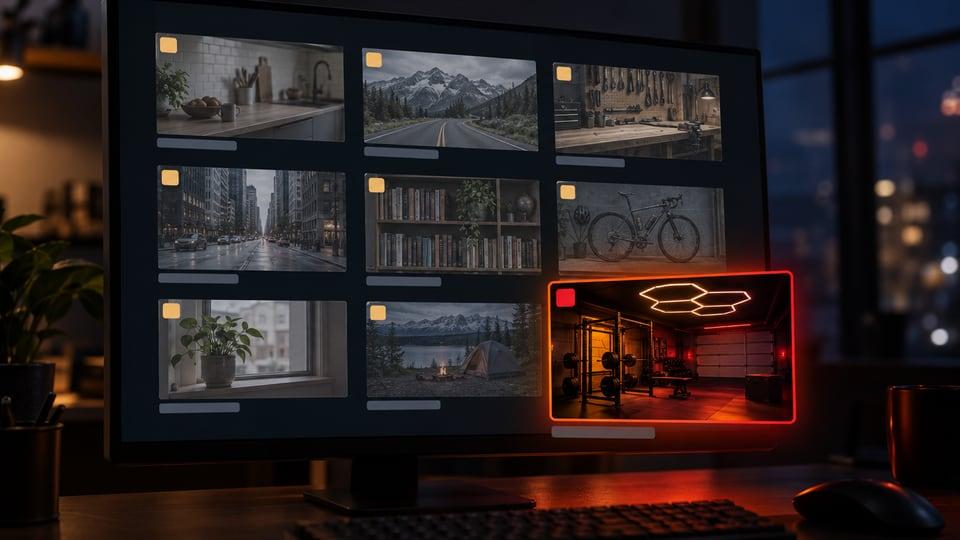
Here is what that showed for "home gym setup". Six videos had almost the same title. The two biggest breakouts, at 1,760 and 22.6 times their channels' usual views, both showed the gym and nobody in it. The four with the creator standing in front of the gym did between 5.4 and 0.5 times their usual. That's a pattern from six thumbnails, not a rule. But it's one you'd never spot by sorting by views, where every top thumbnail is a famous face. The full walkthrough is here.
Take the technique, not the picture. Note what the winners in your niche have in common, such as a close-up, one bold word, a before and after, or a dark background, and use that idea your own way. A copy competes with the original for the same click, and the original got there first.
Step 2: Pick one idea
Most weak thumbnails try to say three things. An irresistible one says one thing, loudly.
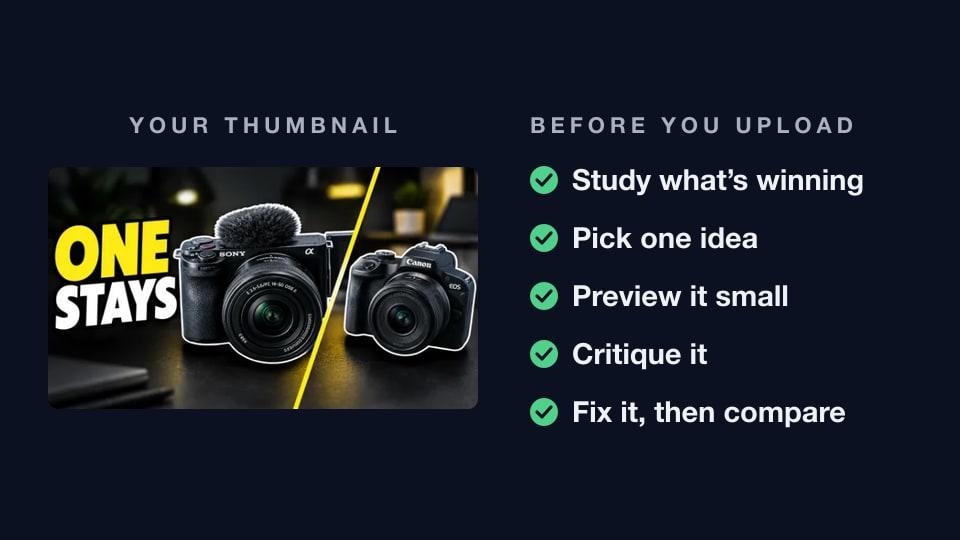
Before you open a design tool, finish this sentence: "People will click because they want to see ___." The answer is your thumbnail. It might be the result (the finished build), the moment of trouble (the engine that won't start), a number (the $212 receipt) or a question (which camera stays?).
Then split the work with your title. The two sit side by side in the feed, so they shouldn't say the same thing twice. If the title makes the claim, let the picture show the proof. If the title asks the question, let the picture show what's at stake.
And make sure the picture keeps the title's promise. In one of our teardowns, a video whose title promised a dead BMW engine showed a spotless BMW on a trailer. The thumbnail was well made, and it still lost points, because nothing in it looked broken. The critique's top fix was to show the problem: an open hood, a warning light, a mechanic. With that fix and one more, its score went from 87 to 95.
Step 3: Make a first version
Use whatever design tool you already know. A few basics apply in all of them:
- Size: 1280×720 pixels, a 16:9 shape. The thumbnail size guide has the rest of YouTube's numbers.
- One subject: one face, one object or one scene, big enough to fill a good part of the frame.
- Few words, big words: if a word doesn't read at 168 pixels wide, it isn't doing any work. Use a font that stays readable when it's small.
- Contrast: light on dark or dark on light, for the subject and for the text.
Or start from the video itself. Our AI thumbnail generator designs a thumbnail from your video. Paste a YouTube link (unlisted works, so the thumbnail can be ready before you publish), or describe a video you haven't uploaded yet in a few sentences. You can ask for one concept or a batch of three different ideas. It can put your face in from your Library, and match your channel's look from a style template. Every result comes back with its critique score.
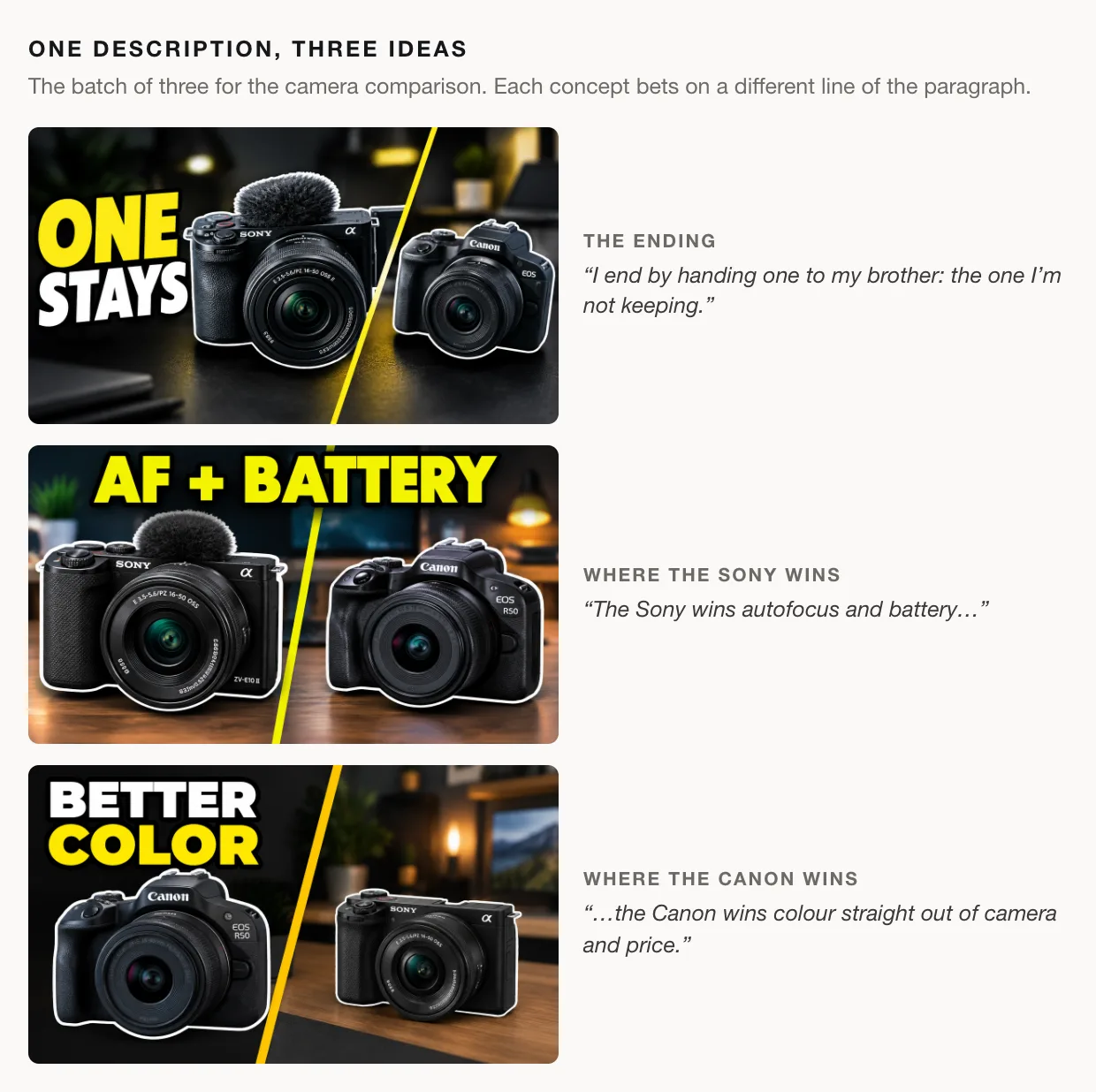
From one paragraph about a camera comparison, it made three different bets. "ONE STAYS" sells the ending and leaves you guessing which camera. The other two each pick a winner and dare you to disagree. Seeing three hooks side by side is a quick way to find out which one you actually believe. There's more on getting good results in our guide to Generate.
Step 4: See it where viewers will
Before you trust your design, shrink it. Instant Preview puts your thumbnail and title into mockups of YouTube's home page, search results and sidebar, on desktop, mobile, tablet and TV. It's free, with no account and no limit.
Its Search preview button goes a step further. It searches YouTube for your title and drops your thumbnail among the real videos that come back, laid out like the home page. Those are the videos yours will actually sit next to.
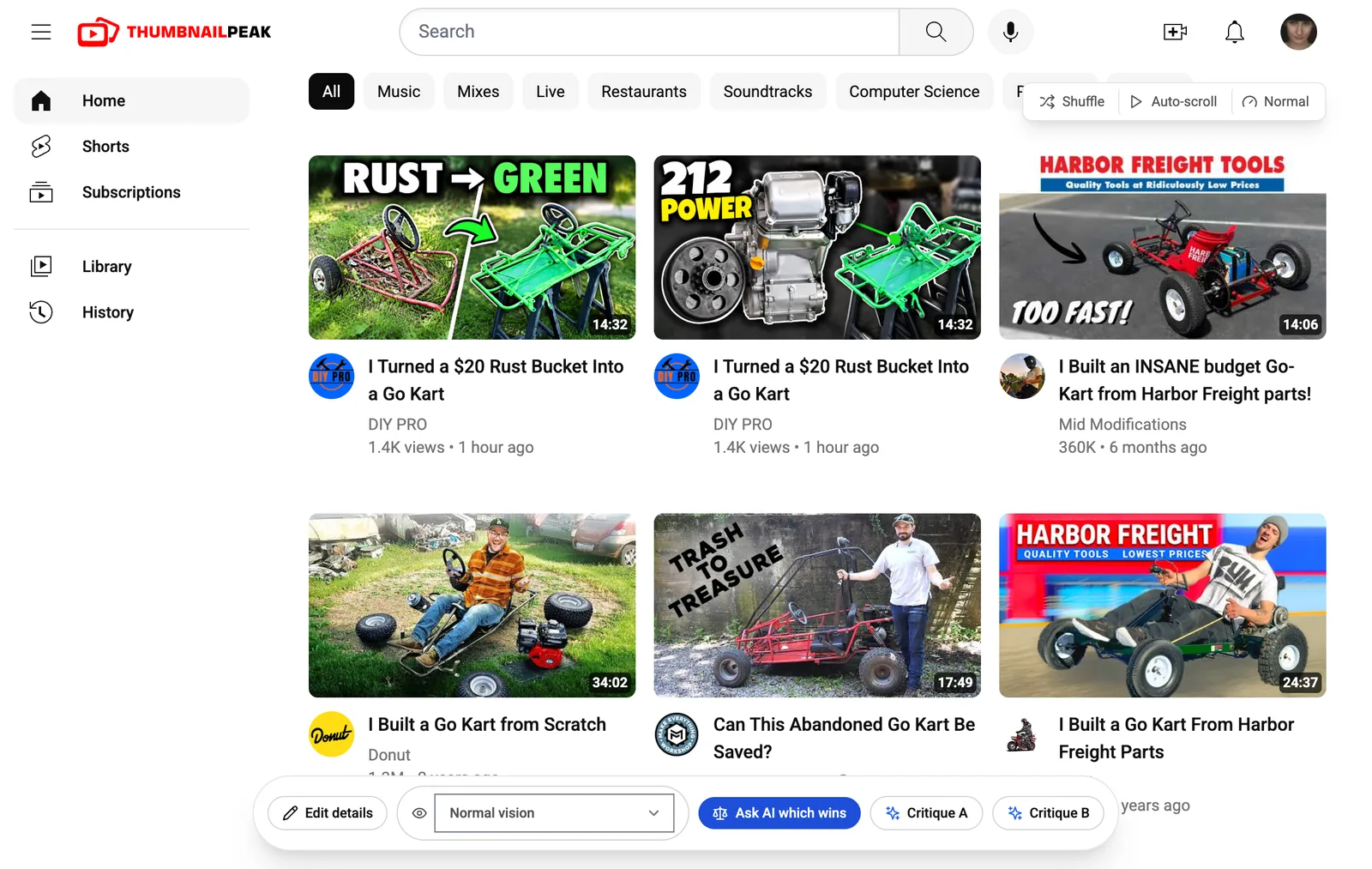
Four things to look for:
- Does it stand out? In the feed above, nearly every video is a go-kart outdoors in daylight. "212 POWER" is the only dark one in the first two rows, and it's where the eye lands.
- Can you read it? Look at the words for one second, then look away. If you can't say what they were, they're too small or too many.
- Does it look like one of your old videos? Further down the same feed, the channel's own video from 2024 was still ranking, with a green kart and a big arrow, just like "RUST → GREEN". A viewer who has seen the old one may take the new one for the same video and scroll past.
- Does it survive colour blindness? The colour picker shows the page the way six kinds of viewer see it. About 1 in 12 men have some red–green colour blindness, so a thumbnail whose whole idea is a red-to-green change can lose that idea. Our colour blindness guide explains how to fix it.
Shuffle moves your thumbnail to new spots in the feed, and Auto-scroll scrolls it past you at speed. If a thumbnail only works in the first row, you want to know now. You can also preview it at the top of your own channel page, or among your competitors' newest videos.
Step 5: Get an honest score
You know what your thumbnail is meant to say, so your brain fills in what a stranger's won't. A critique is a second pair of eyes with no stake in it.
Upload your thumbnail to the AI critique and type your title. It grades each of the ten checks from 0 to 4, judging the picture at the size viewers see it. You get a score out of 100 and up to three fixes, each saying what to change and why. The picture counts for 85% of the score and how it works with your title for 15%. Among the picture checks, legibility and hierarchy count the most.
Here is how to read what comes back:
- The bands: 90 and up is Exceptional, 75 to 89 Strong, 60 to 74 Solid, 40 to 59 Developing, and below 40 Weak.
- Read the fixes before the number. Two thumbnails can get almost the same score and need completely different fixes. In one teardown, two breakouts scored 91 and 92; one's top fix was to put out a fire, and the other got one small note.
- Use your real title. The critique reads the title too. In our any-language test, the same picture scored 85 against its real title and 78 against a placeholder title, "nice".
For example, this thumbnail for a Stranger Things 5 video scored 85, Strong. The critique liked the big headline: it "remains large and easy to read in the 168×94 rendition." Its only fix was about hierarchy:
Establish a single focal point. Five faces compete for attention while the headline already occupies most of the lower half. Make the central girl slightly larger or brighter and reduce the visual emphasis of the four surrounding characters.
That's what a useful fix looks like. It doesn't ask for a new design. It names the one thing holding this one back.
Step 6: Fix what it found
The instinct after a critique is to start over. Usually the design is fine, and one or two things are holding it back.
Improve turns the critique into a new version. Pick the fixes you agree with, and AI edits your actual image, keeping your subject and your face. You can also type your own request. When you do, the fixes untick, so it does only what you asked unless you tick one back.
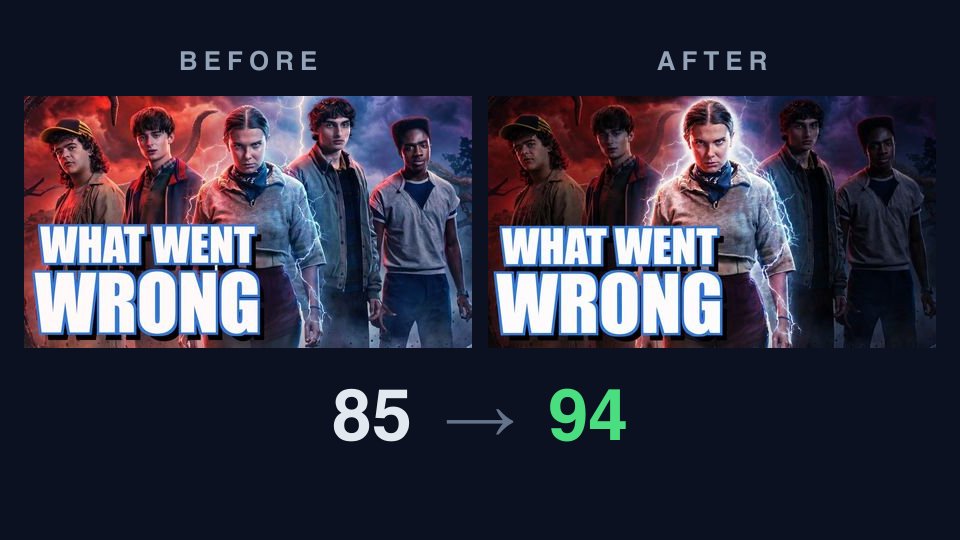
On the Stranger Things thumbnail, Improve made the one fix. The girl at the centre now glows, the other four fade into the dark, and the headline picked up a heavier shadow. Critiqued again from scratch, it scored 94, Exceptional. The full teardown is here.
Edit is for a change you already know you want. Type one change, such as new words, a different colour, a glow around your subject or a new background, and AI edits that image. Every version is kept, and your next edit builds on whichever version you pick, so you can go one step at a time. Edit doesn't score what it makes, so run the version you like back through the critique.
One note on the new score: if it's within about five points of the old one, treat the two as about the same. A change that small is within the critique's normal variation from one run to the next. Look at which checks moved instead.
Step 7: Compare your best two
You'll often end up with two you like: the original and the improved one, or two different ideas. Picking the one you made last, or the one you're fondest of, isn't a test.
Compare critiques both against the same title and says which one a viewer is more likely to click, how sure it is, and the differences that decide it. It uses one comparison from your allowance, both critiques included.
Read how sure it is, not only who won. In our any-language test, Compare picked the improved version by a slight margin, at low confidence. It said the stadium and the club crests read better at feed size, and it also said what the other version did better: its softer background gave the faces more room.
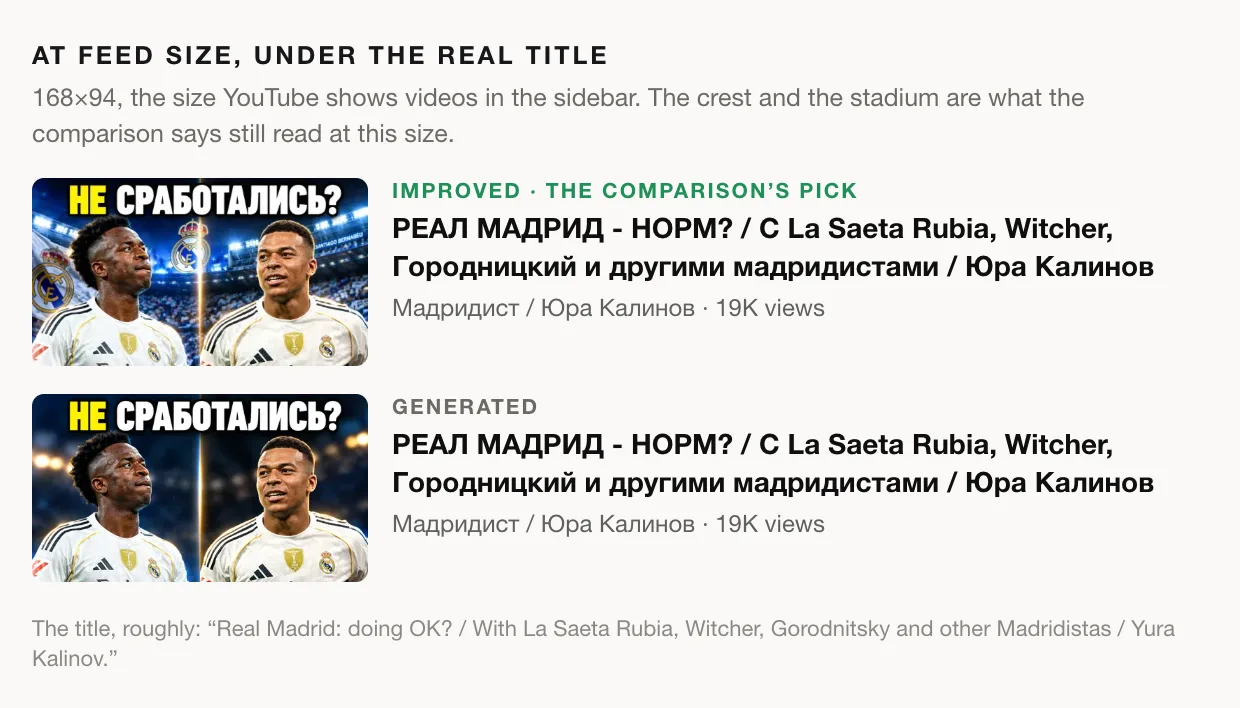
A slight win at low confidence means both are good enough to upload and one is the better bet. A clear win at high confidence means the choice is made.
After you upload
No tool before upload can tell you what your real audience will do. If your channel has YouTube's Test & Compare, it shows up to three thumbnails on the live video and keeps the one that earns the most watch time. If none clearly wins, YouTube keeps the first one, so put your safest pick first. The steps above make sure every thumbnail in that test is already a good one.
The checklist
- Study breakouts in your niche, not the most-viewed videos.
- Finish the sentence "People will click because they want to see ___."
- Make it at 1280×720, with one subject and a few big words.
- Preview it in a real feed, at small sizes and in the colour-blind modes.
- Critique it with your real title, and read the fixes before the score.
- Fix what it found with Improve or Edit, then check the new version.
- Compare your best two, and read how sure the verdict is.
What it costs
- Free, with no account: Instant Preview, Search preview and Channel preview, as often as you like, and the Categories tab of Breakouts.
- Free with an account, every month: 2 critiques, 1 comparison, 1 improve, 1 edit, 1 generation and 1 Breakouts search or channel sweep. Competitor preview is free with an account too.
That covers one full pass through all seven steps every month. Preview your thumbnail first, since it's free and takes a minute, then get a critique of the one you like best.
The thumbnails in this post appear for commentary and education, and each belongs to its creator. The home gym thumbnails come from our Breakouts walkthrough; the Stranger Things 5 thumbnail is Friendly Space Ninja's, and its improved version was made with ThumbnailPeak for our teardown. The camera thumbnails were generated from a made-up description for an earlier post. The two go-kart candidates were generated from DIY PRO's "$20 Rust Bucket into Kick $$$ Go Kart W/ Harbor Freight 212", published under CC BY 3.0; DIY PRO did not make or approve them. The Real Madrid thumbnails were made with ThumbnailPeak from a video by Мадридист / Юра Калинов for our any-language test and are not the channel's.