
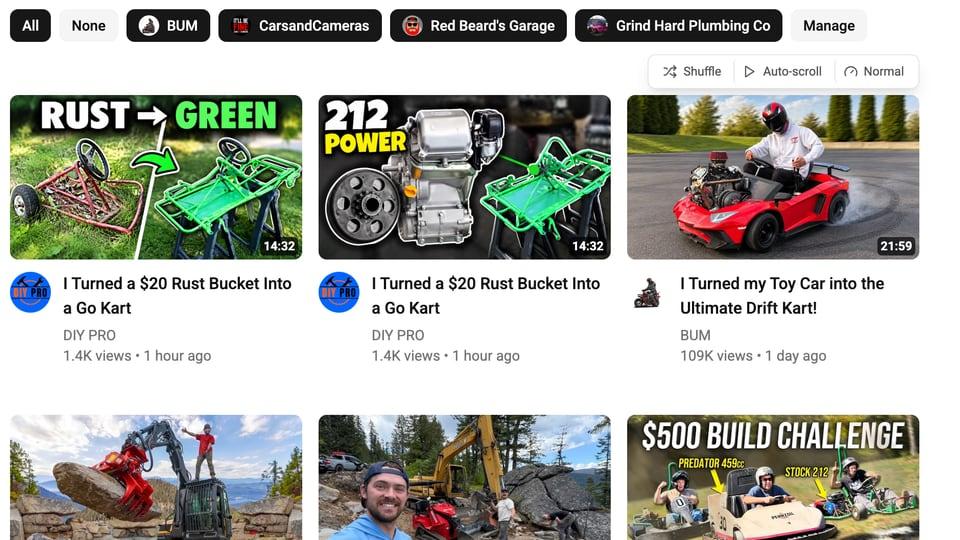
Your real neighbours are this week's uploads
A search preview answers one question well: how does your thumbnail look among the videos YouTube returns for your topic? Many of those videos are years old, though. They rank because they've had years to collect views.
The viewers you share with other channels in your niche see something else. Their home page and Subscriptions tab are full of what those channels uploaded this week. That is the feed your new video lands in, and it is the most useful thing to test a thumbnail against. You aren't asking whether it's good. You're asking whether it beats the specific videos it will be shown beside.
Competitor preview builds that feed. You list the channels you compete with once, and it mixes your thumbnail into their newest uploads.
Set up your list once
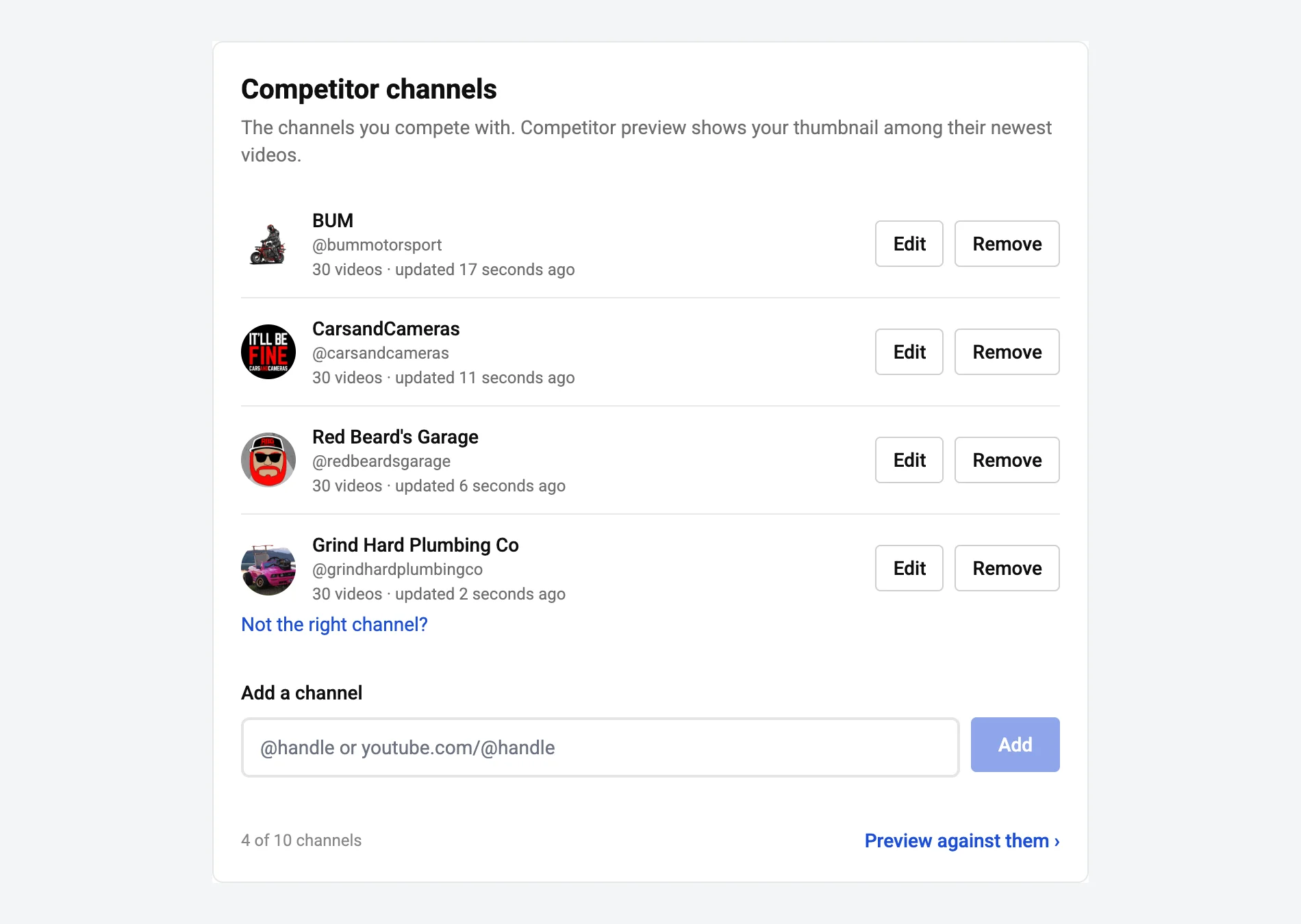
Competitor preview needs a free account, because the list is saved to it. Go to Settings, find Competitor channels, and add up to 10 channels by @handle or youtube.com/@handle link. Each row shows the channel's name and avatar, how many of its videos were fetched, and when, so you can check you added the right channel.
We used the same example as the search preview and channel page preview posts. DIY PRO, a go-kart and Harbor Freight tools channel, stands in for "your channel". We gave it four competitors that make the same kind of video, go-kart builds and small-engine projects: BUM, CarsandCameras, Red Beard's Garage and Grind Hard Plumbing Co.
Then, on the thumbnail tester, upload your thumbnails and click Competitor preview. If you aren't signed in, it takes you through Google sign-in and brings you back. If your list is empty, it sends you to Settings first.
The candidates are the two concepts our AI thumbnail generator made for a DIY PRO go-kart build, here for a new upload titled "I Turned a $20 Rust Bucket Into a Go Kart": "RUST → GREEN", a before-and-after of the frame, and "212 POWER", the engine beside the painted frame. DIY PRO did not make or approve either.
The feed
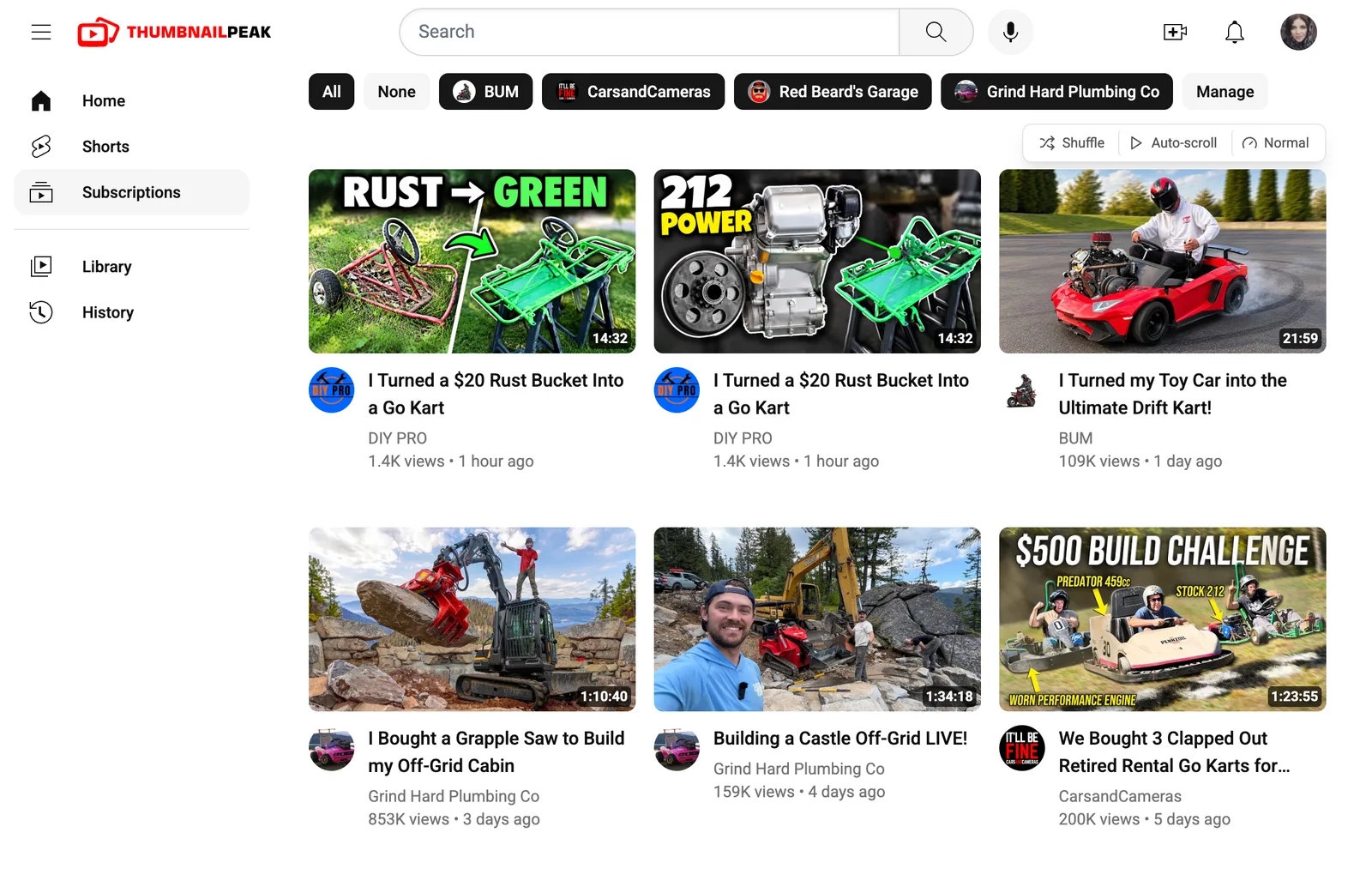
For each channel on your list, the feed takes its 30 newest long-form uploads. Shorts are left out; finished livestreams and premieres stay in, because your viewers see those too. It merges them newest first and keeps any one channel to two videos in a row while the others still have videos to show, the way a Subscriptions tab looks when you follow several busy channels. Your thumbnails lead the feed, then come back about every dozen videos all the way down.
Each competitor video shows its real thumbnail, title, channel, avatar, view count, age and length, and clicking one opens it on YouTube.
The first screen made one thing obvious. All four competitor thumbnails in the first two rows have a person in them: a driver in a helmet, a builder standing on a boulder, a big grinning face, three guys squeezed into rental karts. Neither of ours does. Our two show a kart frame and an engine.
Look further down
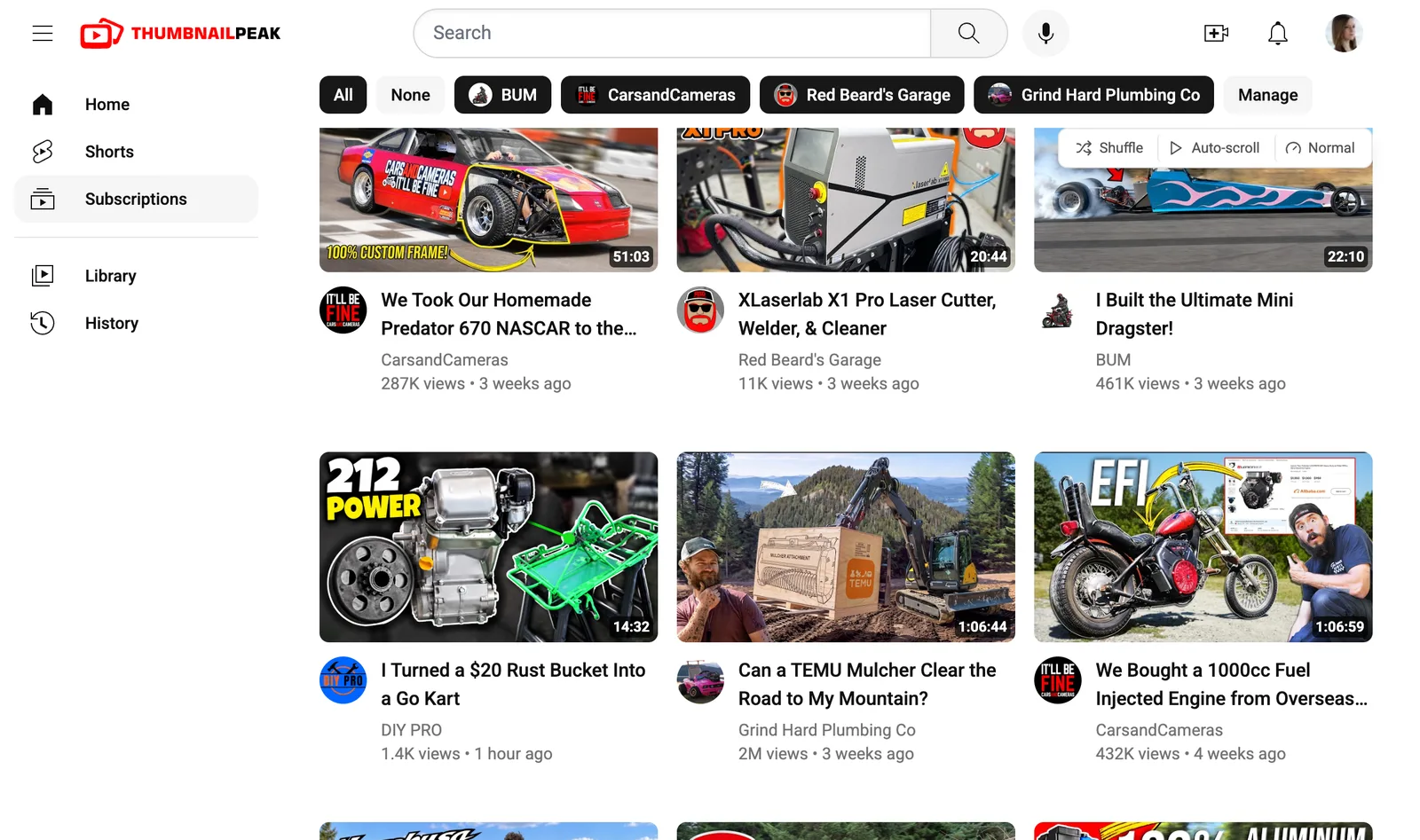
Halfway down, the pattern holds. "212 POWER" shares its row with a man beside an excavator and a man pointing at a motorcycle. It stands out, because it is the only dark, product-shot frame in the row. But it stands out as the only thumbnail with nobody in it.
That doesn't settle which way to go. A distinctive thumbnail can win precisely because it breaks the pattern. What the preview does is turn a vague worry ("is this too plain?") into a specific question you can act on: should this video have a person in the thumbnail? If you decide it should, Generate can put you in a concept from your own photos, and you can preview again.
One competitor at a time
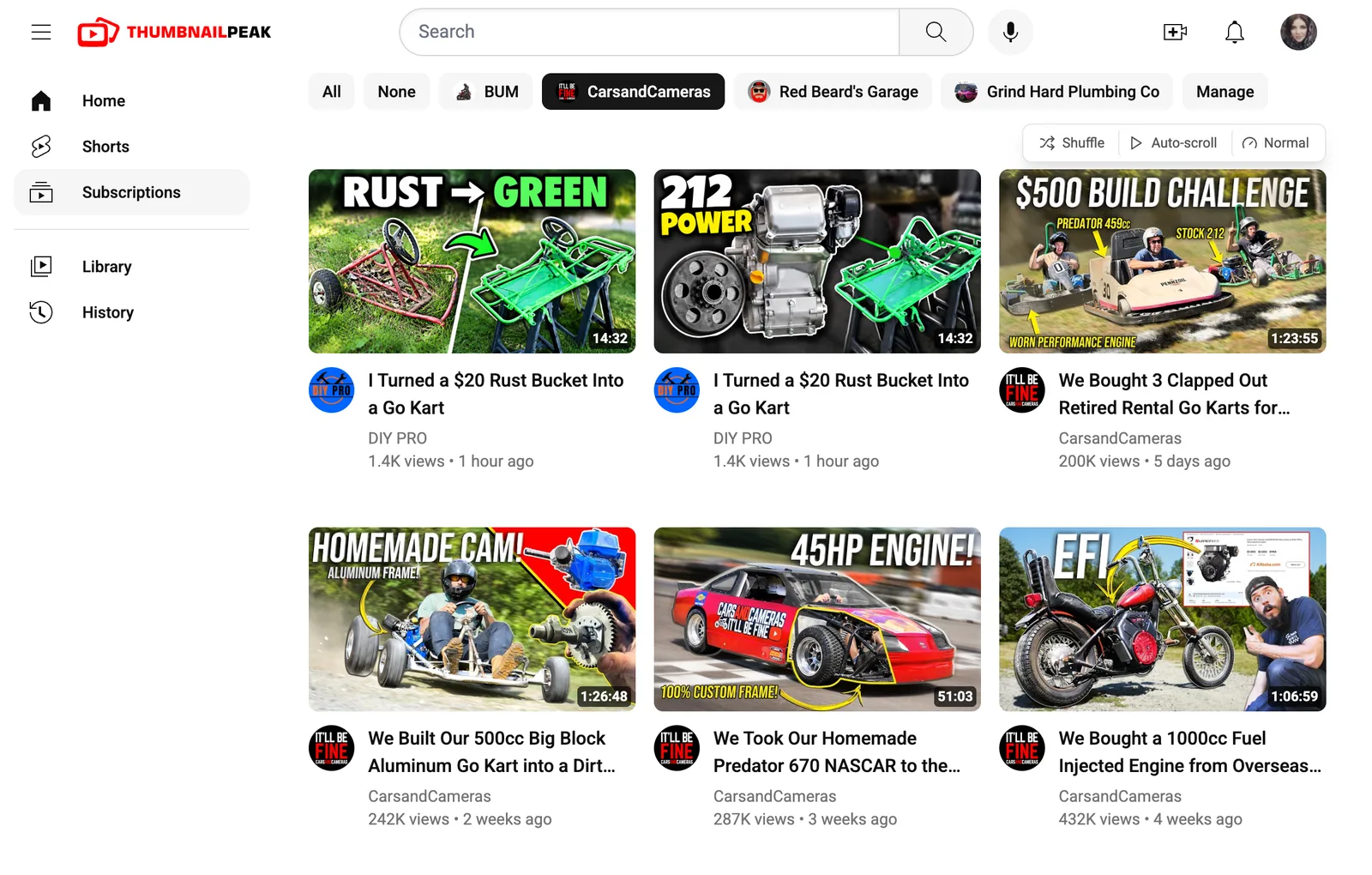
The chips across the top choose who is in the feed. All shows everyone and None clears it. Click a channel's chip to add it or take it out, and Manage opens your list in Settings. Your selection is remembered in this browser.
Narrowing it to one channel is the closest thing to a head-to-head with a rival. Against CarsandCameras alone, "212 POWER" turns out to be the closest of our two to their house style: a short engine-spec headline in white and yellow over a machine, the same kind of thing as their "45HP ENGINE!". In this niche that cuts both ways. It fits what this audience is used to clicking, and it is easier to mistake for one of theirs.
Shuffle, scroll and the AI buttons
The rest of the page works like Search preview:
- Shuffle re-deals your competitors' videos, keeping the two-in-a-row rule, and moves your thumbnails to new slots. If a thumbnail only works next to one particular competitor, Shuffle shows you.
- Auto-scroll scrolls the feed at Slow, Normal or Fast. Touching the page pauses it.
- Edit details sets your tile's title, view count, length, upload date and verified badge.
- Colour vision re-renders the page for six kinds of colour vision.
- Critique A, Critique B and Ask AI which wins score your thumbnails and pick between them, using a free account's monthly allowance of 2 critiques and 1 comparison.
How fresh the feed is
A channel's videos are fetched when you add it. After that, whenever you open the page and a channel's videos are more than a week old, they are fetched again in the background while you look, and the new uploads appear on your next visit. So if you check in regularly, the feed is at most about a week behind your competitors. If you haven't opened it in a while, reload it after a minute to see the fresh version.
Competitors or breakouts?
The two tools answer different questions, so it helps to use both:
- Competitor preview shows what you are up against: your rivals' latest uploads, good and bad, as your shared viewers see them this week.
- Breakouts shows what is working: videos in your niche that did many times better than their own channel usually does, which are the thumbnails worth learning from.
Study the breakouts when you design the thumbnail. Check it against your competitors before you publish.
The other two previews
- Search preview puts your thumbnail among the real YouTube results for your title. It is the free thumbnail tester, with no account needed.
- Channel preview pins it to the top of your own Videos tab, to check it looks like your channel without repeating your last upload.
For the whole routine, see how to test a YouTube thumbnail before publishing, and for a wider look at the category, our roundup of thumbnail preview tools.
What it costs
Competitor preview is free on every plan. It needs a free account to hold your list. The list takes up to 10 channels, and you can change it up to 20 times a day.
What to take away
- Test against this week, not all time. Your new upload competes with your rivals' latest videos, and Competitor preview builds exactly that feed.
- Look for the pattern you're breaking. Here it was people: every nearby competitor thumbnail had one and ours didn't. Break a pattern on purpose, not by accident.
- Go one-on-one. A single competitor's chip shows whether your thumbnail could be mistaken for theirs.
- Pair it with Breakouts. Learn from what's winning; test against what's current.
Open the thumbnail tester, add your competitors in Settings, and see where your next thumbnail lands.
The example channel is DIY PRO, used as a stand-in. The two candidate thumbnails were made by ThumbnailPeak's generator from DIY PRO's "$20 Rust Bucket into Kick $$$ Go Kart W/ Harbor Freight 212", published under the Creative Commons Attribution licence (CC BY 3.0); DIY PRO did not make or approve them. The competitor thumbnails, titles and channel names belong to BUM, CarsandCameras, Red Beard's Garage and Grind Hard Plumbing Co, and appear for commentary.