Disclosure: we build ThumbnailPeak, which is number one on this list. We've tried to describe the other four accurately and fairly — every one of them is worth using, and two of them do things we don't.
Why a preview tool is worth five minutes
Every creator evaluates their thumbnail the same wrong way: they open the final export at 1280×720, filling the screen, crisp and bright, and it looks great. Nobody on YouTube ever sees it that way. Viewers meet a thumbnail as small as 160 pixels wide, on a channel's page on a phone, surrounded by a dozen other videos competing for the same half-second, often in dark mode, often while scrolling. What reads beautifully at full resolution can turn into a muddy smear at feed size — and you find out days later, in a click-through-rate number that's already baked in.
A thumbnail preview tool exists to close that gap. It puts your image into a realistic mockup of where it will actually live, at the size it will actually render, so you can catch the problem while it's still free to fix. That's the entire job, and the tools below do it with very different degrees of realism.
What separates a good preview tool from a mockup
Before the list, the four things actually worth comparing:
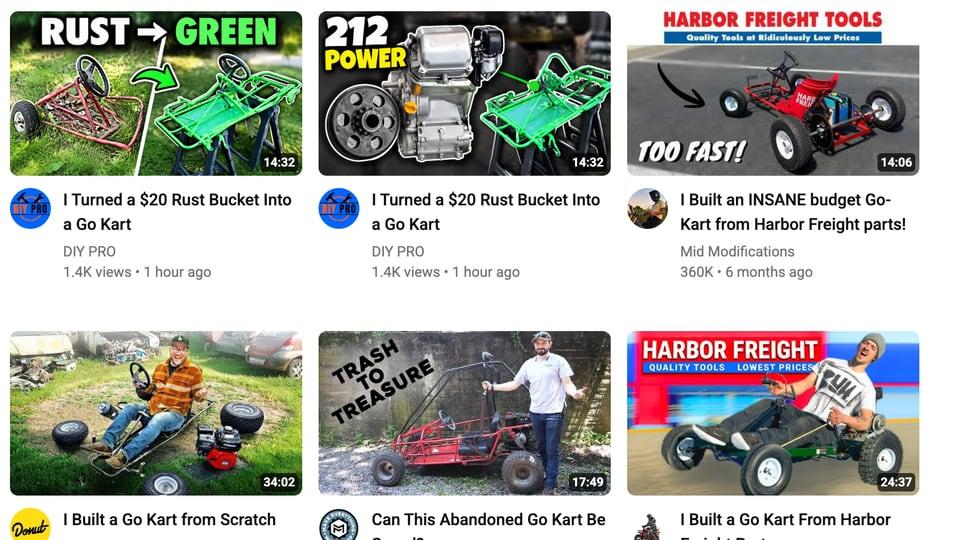
- Real context, not an empty frame. Dropping your thumbnail into a blank YouTube-shaped card tells you almost nothing. The question isn't "does this look nice" — it's "does this survive next to the videos it will compete with." A preview that surrounds your thumbnail with real competing videos for your actual topic answers a different and much better question.
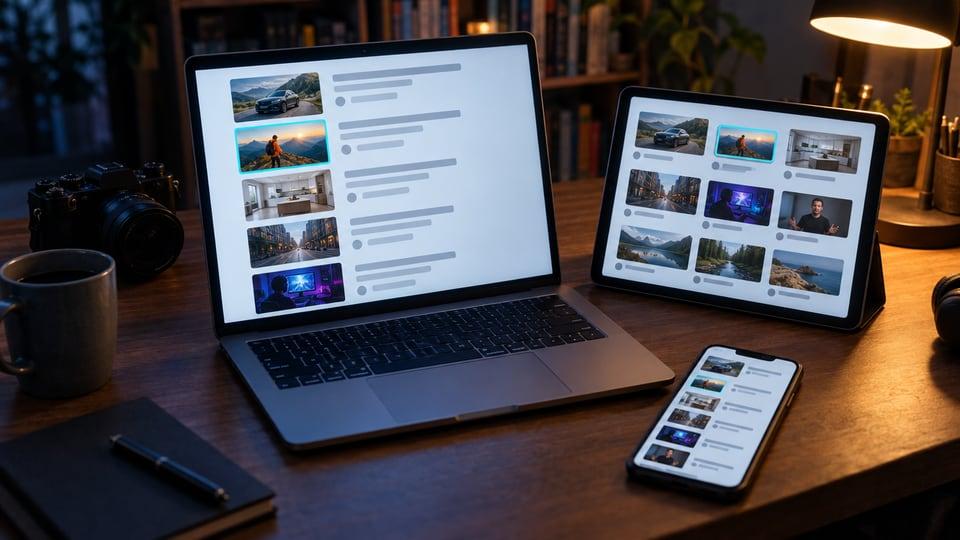
- Every placement, including the awkward ones. Search results, home feed, the suggested-videos sidebar, mobile, tablet, TV, and your own channel page all crop and scale differently. A tool that only shows you the desktop home feed is showing you your best case.
- Friction. Preview is a step you should take on every upload. If it costs a signup, an extension install, or a credit, you'll skip it on the video you're rushing — which is exactly the video that needed it.
- What happens after you spot a problem. Most preview tools stop at "here's how it looks." Seeing that your text is illegible at sidebar size is useful; knowing what specifically to change, and being able to change it without reopening your design tool, is more useful.
1. ThumbnailPeak
Best for: previewing against real competing videos, then fixing what the preview reveals — without leaving the page.
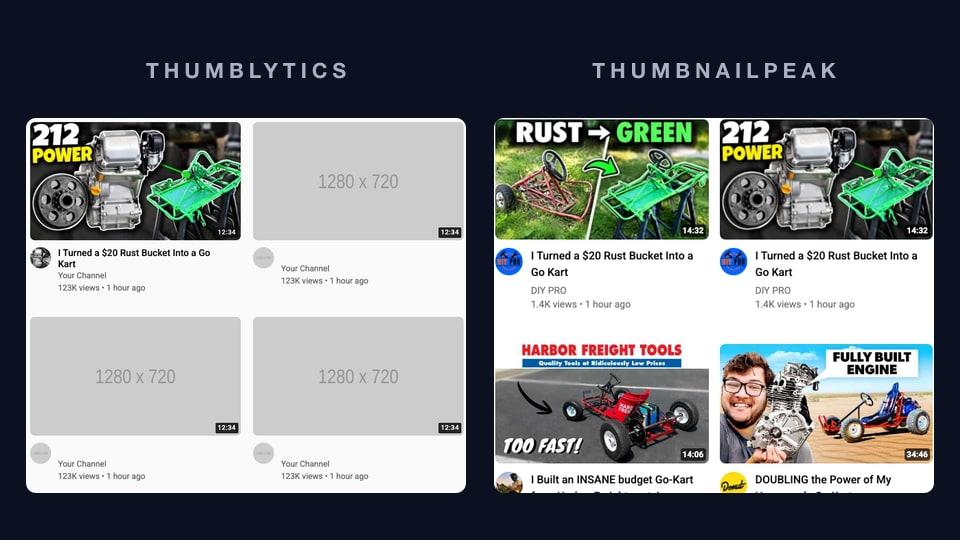
ThumbnailPeak's thumbnail preview tool starts from the same premise as the rest of this list and then does one thing none of the others do: it searches YouTube for your video title and drops your thumbnail into the real top results for that query. You aren't looking at your image in a generic grid of stock placeholders — you're looking at it next to the actual videos it will be fighting for the click. If your thumbnail disappears into that row, you've learned something no isolated mockup can tell you.
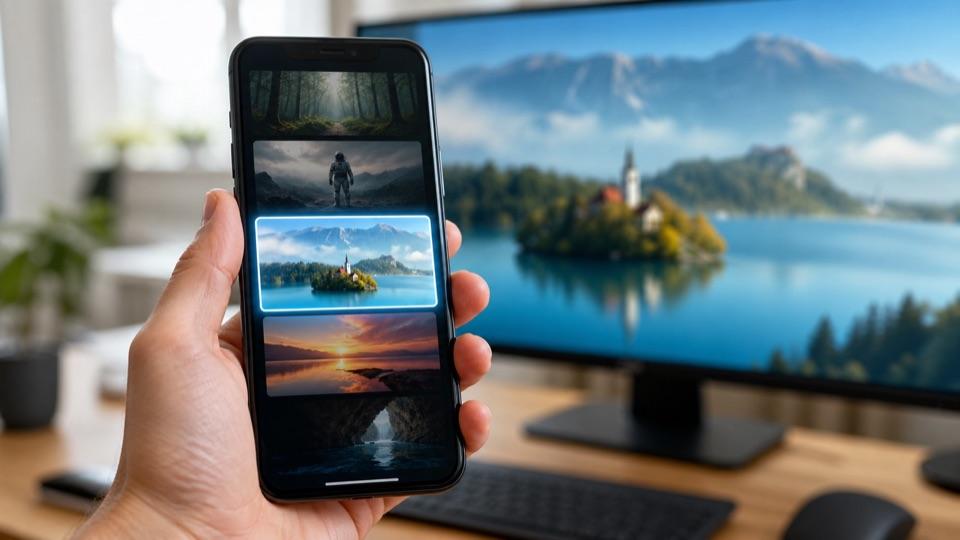
You can drop in up to nine candidates at once, preview two at a time, and shuffle them into different feed positions to check that a good result wasn't just a lucky slot. The preview covers search results, the home feed, the suggested sidebar, mobile, tablet and TV. "Edit details" lets you set the view count, upload date, duration and verified badge on your own tile, so it reads like a real video rather than an obvious placeholder — which matters, because a tile that looks fake gets looked at differently. A secondary title field previews two titles at once, and a channel page preview pulls your channel's real banner, avatar and Videos grid and pins the new thumbnail at the top, showing you what subscribers will see.
All of that is free and unlimited, with no account. That's the deliberate design: preview is the step you should never skip, so it never costs anything.
Where ThumbnailPeak goes past the rest of the category is the next step. Once you've seen the problem, the AI critique scores the thumbnail across seven visual dimensions — legibility, hierarchy, subject clarity, contrast, curiosity, distinctiveness and polish — plus three more on how well the image fits and reinforces your title and description if you supply them. You get a 0–100 score, a plain-language read, and concrete fixes rather than "make it pop." Compare puts two candidates head-to-head and returns a direct verdict on which wins and why, so you can make the design call before you've spent any real traffic on it. Improve edits the image you already have to address the critique's findings, keeping your subject and composition instead of making you start over. And the AI thumbnail maker designs one from scratch off the video itself — paste an unlisted YouTube link and it reads the title, description and frames before planning a concept.
The AI tools run on credits. A free account comes with 12, and Pro at $20/month adds 300 every month. A critique uses 1 credit, a comparison 2, and an improve or a generated thumbnail 3. Projects, which keep every thumbnail for one video in one place, come free with any account. Preview, download and resize stay free and unlimited on both. Critique, compare, improve and generate need a free Google account; preview, download and resize don't.
The catch: the AI tools are metered, so if you want to critique twenty thumbnails in an afternoon you'll be on the paid plan. And the deep feature set is more than you need if all you want is a quick visual gut-check — for that, number three on this list is faster.
2. TubeBuddy
Best for: creators who already live inside a full channel-management suite.
TubeBuddy has been a fixture of the YouTube tooling world for years, and thumbnail preview is one feature inside a much larger optimization extension. It shows your thumbnail across desktop, mobile and TV, in search results, suggested videos and on your channel, so you can confirm that text and subject hold up across devices. The basic preview is free.
Its Thumbnail Analyzer goes further, scoring an uploaded thumbnail or video URL with a predictive rating and generating an attention heat map showing where the eye lands first — genuinely useful information that most tools don't offer. A/B testing and the advanced analytics sit on the paid Pro and Star plans (the analyzer is available during the 30-day Pro trial).
The catch: it's a browser extension and an account, which is meaningful friction for a step you want to take on every upload. And you're buying a whole channel-management suite — keyword research, bulk processing, SEO tooling — to get the thumbnail features. If that's what you want, it's excellent value; if you only want to check a thumbnail, it's a lot of software.
3. 1of10
Best for: the fastest possible zero-friction check.
1of10's thumbnail preview is free, needs no signup, and gets out of your way. It previews the desktop home feed, search results, the sidebar, and mobile end screens, with a light/dark mode toggle and a custom title field. Processing happens locally in your browser, so your unpublished thumbnail never leaves your machine — a real consideration if you're working on something embargoed.
1of10's broader product is outlier research — finding videos that massively outperformed their channel's baseline — and the free tools orbit that. There's also a paid AI thumbnail generator if you want variations.
The catch: it's a mockup, not a competitive simulation. You're seeing your thumbnail in a correctly-sized YouTube-shaped frame, which catches legibility problems, but not next to the specific videos you're up against — so it can't tell you whether you blend in. There's no channel page view and no critique step.
4. Thumblytics
Best for: creators who want a real audience verdict, not a designer's opinion.
Thumblytics offers a free mockup tool showing how your thumbnail and title look across desktop and mobile layouts, but the free preview isn't really the point — it's the doorway to a done-for-you testing service. Thumblytics runs repackaging tests on your existing videos using YouTube's own native A/B testing, on a model where you pay for winners rather than for tests.
That's a genuinely different product from everything else here. Every other tool on this list, ours included, is a judgment aid — it helps you or an AI predict what viewers will click. Thumblytics measures what viewers actually clicked, using real traffic.
The catch: measurement needs traffic, which means published videos and waiting. It won't help you with the thumbnail you're uploading in ten minutes, and it's aimed at channels with a back catalogue worth repackaging rather than creators finalizing their next upload.
5. YouTube Studio's Test & Compare
Best for: validating a thumbnail with your actual audience, after publishing, for free.
YouTube's own Test & Compare (now A/B Testing in YouTube Studio) lets you upload up to three thumbnails for a video and have YouTube show them to viewers at the same time, then keep the one that earns the most watch time. It's free, it uses your real audience rather than a proxy, and no third-party tool can match that for authority. If you're eligible, use it.
The catch: not every video can use it. You need YouTube's advanced features, which come with enough channel history or after you verify your identity with an ID or a video, and it runs only in YouTube Studio on a computer. It doesn't work on Shorts, scheduled live streams, Premieres before they've aired, or private, made-for-kids or age-restricted videos. And a video needs enough impressions for a clear result, which a new channel's uploads often don't get. Our guide to YouTube thumbnail A/B testing has the rules and the steps.
The deeper limitation applies even if you qualify: it runs after you publish. The test needs real impressions to reach a verdict, which means part of your video's most valuable early attention window — the hours when early CTR shapes how widely YouTube distributes it at all — gets spent showing viewers the losing thumbnail. A pre-publish preview and a post-publish test aren't competitors; they're sequential. Preview to avoid shipping something broken, then Test & Compare to optimize between two versions that are both already good.
How to actually use these
The honest answer is that no single tool covers the whole job, and the strongest setup combines two of them:
- Before every upload, preview in real context — ThumbnailPeak's thumbnail tester if you want to see yourself among real competitors and get a critique, 1of10 if you want a five-second legibility check.
- When you're torn between two candidates, get a design verdict before publishing — compare them head-to-head — and leave the post-publish test to measure which one viewers actually pick.
- When the preview shows a problem, fix the specific thing rather than redesigning from scratch — AI improve edits what you have.
- After publishing, if you're eligible, run Test & Compare on the two versions you couldn't separate. Real traffic beats every prediction, as long as you didn't need the answer before you published.
- If you have a back catalogue, look at a measurement service like Thumblytics for repackaging old winners, which is a different job from getting the next upload right.
The one thing none of these tools can do is help you after the fact. A thumbnail's first few hours set how far the video travels, and that's the window a preview protects. Five minutes before you hit upload is the cheapest test you will ever run.