
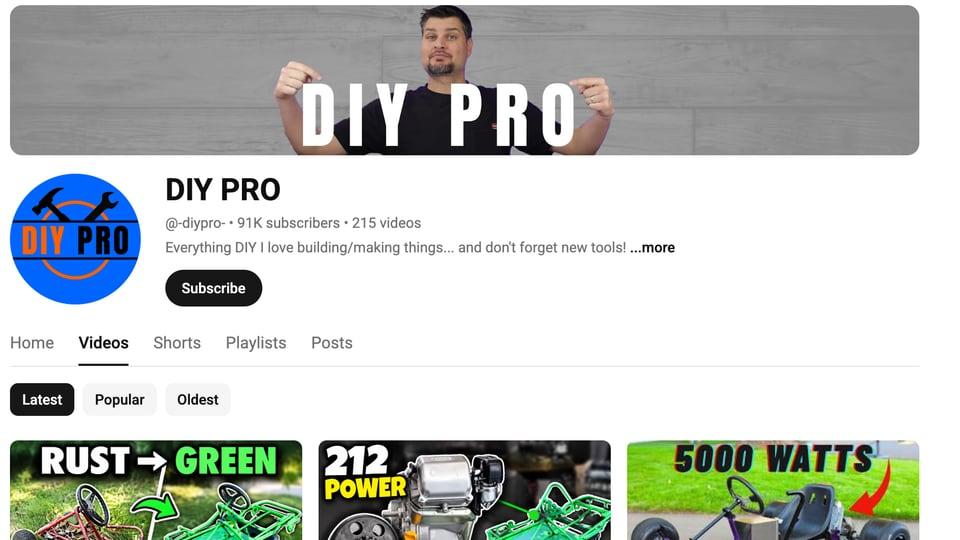
The viewers who see your channel page
Most thumbnail advice is about strangers: the viewer who has never heard of you and gives your video half a second in a feed. A search preview tests exactly that, by putting your thumbnail among the real videos for your topic.
Your channel page is seen by different people. Subscribers, people who just finished one of your videos, and people who clicked your name to see what else you make. They see your new upload in a grid beside the last dozen, and they already know your style. Two things can go wrong there, and a search preview can't catch either:
- It doesn't look like your channel. The new thumbnail is good, but it looks like it belongs to someone else, and the grid suddenly reads as two channels.
- It looks too much like your channel. It repeats a thumbnail you posted last month so closely that a subscriber takes it for a video they've already watched.
Channel preview shows you both before you upload.
Open your Videos tab with the new thumbnail on it
Open the thumbnail tester, upload one or two thumbnails, type your channel's @handle, and click Channel preview. The handle can be written as @name, name or a full youtube.com/@name link. You don't need an account. If you do sign in, saving your handle in Settings fills it in for you every time.
What loads is your real channel page:
- your real banner, avatar and channel name;
- your handle, subscriber count and video count, and the first line of your description;
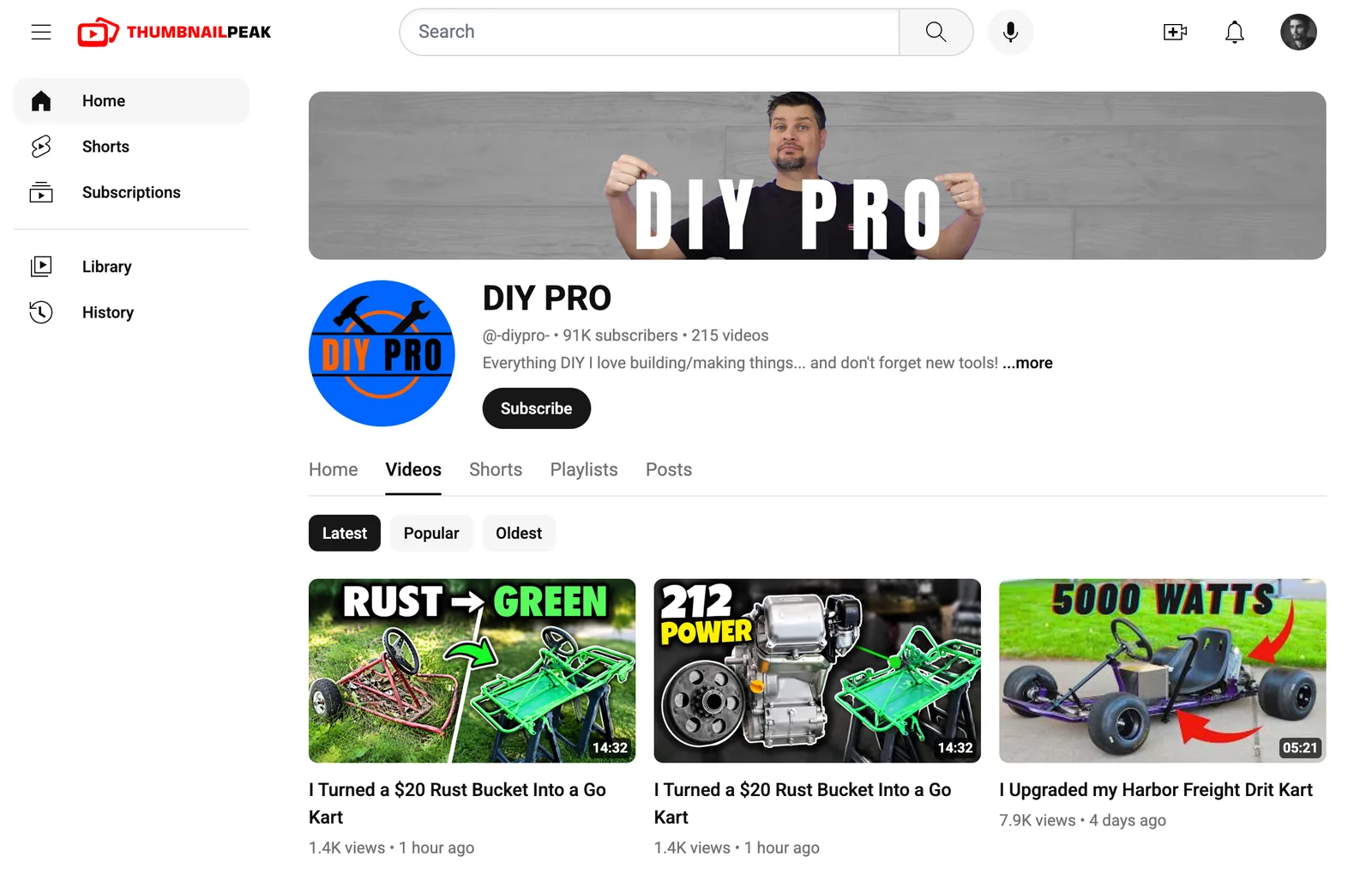
- the Videos tab, with your newest 18 long-form uploads (Shorts are left out);
- your new thumbnails pinned first, as if you had just published them.
We used the same example as the search preview post. DIY PRO, a channel that builds go-karts and reviews Harbor Freight tools, stands in for "your channel". Two concepts made by our AI thumbnail generator are the candidates for a new upload titled "I Turned a $20 Rust Bucket Into a Go Kart": "RUST → GREEN", a before-and-after of the frame, and "212 POWER", the engine beside the painted frame. DIY PRO did not make or approve either of them.
Does it look like your channel?
Scroll the grid and the channel's habits are easy to read. DIY PRO's recent thumbnails put big, heavily outlined block words over the subject: "5000 WATTS", "WELDS LIKE A PRO", "10 THINGS". There are red arrows, Harbor Freight red, and in several of them DIY PRO himself is in the frame.
Both concepts pass the first test. Each has the same kind of chunky headline and an arrow, and next to the real uploads they look like they come from the same channel. What neither has is the creator. A subscriber who recognises the face loses that cue, and on this channel that is a real choice to make, not a detail.
Does it look like your last video?
The first view pins your thumbnails at the top, which is where a new upload goes. But your subscribers don't stare at the top-left tile; they take in the grid. Shuffle moves your thumbnails into it. The first one lands somewhere in the first six slots and any second one further down, while the real uploads keep their order.
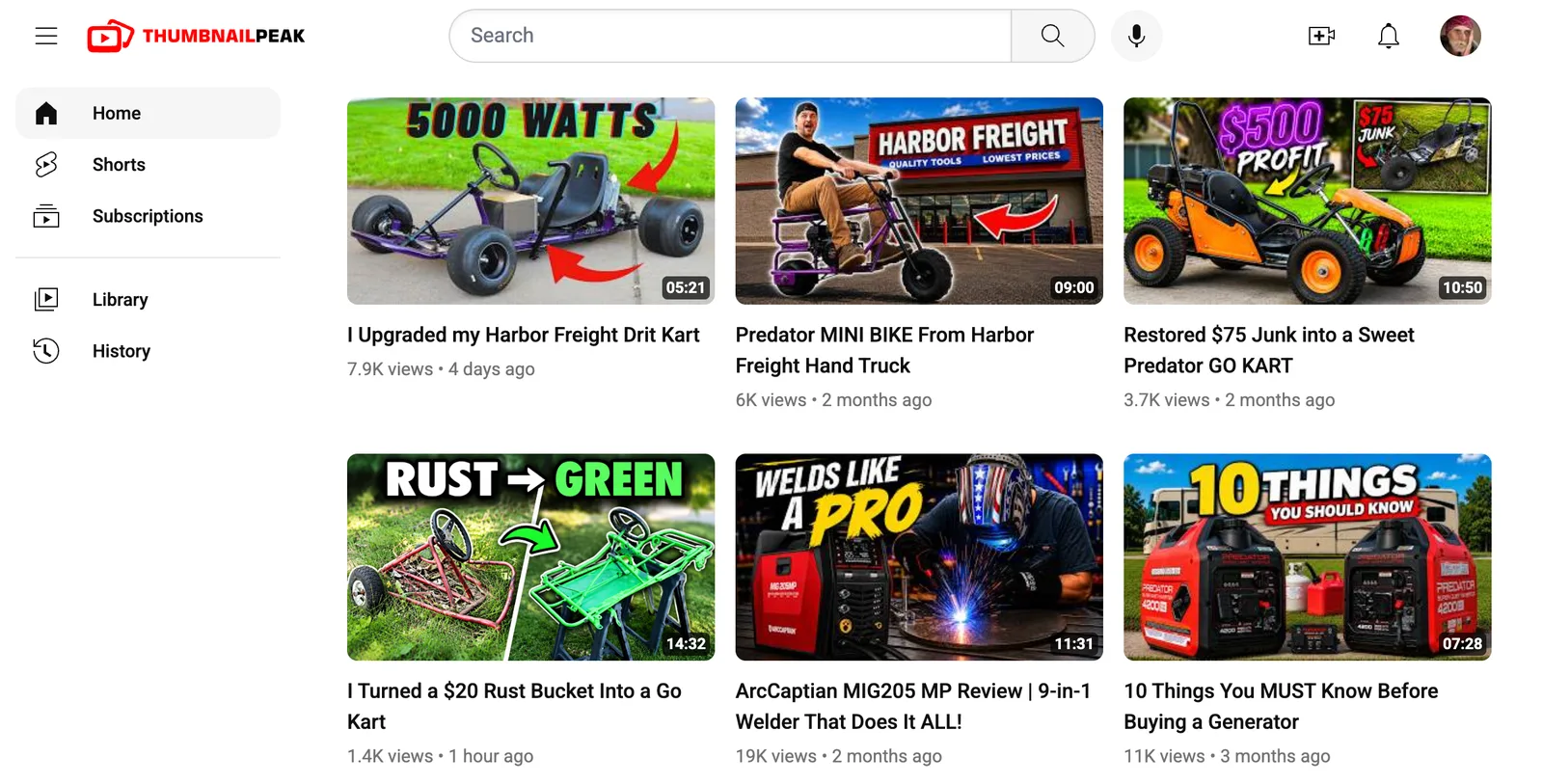
This shuffle landed "RUST → GREEN" right under a video DIY PRO posted two months earlier: "Restored $75 Junk into a Sweet Predator GO KART". Its thumbnail is built the same way. The junk kart and the finished kart sit side by side, in bright paint, outdoors on grass. On a search page that resemblance is invisible, because the two never meet. On the channel page they are neighbours, and "RUST → GREEN" reads like a sequel to a video subscribers saw two months ago.
That might be exactly what you want. A series that looks like a series is a strong format. Or it might be the reason to pick "212 POWER", which shows something this grid doesn't have yet: the engine. Channel preview doesn't make that call for you, but it makes it a call you make on purpose.
A moved thumbnail takes the date of the uploads around it, so it doesn't look out of place, unless you've set an upload date yourself in Edit details. We had set "1 hour ago", so ours kept it.
Latest, Popular and Oldest
The chips above the grid work, with one limit worth knowing: they re-sort the same 18 newest uploads, not your whole catalogue. Popular is the useful one. It lines your new thumbnail up against your best-performing recent videos, which is the bar it has to clear.
The rest of the controls
The bar under the grid has the same tools as the other previews:
- Edit details: the title, view count, upload date and the verified badge. The tick next to your channel name only appears when you turn the badge on.
- Colour vision: re-renders the page as six kinds of viewer see it, from green-blind to no colour at all.
- Back to preview: returns to the search preview for the same title.
You can also type a different handle into Edit details to load another channel without going back. That is handy if you run two channels, or if you want to see how your idea would sit on a bigger channel's page.
What it doesn't do
- No AI buttons here. Channel preview is for looking. For a score or a head-to-head verdict, use Critique and "Ask AI which wins" from the search preview, or go straight to Compare.
- It shows the desktop Videos tab, not the mobile app's channel page.
- It is live. Your channel is fetched again each time you open it, so a video you just published shows up as soon as YouTube lists it.
The other two previews
Your channel page is the friendliest place your thumbnail will appear. The other two buttons on the form test it somewhere less forgiving:
- Search preview puts it among the real videos for your title, the free thumbnail tester to start with.
- Competitor preview mixes it into your competitors' newest uploads, the videos your shared viewers are choosing between this week.
For the full routine before you publish, see how to test a YouTube thumbnail before publishing.
What it costs
Channel preview is free, with no account and no limit.
What to take away
- Your channel page has its own audience. It is mostly people who already know you, and they judge a thumbnail against your last dozen, not against strangers.
- Check both failure modes. The new thumbnail should look like your channel, and it shouldn't look like your last video.
- Shuffle into the grid. A resemblance only shows when the two thumbnails are neighbours.
- Sort by Popular to put the new one beside the recent uploads it has to beat.
Open the thumbnail tester, add your @handle, and look at your next upload where your subscribers will.
The example channel is DIY PRO, shown as a stand-in with its real banner, avatar and uploads. The two candidate thumbnails were made by ThumbnailPeak's generator from DIY PRO's "$20 Rust Bucket into Kick $$$ Go Kart W/ Harbor Freight 212", published under the Creative Commons Attribution licence (CC BY 3.0). DIY PRO did not make, approve or publish them. Every other thumbnail and title belongs to DIY PRO and appears for commentary.