Disclosure: we make ThumbnailPeak, a thumbnail tester. The steps come from Instagram's help pages as of 5 November 2026, and every size was measured on Instagram's website, signed out, that day. How we measured is at the end.
A Reel's cover is the picture your profile shows for it. You choose it while you post: a frame from the video, or an image of your own, in the Instagram app or on instagram.com.
Here's the short version:
- Make the cover 1080×1920, the Reel's own 9:16 shape. Instagram's help page recommends 420×654, a slightly wider shape; its developer documentation recommends 9:16.
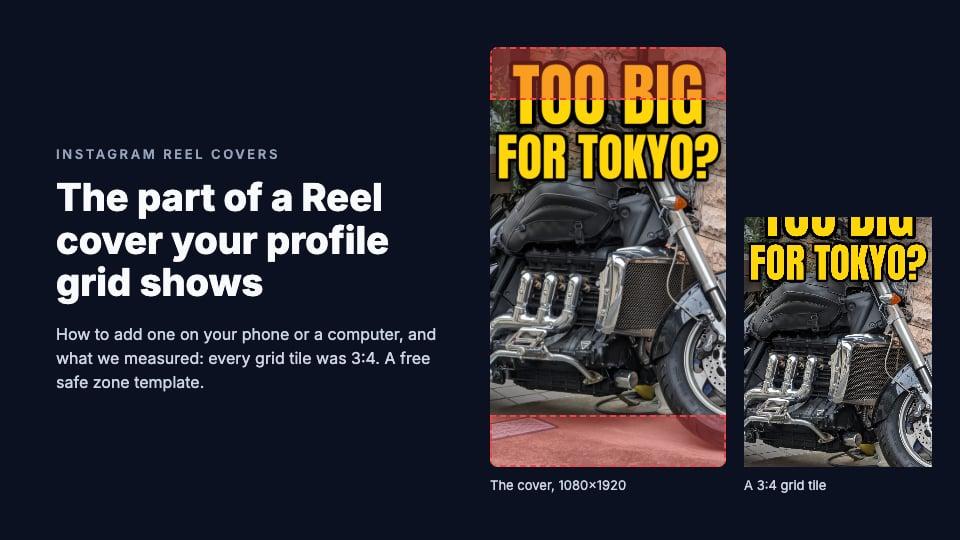
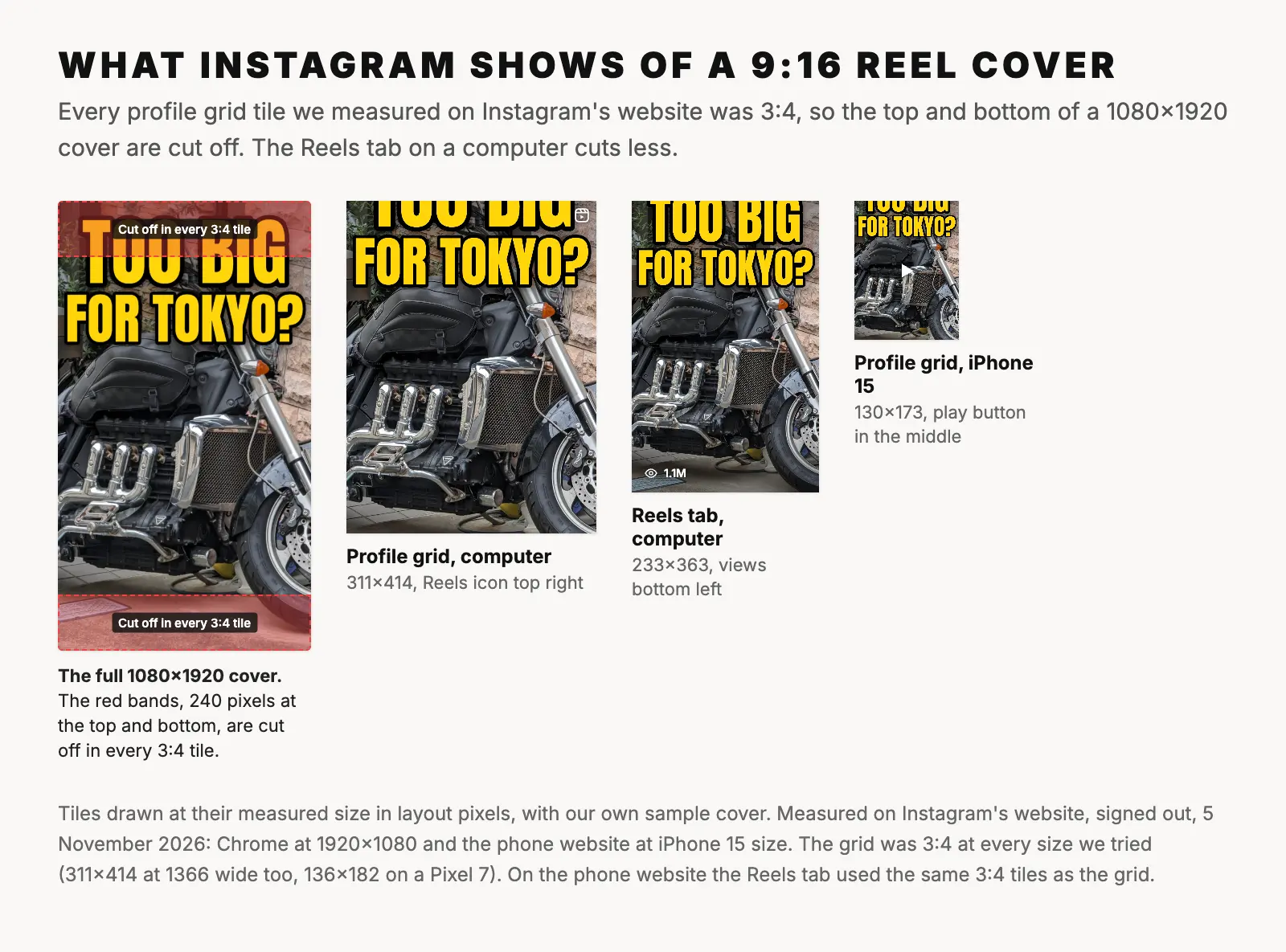
- The profile grid shows the middle 3:4. Every grid tile we measured, on computers and phones, was 3:4. On a 1080×1920 cover that cuts 240 pixels off the top and 240 off the bottom.
- The Reels tab on a computer cuts less, about 120 pixels from each end. On Instagram's phone website its tiles are 3:4, like the grid.
- Keep faces and words between rows 480 and 1640 of a 1080×1920 cover. Nothing there was cut off or covered by an icon or a count in any view we measured, apart from a play button the phone website puts in the middle.
- Get it right before you post. Instagram's help page says you can't change a Reel's cover afterwards.
Our guide to thumbnail sizes on every platform has the rest.
How to add a cover to a Reel on your phone
These steps are from Instagram's help page for recording a reel, as of 5 November 2026. They're the same on iPhone and Android:
- In the Instagram app, tap your profile picture, then Create new in the top right, then Reel.
- Record a clip, or tap your camera roll in the bottom left to add a video. Tap Next.
- Make any edits, then tap Next again.
- Tap Edit cover. Choose a frame from the Reel, or add an image from your phone.
- Write your caption, then tap Share.
A frame is quick; an image of your own lets you design the cover, with a clear face and a few big words.
How to add a cover on a computer
Instagram's website posts Reels too. Its help page gives these steps:
- On instagram.com, click Create on the left, then Post.
- Click Select from computer and choose your video.
- Click Next. Under Cover photo, use the slider to choose a frame, or click Select from computer to upload an image.
- Click Next, write your caption, then click Share.
Can you change a Reel's cover after posting?
Not according to Instagram. Its help page on Reel sizes says: "Right now, you can't edit your cover photo after you've uploaded it." Its page on managing reels says a posted Reel's Edit option is for "things like the caption and location".
If your app shows a cover option when you edit a posted Reel, use it; Instagram's help pages don't describe one, and without an account we couldn't check. Otherwise, treat the cover as final when you tap Share.
Two things you can change later, from the Reel's Options menu, then Manage:
- Add to profile grid, to show the Reel on your profile's main grid as well as the Reels tab.
- Pin to your reels, to keep it at the top of your Reels tab.
Instagram has also started letting people change how a post is framed in their profile grid, without changing the post, Social Media Today reported on 1 March 2026. Instagram's help pages don't describe it yet, so we can't give you the steps. Every tile we measured showed the exact middle of the picture; design for the middle and you won't need it.
What size is an Instagram Reel cover?
- Recommended: 1080×1920 pixels, at 9:16. Instagram doesn't publish this number; it's a vertical Reel's shape, well above the 720-pixel minimum. Instagram's developer documentation recommends 9:16 for covers, and says that for Reels posted through its API, a cover of any other shape is cropped to "the middle most 9:16 rectangle".
- What the help page says: "420px by 654px (or 1:1.55 ratio)". That's the shape of the Reels tab's tiles on a computer (more below), so a 9:16 cover fills it with only a small trim.
- Format: JPG or PNG.
- The Reel itself: any shape "between 1.91:1 and 9:16", at least 720 pixels and 30 frames a second.
We couldn't find out whether a 420×654 cover uploaded in the app keeps its shape or gets cropped to 9:16. A 9:16 cover avoids the question, and in every view we measured, Instagram cut only its top and bottom.
The thumbnail resizer crops or fits any image to 1080×1920 in your browser with its Instagram Story / Reel preset.
Where people see a Reel cover
On your profile: in the main grid, if the Reel is on it, and on the Reels tab. Those are the two places Instagram's website showed covers to us.
On instagram.com's Reels feed, the video itself played, not a cover. The home feed and the Explore grid need an account, and we couldn't measure the Instagram apps at all. On other websites, an embedded Reel showed the whole cover in a 4:5 frame, with black bars down both sides and a play button in the middle.
What the profile grid shows of your cover
Instagram's profile grid used to be square: even portrait posts appeared there "as a center-cropped square", its 2015 announcement said. In January 2025 Instagram switched to taller tiles; Adam Mosseri said most uploads are now vertical "and it just is a bummer to overly crop them", as Engadget reported.
Taller, but not 9:16. Every grid tile we measured on 5 November 2026 was 3:4, in layout pixels:
- On a computer: 311×414, in a window 1920 or 1366 pixels wide.
- On an iPhone 15: 130×173.
- On a Pixel 7: 136×182.
Instagram fills the tile with your cover and cuts what doesn't fit evenly from the top and bottom. On a 1080×1920 cover, the grid shows rows 240 to 1680. We checked real tiles: each loads the whole 9:16 cover, and only the page's layout crops it to the middle.
How the grid crops photo posts
The same 3:4 tiles hold your photo posts, so every shape except 3:4 loses something:
- Portrait, 1080×1350 (4:5): about 34 pixels off each side. Barely noticeable.
- Square, 1080×1080: 135 pixels off each side, an eighth of the width at each edge.
- Landscape, 1080×566 (1.91:1): only the middle 425 pixels of the width show, less than half.
- 1080×1440 (3:4): nothing. It's the tallest shape Instagram keeps without cropping: its help page accepts "a width of 1080 pixels with a height between 566 and 1440 pixels".
So if a photo post should look whole on your profile, make it 1080×1440. The thumbnail resizer's Instagram Post 3:4 preset makes that size in your browser.
What the Reels tab shows
Not 9:16 either. On a computer, the Reels tab's tiles were 233×363, about 1:1.56: the shape of the 420×654 cover Instagram's help page recommends. That cuts about 120 pixels off each end of a 1080×1920 cover, showing rows 119 to 1801.
On Instagram's phone website, the Reels tab used the same 3:4 tiles as the grid, 130×173 on an iPhone 15, so it cuts the same 240 pixels from each end.
What Instagram draws on the tiles
Instagram's website draws a few things over covers. They're a fixed size, so on a small phone tile they cover more of your picture:
- A Reels icon in the top-right corner of every Reel in the grid on a computer, 8 pixels from the edges. Multi-photo posts get a carousel icon there instead. Hovering a grid tile showed nothing more.
- An eye icon and the view count in the bottom-left corner of every tile on a computer's Reels tab, on a dark fade over the bottom fifth of the tile. Hovering darkens the whole tile and shows the like and comment counts in the middle.
- A white play button in the middle of every Reel and video on the phone website, in the grid and on the Reels tab. A pinned Reel on the Reels tab gets a pin icon in the top-right corner instead.
No grid tile showed a view count or a like count.
A safe zone for Reel covers
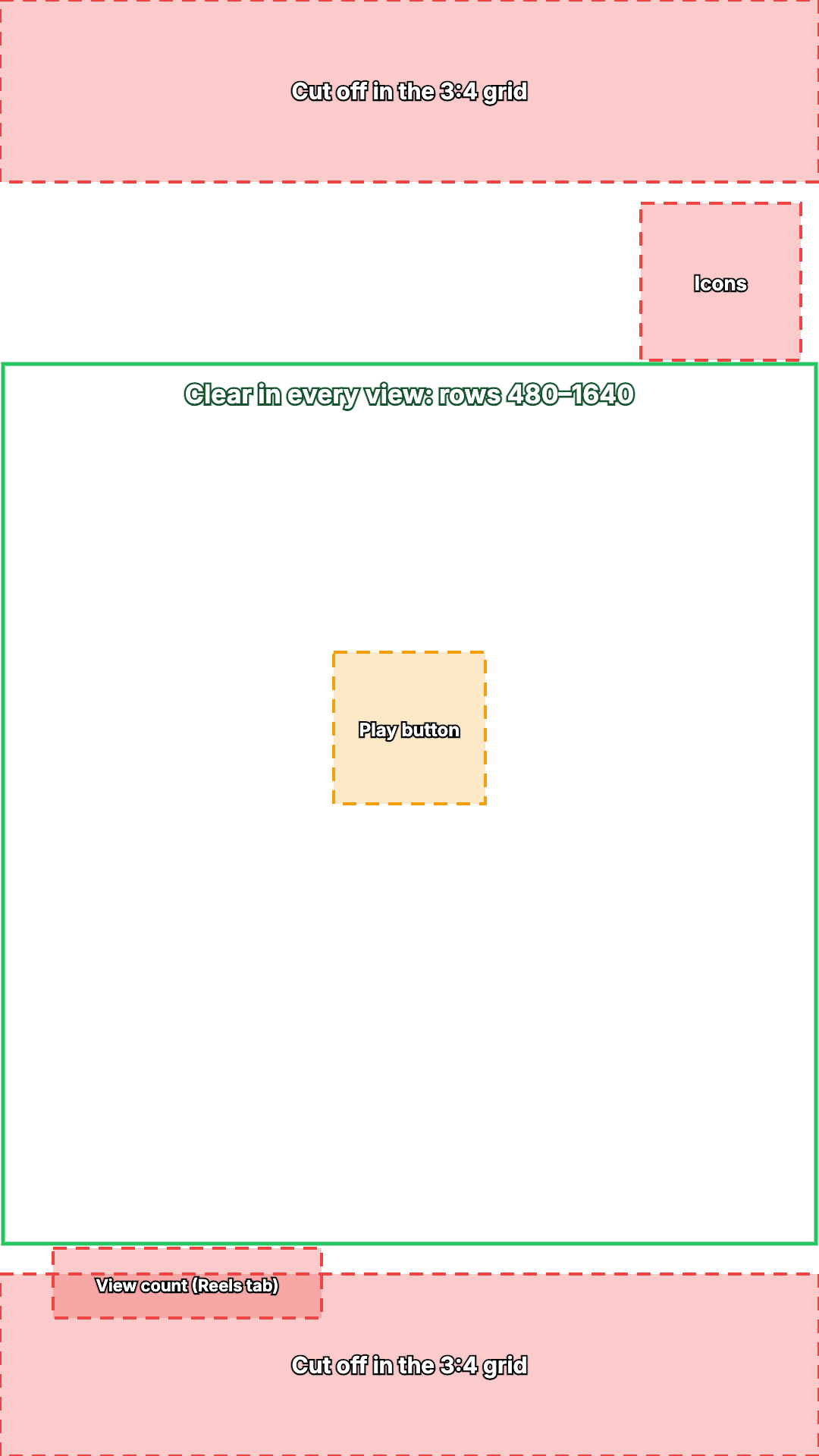
Put together, here's what to keep clear on a 1080×1920 cover:
- The top and bottom 240 pixels are cut off in every 3:4 tile: the grid on computers and phones, and the Reels tab on the phone website.
- The top-right corner, from column 845 down to row 475, holds the Reels, carousel and pin icons.
- The bottom-left corner, from row 1650 to 1735 and out to column 420, holds the view count on a computer's Reels tab, on a fade that starts at row 1426.
- A square about 200 pixels wide in the middle (columns 440 to 640, rows 860 to 1060) is under the phone website's play button.
- Rows 480 to 1640 were never cut off or covered by an icon or a count, apart from that play button. Put faces and words there, and keep small details out of the exact middle.
Download the Reel cover safe zone template (PNG, 1080×1920, transparent). Put it on the top layer of your design, check that no face or word sits in a red box, then hide it before you export.
Our sample shows why this matters. Its headline starts 80 pixels from the top, so the grid cuts off more than half of "TOO BIG". Moved below row 480, it would survive everywhere. YouTube's Shorts tiles cut the same sample, less deeply.
Using your YouTube thumbnail as a Reel cover
A YouTube thumbnail is 16:9 and a Reel cover is 9:16. There are three ways to get from one to the other:
- Crop to fill. A 9:16 cut from a 16:9 picture keeps less than a third of its width. Whatever isn't in the middle, often the words, is gone.
- Fit it on a blurred background. The whole thumbnail becomes a band across the middle, 1080×608, rows 656 to 1264. That's inside the safe zone, so the grid shows all of it, just small, with the phone website's play button in its middle.
- Rebuild it at 9:16 from your photo or design file, with the words lower than on YouTube. It takes longest and looks best.
The thumbnail resizer does the first two in your browser: pick Instagram's Story / Reel 1080×1920 preset, then drag to crop, or fit with a blurred background. When we fitted a vertical picture into YouTube's 16:9 frame, the opposite problem, cropping lost the words entirely.
If the 16:9 version is also going on YouTube, ThumbnailPeak's critique can check it there; it judges pictures as YouTube thumbnails, not as Reel covers.
Frequently asked questions
What size is an Instagram Reel cover?
Make it 1080×1920 pixels at 9:16, as a JPG or PNG. Instagram's help page recommends 420×654 (1:1.55), and its developer documentation recommends 9:16. Keep faces and words between rows 480 and 1640.
Why is my Reel cover cropped on my profile?
Because the profile grid's tiles are 3:4, not 9:16. Instagram fills each tile with the middle of your cover and cuts off the top and bottom, 240 pixels from each end of a 1080×1920 cover.
Can I change a Reel's cover after posting it?
Instagram's help page says you can't: "Right now, you can't edit your cover photo after you've uploaded it." You can still add the Reel to your main grid or pin it to your Reels tab.
Can I add a Reel cover on a computer?
Yes. On instagram.com, after you choose your video and click Next, use the slider under Cover photo to pick a frame, or click Select from computer to upload an image.
What size should an Instagram post be for the new grid?
1080×1440 (3:4) shows whole in the grid. A 1080×1350 (4:5) post loses about 34 pixels from each side, and a square one 135.
How we measured: on 5 November 2026 we opened Instagram's website in an automated Chrome browser, signed out, in US English, and measured every tile on the profile grid and the Reels tab of three large public accounts (National Geographic, NASA and Instagram's own) in layout pixels (CSS pixels): on a computer at 1920×1080 and 1366×768, and on Instagram's phone website at the screen size and settings of an iPhone 15 and a Pixel 7. Each page opened behind a sign-up dialog, which we closed. We recorded each tile's size, how the image was fitted into it and what was drawn on top, and checked eight tiles against the images they load. We did not measure the Instagram apps, the home feed, the Explore grid or anything signed-in viewers see; signed out, instagram.com/explore shows a page of popular topics instead. The steps and official sizes come from Instagram's help pages and developer documentation; the January 2025 grid change is from Mosseri's announcement as reported by Engadget. The sample cover is ours, made from "Big motorcycle in Tokyo" by Syced (CC0).