Disclosure: we make ThumbnailPeak, a thumbnail tester. The steps and requirements come from LinkedIn's help pages as of 5 November 2026, and every size was measured on LinkedIn's public website, signed out, that day. How we measured is at the end.
A LinkedIn video thumbnail is the picture a video post shows before it plays. Here's the short version:
- Size: the same shape and resolution as your video, as a JPG or PNG up to 2 MB. That's LinkedIn's rule for video ads; it publishes none for ordinary posts. For a 16:9 video, 1920×1080 or 1280×720 pixels.
- How: on a computer, while you post. After the video uploads, choose Video thumbnail and upload your picture. LinkedIn's help lists no thumbnail option in the app, and says only a post's text can be edited afterward.
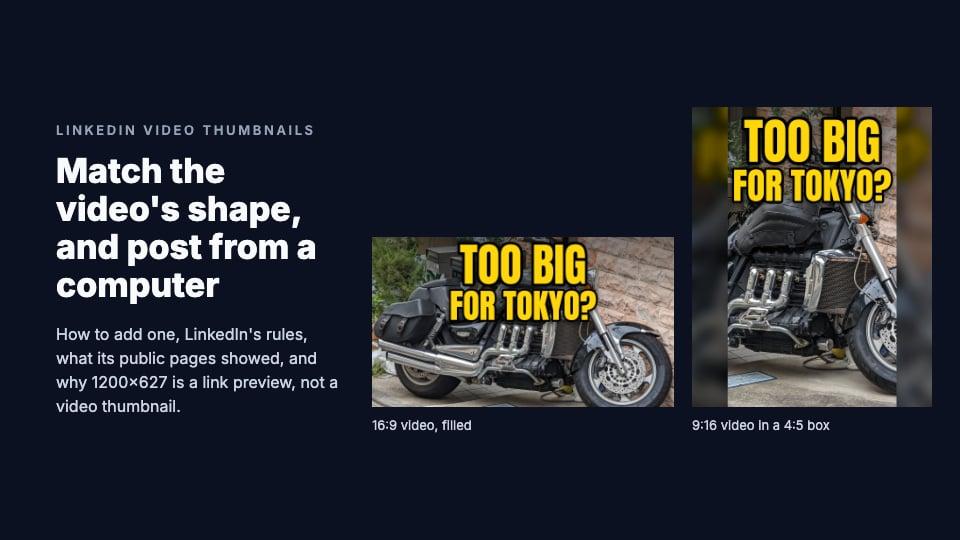
- What gets cut off: nothing, in what we measured. LinkedIn's public pages showed every thumbnail whole. A vertical 9:16 video sat in a 4:5 box, with a blurred copy of the picture down both sides. The only thing drawn on top was a round play button in the middle.
And 1200×627 isn't a video thumbnail size. It's LinkedIn's frame for a link preview, the picture it takes from a web page when you share a link. That's further down. Our guide to thumbnail sizes on every platform has the rest.
How to add a custom thumbnail to a LinkedIn video
These steps are from LinkedIn's help page for sharing videos, as of 5 November 2026:
- On a computer, click the Video icon in the share box at the top of your LinkedIn homepage, or drag the video into the share box.
- Click Upload from computer and choose the video.
- Once it has uploaded, select Video thumbnail and upload your picture.
- Add captions if you want, then click Next.
- Choose who can see the post, write your text and click Post.
In the app, LinkedIn's steps let you trim the video and add stickers, text and captions, but list no thumbnail option. Post from a computer if the thumbnail matters.
On a company Page, LinkedIn's help for posting as a Page mentions captions for a video but not a thumbnail, though its video help says videos can be shared from a Page too. We can't see a Page's upload screen, so look for the same Video thumbnail option once the video has uploaded.
For a video ad, the thumbnail is optional. To change it later, LinkedIn says to duplicate the ad and edit the copy.
If you add none, LinkedIn's API documentation says "a system generated thumbnail may be added to the video." LinkedIn doesn't say which frame it picks.
Can you change it after posting?
LinkedIn's help describes no way to. Its page on editing a post says "Only the text in a post can be edited" and that videos "can't be replaced". To change one, "you must delete your post and create a new one." So a new thumbnail means posting the video again.
What size is a LinkedIn video thumbnail?
LinkedIn publishes thumbnail rules only for video ads, on its video ad specifications. They're the safe choice for any video post:
- Shape and size: the same as the video. In LinkedIn's words: "The aspect ratio and resolution of the video thumbnail and video should match."
- Format: JPG or PNG.
- File size: up to 2 MB.
So a 1920×1080 video gets a 1920×1080 thumbnail, and a 1080×1920 vertical video a 1080×1920 one. LinkedIn gives no minimum. On the public pages we measured, it sent computers a 1280×720 copy of each 16:9 thumbnail and phones a 640×360 one, so 1280×720 is as sharp as anything those pages showed.
The video itself, from the same help page for sharing videos:
- Aspect ratio: 1:2.4 to 2.4:1.
- Resolution: 256×144 to 4096×2304 pixels.
- Length: 3 seconds (2 from the app) to 15 minutes.
- File size: 75 KB to 5 GB.
Video ads have their own limits: 9:16 to 16:9, 3 seconds to 30 minutes, up to 500 MB, MP4 only.
Where people see a LinkedIn video thumbnail
LinkedIn can start a video by itself. Its help page on autoplay says "some videos on LinkedIn may play automatically without sound as you scroll through your feed," and viewers can turn that off. So the thumbnail shows:
- in the feed, before a video starts, and throughout for people who've turned autoplay off
- on a company Page's public view, the one people see without signing in: we held 12 videos there in the middle of the screen for 3 seconds each, on a computer and an iPhone 15, and none started by itself
- in a post embedded on another website, until someone presses play
On a single post's public page, the video started playing, muted, within 1.5 seconds on a computer and 2.5 seconds on an iPhone 15, replacing the thumbnail.
LinkedIn's app also has a full-screen video feed and a Video tab; those need an account, so we couldn't measure them.
What LinkedIn shows of your thumbnail
On every public LinkedIn page we measured on 5 November 2026, the whole thumbnail was shown. LinkedIn's player fits the picture inside a black box, never crops it to fill one, and the box takes one of three shapes:
- 16:9 videos get a 16:9 box, which the thumbnail fills: 548×308 on a company Page and 614×345 on a single post's page on a computer, 343×193 on an iPhone 15 and 362×204 on a Pixel 7.
- Square videos get a square box, which the thumbnail fills: 548×548 on a Page and 614×614 on a post's page on a computer, 343×343 on an iPhone 15.
- Vertical 9:16 videos get a 4:5 box, not a 9:16 one. The thumbnail is shown whole, so it's narrower than the box: 385 pixels wide in a 548×685 box on a computer, 241 wide in a 343×429 box on an iPhone 15. LinkedIn fills the sides with a blurred, darkened copy of the same picture.
Those are layout pixels (CSS pixels), the same in a 1920-wide and a 1366-wide window.
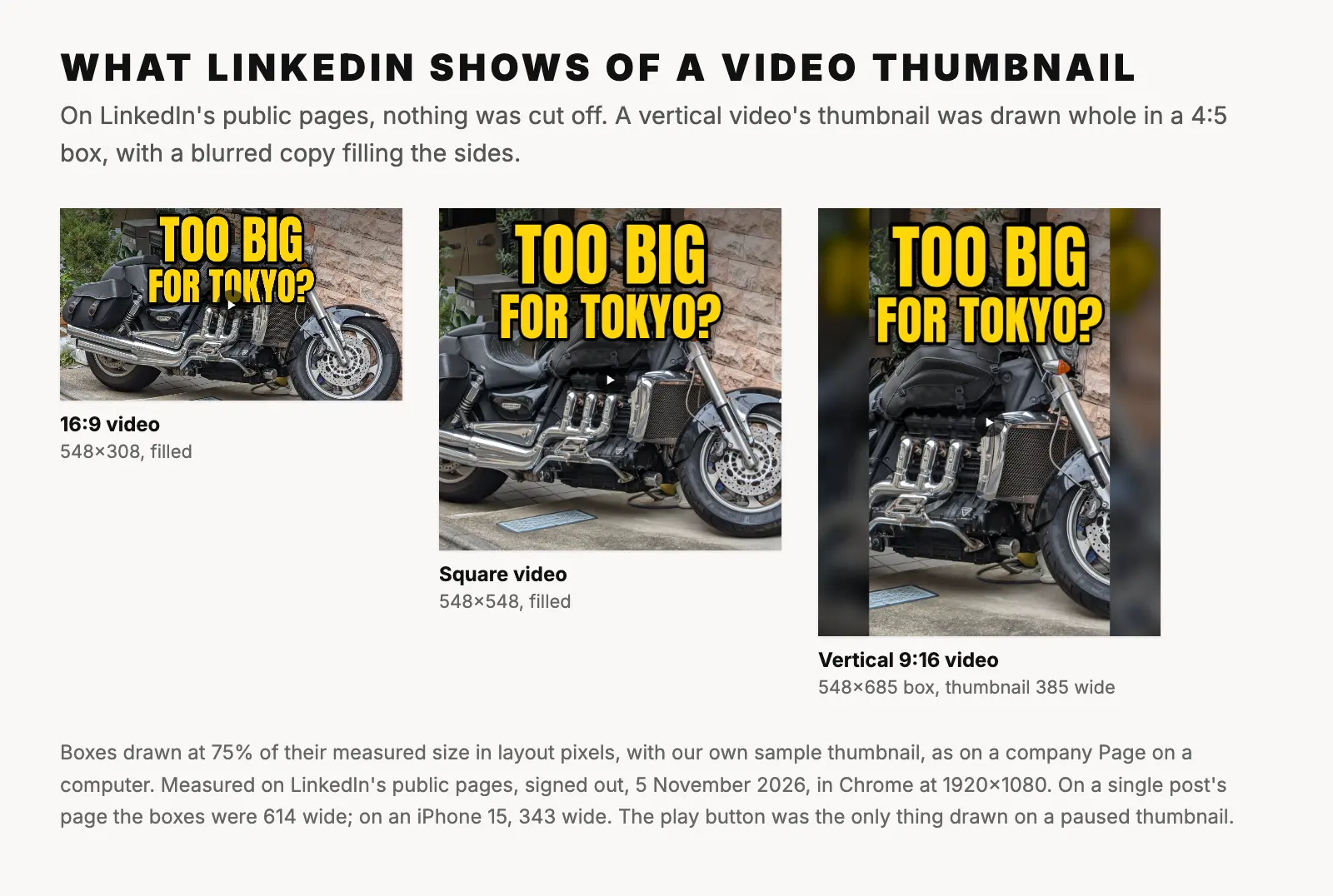
Only one thing is drawn over a paused thumbnail: a round, semi-transparent black play button, 48 pixels across, in the middle. There's no length, view count or title on the picture. On a phone, the button covers the middle 180×180 pixels of a 1280×720 thumbnail (x 550 to 730, y 270 to 450), so keep a small face or word away from the exact center.
Once the video plays, a control bar covers the bottom 78 pixels of the box for a few seconds. That's over your video, not the thumbnail.
Using your YouTube thumbnail on LinkedIn
If you post the same 16:9 video on LinkedIn, your 1280×720 YouTube thumbnail already fits: it has the video's shape and is as sharp as anything LinkedIn's public pages showed. Check that the file is under 2 MB.
If you cut a different shape for LinkedIn, make the thumbnail match it. The free thumbnail resizer does it in your browser:
- For a square video, choose Instagram Post 1080×1080.
- For a vertical 9:16 video, choose YouTube Shorts 1080×1920. LinkedIn shows it at about 70% of its box's width, so make the words bigger than on a 16:9 design.
- For a 4:5 video, choose Instagram Portrait 1080×1350.
Use Crop to fill and drag until the face and the words are in the frame, or Fit + blur to keep the whole picture. A crop from 16:9 to 9:16 keeps less than a third of the width, so a headline across the top, like our sample's "TOO BIG FOR TOKYO?", won't survive it; rebuild the design at the new shape instead. Our post on cropping or adding black bars shows the reverse.
If the 16:9 picture is your YouTube thumbnail too, our thumbnail tester shows how it looks in a YouTube feed.
Link previews are a different picture
When you share a link instead of uploading a video, LinkedIn builds a card from the web page: a preview image, the page's title and its domain. You don't upload that picture. LinkedIn's help says "you can share either a URL link or an image in a post, but not both," and "for URL links, we create a preview image taken from the site being shared." It takes the image from the page's og:image tag.
LinkedIn's numbers for that image:
- Size and shape: 1200×627 pixels, 1.91:1. Its help for sharing links calls that the "image frame"; its page on making a website shareable calls 1200×627 the minimum and 1.91:1 the recommended ratio.
- File size: up to 5 MB.
- Width: a narrow image is shown as a small thumbnail beside the text. One help page puts the line at 200 pixels wide, another at 401.
The resizer's LinkedIn Link post 1200×627 preset makes one from any picture.
How LinkedIn crops it: on the public pages we measured, it didn't. A card's picture was as wide as the post and as tall as the image's own shape, with nothing drawn on it. We found link images at 1.91:1, 16:9, 2.13:1 and 3:2, and checked four against the web pages' own og:image files: each was shown whole, a 3:2 one at 548×366 on a computer and a 2.13:1 one at 548×258. On a phone, the page caps a card's picture at 400 pixels tall, which only a square or tall image would reach; we didn't find one. LinkedIn's help for Pages says that on mobile, "images of other ratios will appear in full size with subtle white padding." We couldn't see the signed-in feed, so 1.91:1 is still the safe choice: it fills LinkedIn's frame wherever the card is drawn.
Changing it: LinkedIn keeps its own copy of the image. After you change a page's og:image, run the URL through Post Inspector, which needs you to be signed in. LinkedIn says that refreshes the preview for new posts only: "The preview for any existing posts with this URL will remain the same." Its help also says to allow 48 hours for an updated page.
Frequently asked questions
What size should a LinkedIn video thumbnail be?
The same shape and resolution as the video, as a JPG or PNG up to 2 MB: 1920×1080 or 1280×720 for a 16:9 video, 1080×1080 for a 1080-pixel square video and 1080×1920 for a vertical one.
Why can't I add a thumbnail to my LinkedIn video?
Most likely because you're in the app: LinkedIn's help lists the thumbnail option only when you post from a computer. You also can't add one to a post that's already up, because only a post's text can be edited.
Can I change a LinkedIn video's thumbnail after posting?
LinkedIn's help gives no way to. Only a post's text can be edited, so delete the post and post the video again with the new thumbnail.
Does LinkedIn crop video thumbnails?
Not on the public pages we measured on 5 November 2026. 16:9 and square thumbnails filled their boxes, and a vertical 9:16 thumbnail was shown whole in a 4:5 box with blurred sides. Only a play button sits on top, in the middle.
Is 1200×627 the size of a LinkedIn video thumbnail?
No. 1200×627 (1.91:1) is LinkedIn's frame for link previews, the image it takes from a web page's og:image tag. A video thumbnail should match the video's own shape.
Why does LinkedIn show an old preview image for my link?
LinkedIn keeps a copy of each link's preview. Run the URL through Post Inspector, then share it in a new post; posts already up keep the old image. LinkedIn's help says to allow 48 hours for a change.
How we measured: on 5 November 2026 we opened LinkedIn's public pages in an automated Chrome browser, signed out, in US English, in 1920×1080 and 1366×768 windows and at the screen sizes and settings of an iPhone 15 and a Pixel 7. We measured every video player and link card in layout pixels (CSS pixels) on the company Pages of eight large organizations, on single public posts with 16:9, square and vertical videos, and on a public embed, and recorded what LinkedIn drew over each and whether the video started by itself. We checked the player's drawing of a vertical thumbnail against a screenshot, and four link images against the web pages' own og:image files. LinkedIn showed a sign-in box over most pages, which we closed. Profiles, search, the feed, a Page's video filter and Post Inspector's preview needed an account, and we didn't measure the LinkedIn apps or anything signed in. The steps and requirements come from LinkedIn's help pages and its API documentation on Microsoft Learn. The sample thumbnail is ours, made from "Big motorcycle in Tokyo" by Syced (CC0).