
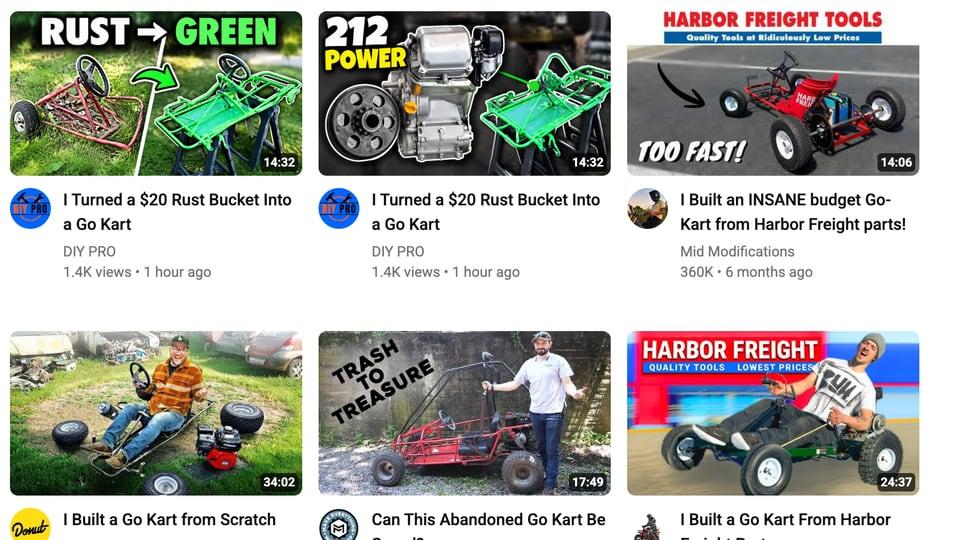
A thumbnail is never seen alone
Every thumbnail looks good in the editor. It is big, it fills the screen, and you already know what it is supposed to say. Nobody on YouTube sees it that way. They see it small, for a moment, next to other videos about the same thing, and the only question that matters is whether yours is the one they notice.
So the useful test is not "does this look good?" It is "does this stand out from the videos it will actually sit next to?" For a new upload, a lot of those neighbours are the videos YouTube already returns for your topic. Search preview fetches them. It searches YouTube for your title, puts your thumbnail among the real results, and lays the whole thing out like YouTube's home page, so you can see your thumbnail the way a scrolling viewer will.
Two thumbnails for one go-kart video
To show what that looks like, we picked a real channel and a real kind of video. DIY PRO builds go-karts and reviews Harbor Freight tools, and it published a video under a Creative Commons licence that our AI thumbnail generator post made thumbnails for. We used DIY PRO as a stand-in for "your channel" and took two of those generated concepts as the candidates for a new upload:
- "RUST → GREEN": the rusty frame on one side, the same frame painted bright green on the other.
- "212 POWER": the Predator 212 engine beside the green frame, on a dark background.
Both look fine on their own. That is exactly the situation a preview is for. DIY PRO did not make or approve either thumbnail. We are using the channel to show the tool, nothing more.
Running it
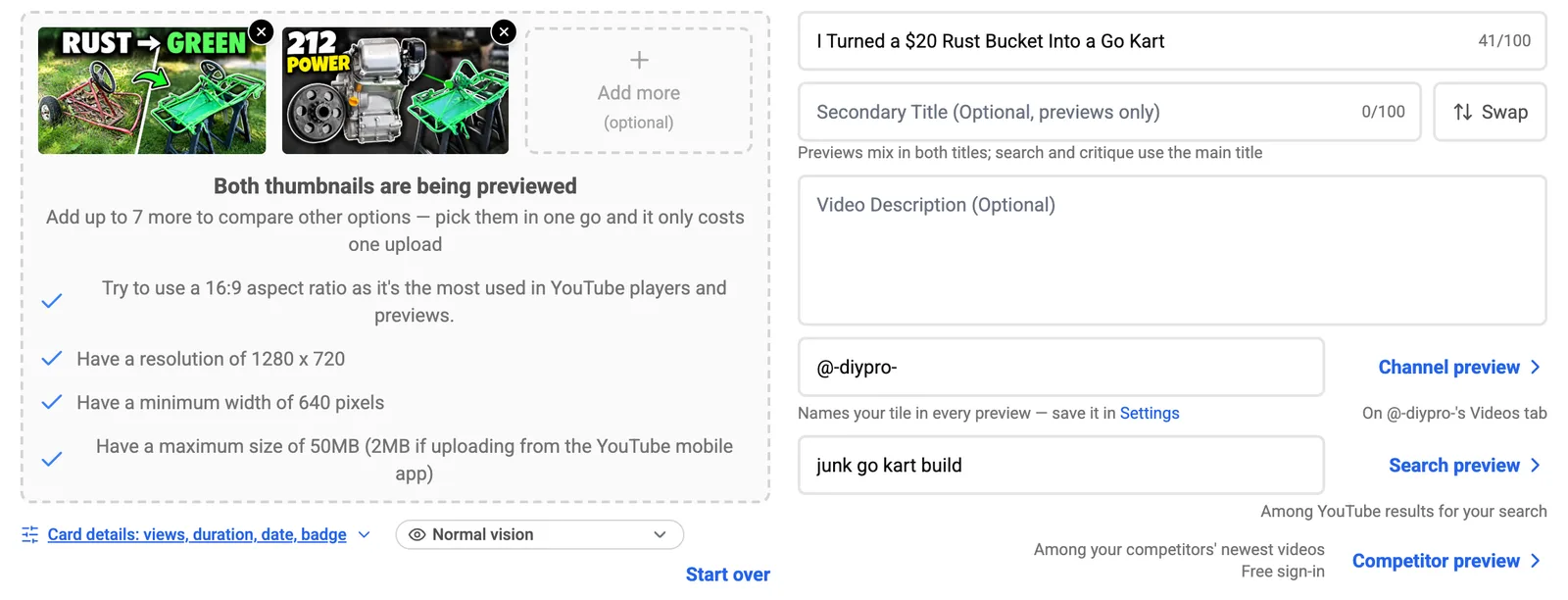
Open the thumbnail tester and fill in the form:
- Upload your thumbnails. You can add up to nine and preview two at a time, which is how you compare candidates.
- Type your title. Search preview searches YouTube for it. A long, sentence-style title can bring back off-topic results, so there is a separate Search query box: anything you type there is searched instead of the title. We used "junk go kart build".
- Add your @handle (optional). It puts your channel name and avatar on your tile. Save it once in Settings and it is filled in for you.
- Set the card details (optional). View count, video length, upload date and a verified badge. We set 1.4K views, 14:32 and "1 hour ago", so our tiles look like a fresh upload rather than a placeholder.
Then click Search preview.
What you see
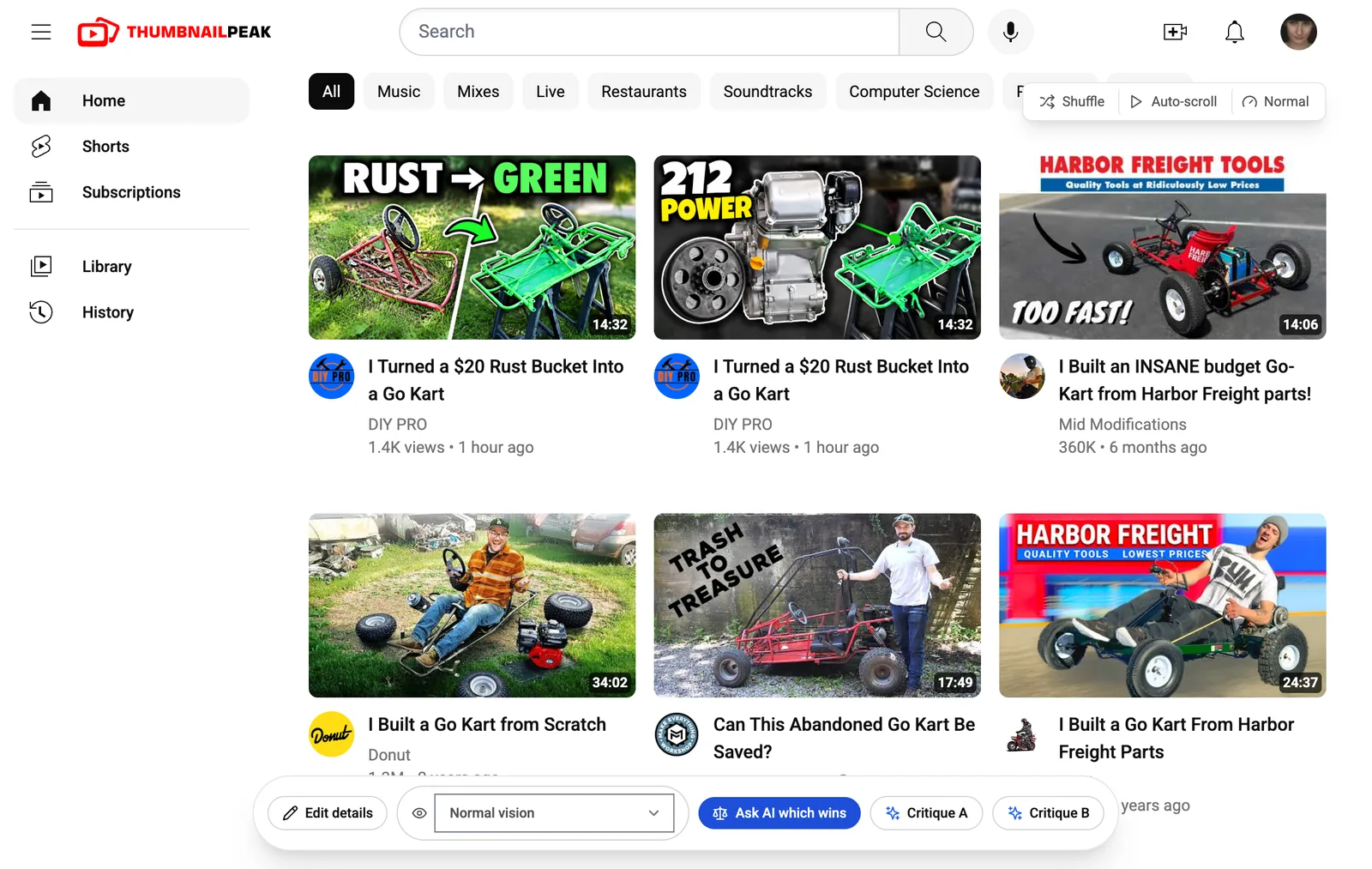
Your thumbnails lead the feed, and around them are up to 27 real videos that YouTube returns for your search, with Shorts taken out. Each one shows its real thumbnail, title, channel, avatar, view count, age and length, and clicking one opens it on YouTube. Further down the feed your thumbnails come back again, so you see them in the middle of a scroll, not only in the best seat on the page.
This first screen already says something. Almost every result is a go-kart in daylight: on grass, on gravel, in a parking lot. "RUST → GREEN" is one more kart on grass, and what sets it apart is the two-word headline. "212 POWER" is the only dark frame in the first two rows, and it is the one your eye lands on. It is also the only one that does not show a whole kart. Being easy to spot and being easy to understand are different things, and a preview shows you both at once.
Look at it in the middle of the feed
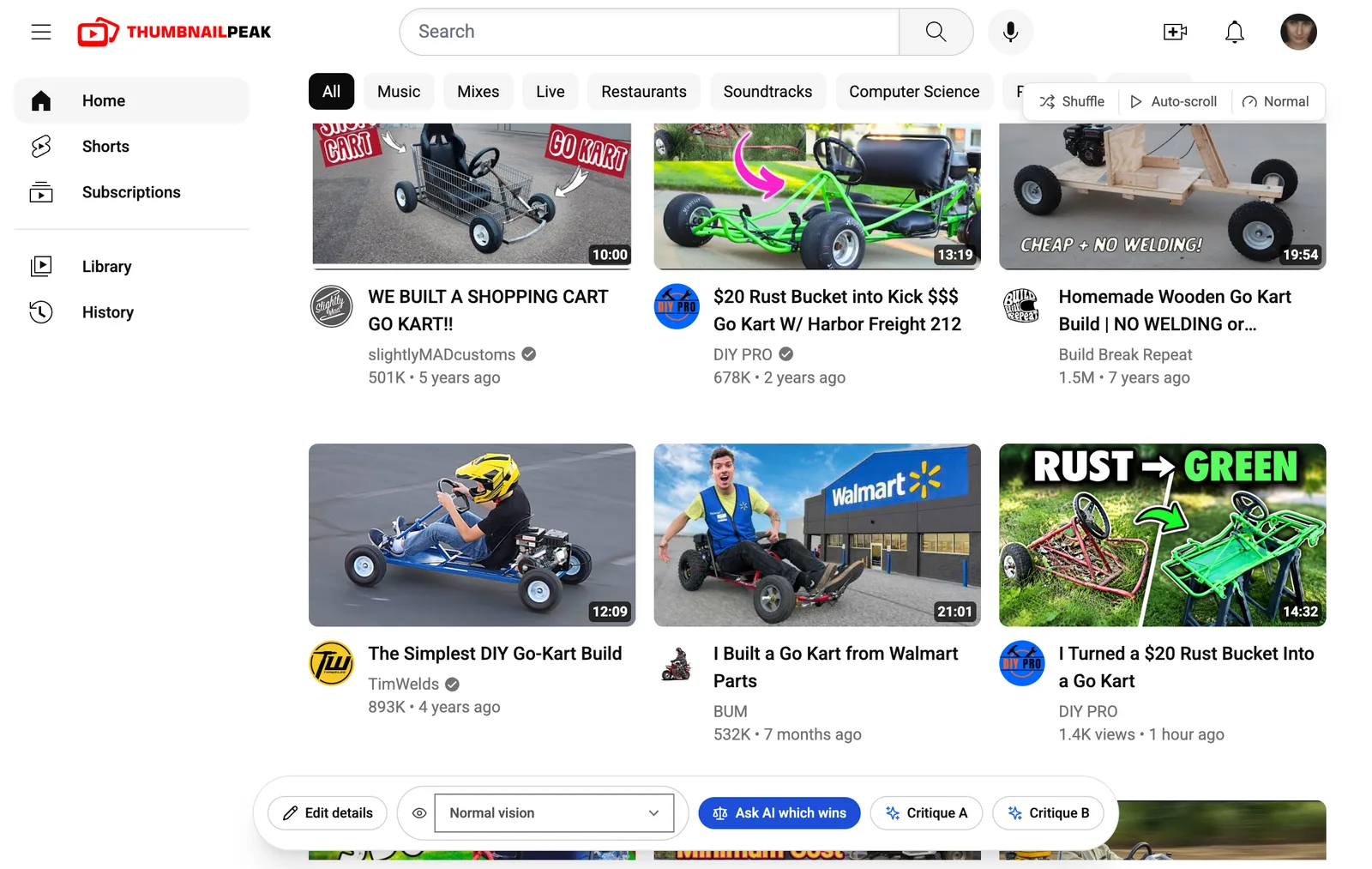
Scroll down and something turns up that no mockup with stock videos could show: DIY PRO's own video from 2024, the rust-bucket build both concepts were made from. It is still ranking for this search with 678K views, and its thumbnail is a bright green kart with a big arrow. One row below it sits "RUST → GREEN": a bright green kart with a big arrow.
That is the back catalogue problem. When you return to a topic you have covered before, your old video is one of your new video's neighbours. If the two thumbnails rhyme, a viewer who has seen the old one can take the new one for the same video and scroll past. "212 POWER" does not have that problem.
Two buttons help you check that a result wasn't luck:
- Shuffle re-deals the real videos and moves your thumbnails to new slots. If a thumbnail only works in the first row, you want to know.
- Auto-scroll scrolls the feed for you at Slow, Normal or Fast. Touching the page pauses it. Run it on Fast and notice which of your thumbnails you actually caught.
Check it in colour-blind modes
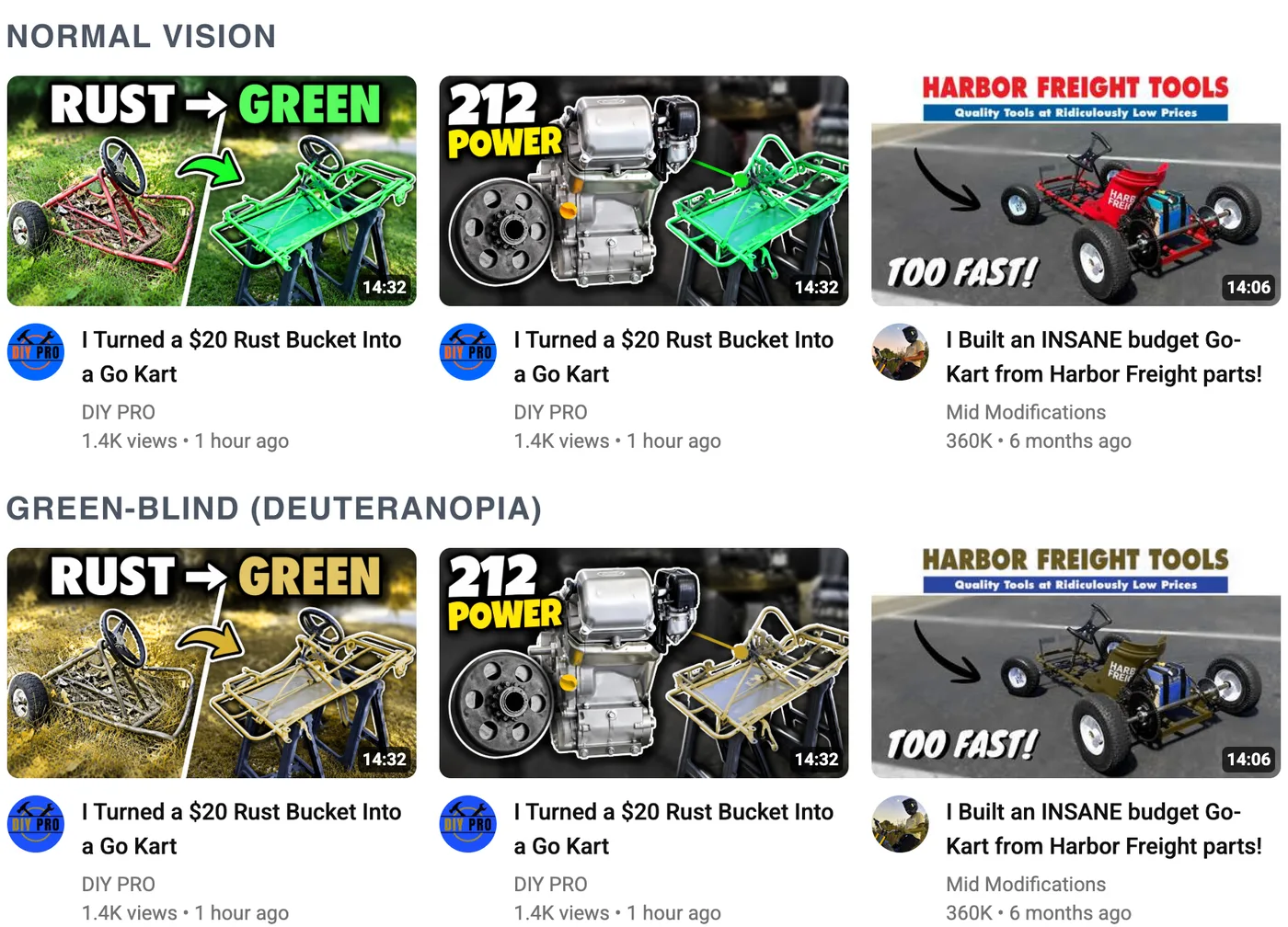
The colour picker under the preview re-renders the whole page as six kinds of viewer see it: normal vision, green-weak, green-blind, red-blind, blue-blind and no colour at all. About 1 in 12 men have some form of red-green colour blindness, so this is not an edge case.
Here it changes the comparison. The whole idea of "RUST → GREEN" is a colour change, red rust turning into green paint. For a green-blind viewer, both frames come out the same olive, and the arrow and the word "GREEN" turn mustard. The words still make the promise, but the picture no longer shows it. "212 POWER" is mostly grey metal and yellow text, and it barely changes. Our colour blindness guide goes deeper on why red-green contrasts fail.
Change what the tile says
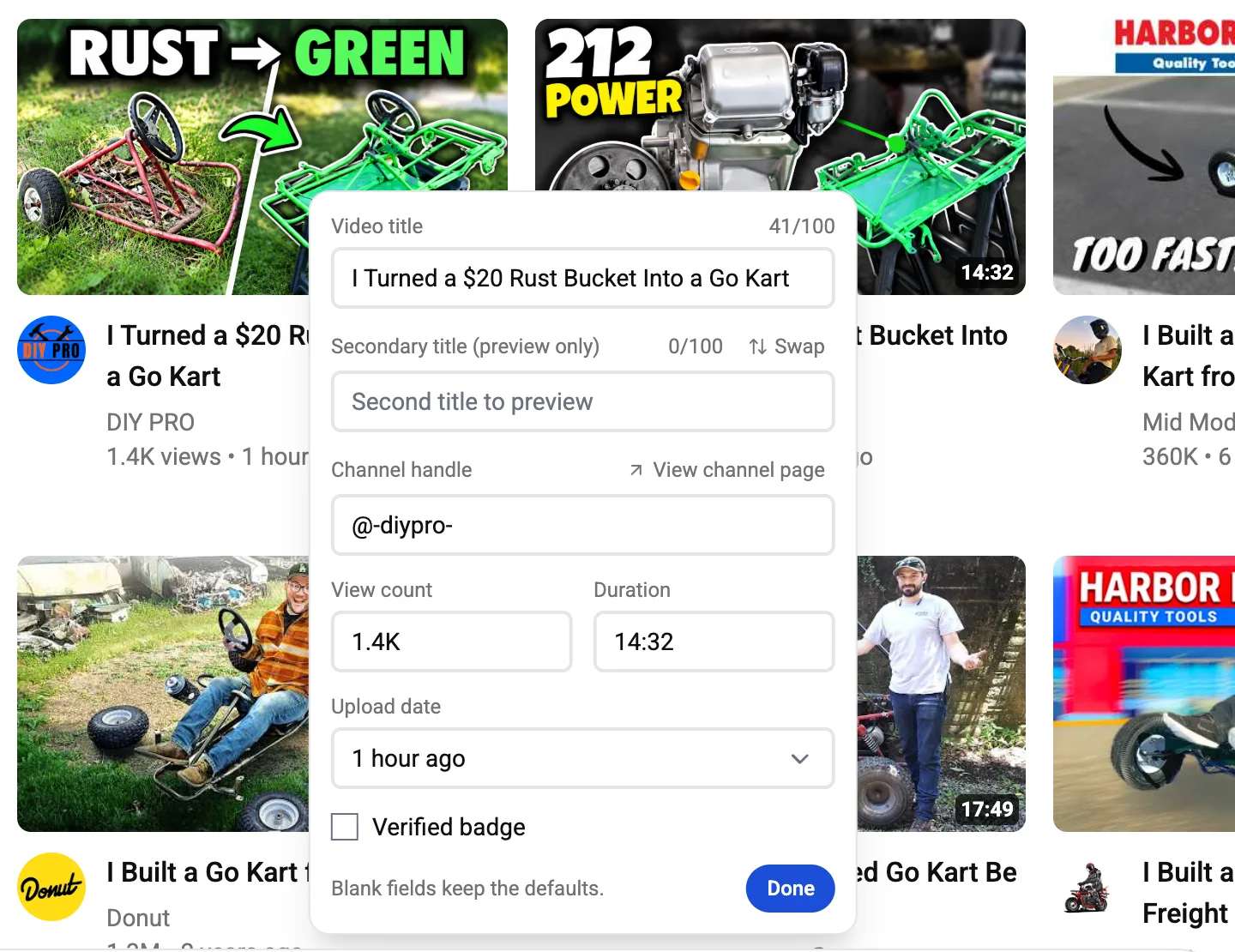
Edit details, in the bar under the feed, changes the tile without going back to the form: title, channel handle, view count, length, upload date and the verified badge. It also takes a secondary title, so you can test two titles as well as two thumbnails. With one thumbnail and two titles you get one tile per title. With two thumbnails, each gets one of the titles, and Shuffle re-deals which goes with which.
Editing the title here changes the tiles, not the search. To search for something else, change the query on the form, or use the search box at the top of the preview.
When you can't decide
A preview shows you the problem. It doesn't tell you which thumbnail is better. For that, the same bar has Critique A, Critique B and Ask AI which wins:
- Critique scores one thumbnail out of 100, explains what is working and what isn't, and lists specific fixes. It reads your title too, so it can tell you when the two promise different things.
- Compare puts both thumbnails head to head and says which one wins and why.
Both need a free account, which comes with 2 critiques and 1 comparison a month. If the critique finds something fixable, Improve edits the thumbnail you have instead of starting over. Then preview the new version again.
What Search preview is, and what it isn't
Three things are worth knowing before you trust what you see:
- It shows the search, not anyone's home page. The videos are what YouTube returns for your words. A real viewer's feed also mixes in their subscriptions and their watch history, so treat this as the competition for your topic, not an exact copy of any one person's screen.
- It is a desktop layout. The thumbnail tester page itself also shows your thumbnail in mockups of search results, the suggested-videos sidebar, mobile, tablet and TV. Those mockups use a fixed set of sample videos, not your search.
- It is live. The results are fetched again each time you open the preview, so they move as YouTube's results do.
Two more previews from the same form
Search preview tests your thumbnail against strangers. Two other buttons on the form test it against people you know:
- Channel preview pins it to the top of your own channel's Videos tab, to check it looks like your channel without looking like your last upload.
- Competitor preview mixes it into your competitors' newest videos, the uploads your shared viewers are choosing between this week.
If you want to know which thumbnails in your niche are actually winning, Breakouts finds videos that beat their own channel's usual numbers. For the whole routine before you hit upload, see how to test a thumbnail before publishing.
What it costs
Search preview is free, with no account and no limit. Only the AI buttons need a free account.
What to take away
- Test against real neighbours. Your thumbnail competes with the specific videos for your topic, and Search preview fetches them.
- Use the query box when your title is a sentence. A short topic search gives a cleaner feed.
- Look for your own old videos. If one ranks for the same search, make sure your new thumbnail doesn't look like it.
- Check the colour-blind modes, especially when the idea depends on a colour change.
- Let the AI break a tie. The preview shows the problem; Critique and Compare tell you which way to go.
Open the thumbnail tester and run your next two candidates through it.
The channel and thumbnails used as the example belong to DIY PRO, who published "$20 Rust Bucket into Kick $$$ Go Kart W/ Harbor Freight 212" under the Creative Commons Attribution licence (CC BY 3.0). The two candidate thumbnails were made by ThumbnailPeak's generator from that video for an earlier post; DIY PRO did not make or approve them. Every other thumbnail, title and channel shown belongs to its creator and appears for commentary.