Disclosure: we make ThumbnailPeak. We didn't sign in to Canva for this post. Everything about Canva below comes from its own public pages, read signed out on 21 October 2026, and may have changed since. The ThumbnailPeak examples are from our own account on the same day.
Canva is where a lot of YouTube thumbnails are made. Its thumbnail page calls itself a "Free YouTube Thumbnail Maker", and its template gallery showed 20,123 YouTube thumbnail templates the day we looked. ThumbnailPeak's AI thumbnail maker, Generate, does something different. The short version:
- Canva is an editor. You choose a template, drop in your own photos and type your words. You decide every detail.
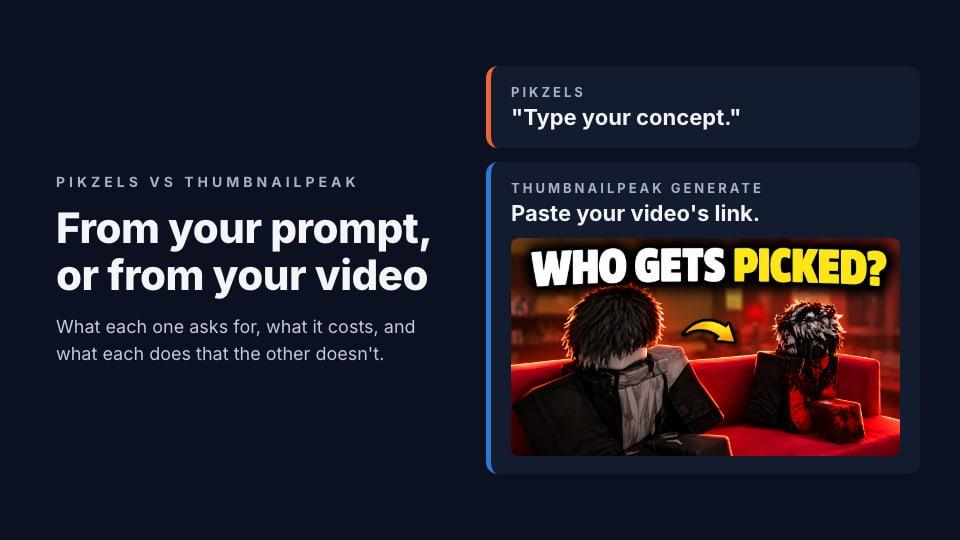
- Generate starts from your video. You paste its link and get a finished thumbnail, or three, without designing anything.
- Canva's AI starts from a description you type. None of its pages we read say it can take a YouTube link or read a video.
- They're good at different things, and many creators will use both: one to make, the other to check.
How each one works
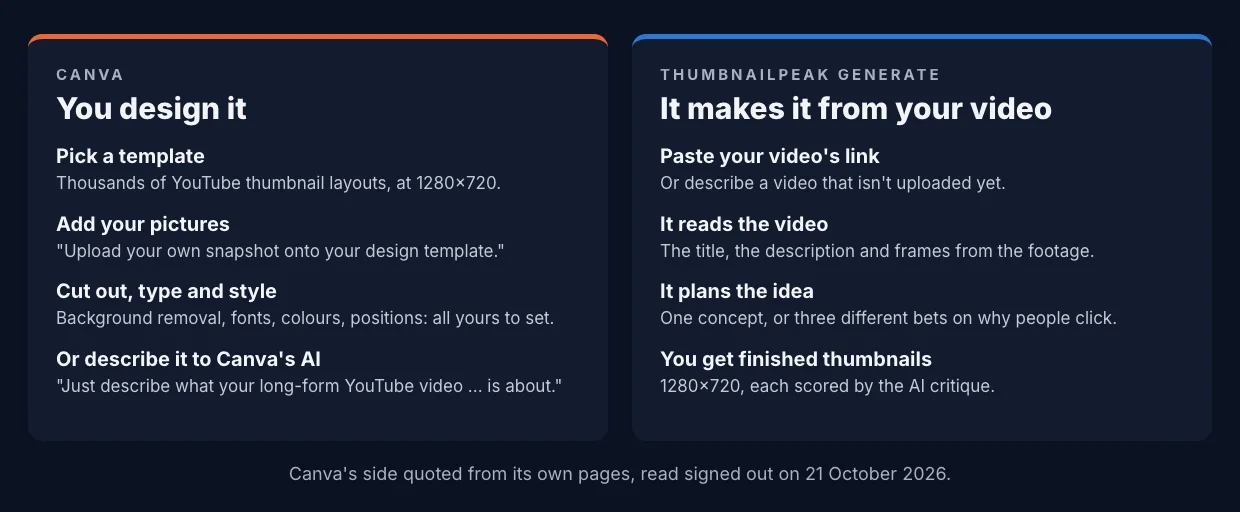
In Canva, you're the designer. The template gives you a layout, a font and a colour scheme. You replace the stock photo with a screenshot from your video, cut out your subject, type your headline and move things until they look right. Canva's page explains the core step plainly: "Upload your own snapshot onto your design template." The thumbnail is exactly as good as your eye and your time.
In Generate, the video is the brief. It reads the title and description, looks through frames from the footage for what can carry a thumbnail, and decides the idea, the layout and the words. You choose between the results. If the video isn't uploaded yet, you describe it in a few sentences instead.
Canva has AI too. Its AI thumbnail maker says: "Just describe what your long-form YouTube video or Instagram reel is about and generate thumbnail ideas in a few clicks." That's closer to Generate's description start than to its link start, because you write the description and the AI works from your words. Canva's pages we read don't mention starting from a YouTube link or a video file.
What Canva is better at
- Control. Every word, font, colour and position is yours to set, to the pixel. Generate decides those for you, and you change them afterwards.
- Templates. Tens of thousands of thumbnail layouts to start from, with matching fonts and colours.
- Brand consistency. Canva's brand kits keep your colours and fonts in one place across every design.
- Everything else. Channel art, Shorts covers, Instagram posts and slides, all in one tool and one account.
- A free plan for design. Canva's Free plan costs US$0 and, by its pricing page, comes with "1.6M+ templates" and "4.7M+ photos, videos, graphics, and audio". Premium elements are watermarked on Free until you buy them.
If you enjoy designing, or your channel has a look you've built by hand, Canva is the better tool for making the thumbnail.
What Generate is better at
- No design work. You don't choose a layout, a font or a picture. You choose between finished thumbnails.
- It reads the video. The objects and places in the thumbnail are the ones in your footage. When we gave ChatGPT only a title, it drew a go-kart that wasn't in the video.
- Different ideas, side by side. A batch of three is three bets on different reasons to click, which is hard to get from one person staring at one template.
- Your face, without a photo shoot. Add a few photos to the face library once, and you're in every concept, with the expression the idea needs. We tested which photos work.
- A score with every result. Each concept gets ThumbnailPeak's AI critique: ten checks and what to fix.
Changing the words on an AI thumbnail
Here's where the two tools meet. A Canva design is made of layers, so changing a headline means clicking it and typing. An AI-generated thumbnail is a flat picture: the words are pixels like everything else. In Canva you'd have to cover the old words with a shape and type new ones on top, which works on a plain background and looks patched over a picture.
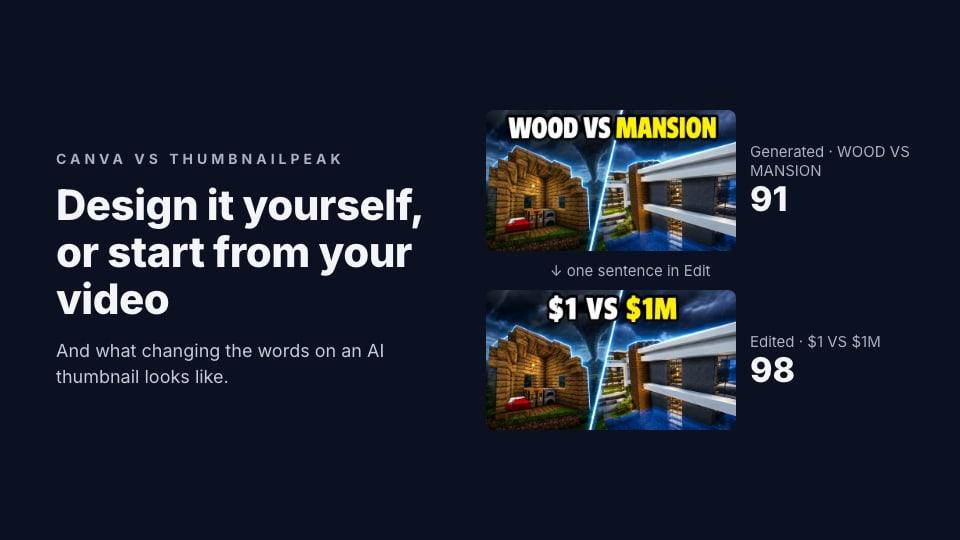
ThumbnailPeak's Edit changes a picture from a sentence. We tried it on a Minecraft concept Generate made for a tornado-shelter video. The critique had said its headline, "WOOD VS MANSION", left out the price gap that the title is all about. So we typed one request:
Change the headline "WOOD VS MANSION" to "$1 VS $1M" in the same style and place. Change nothing else.
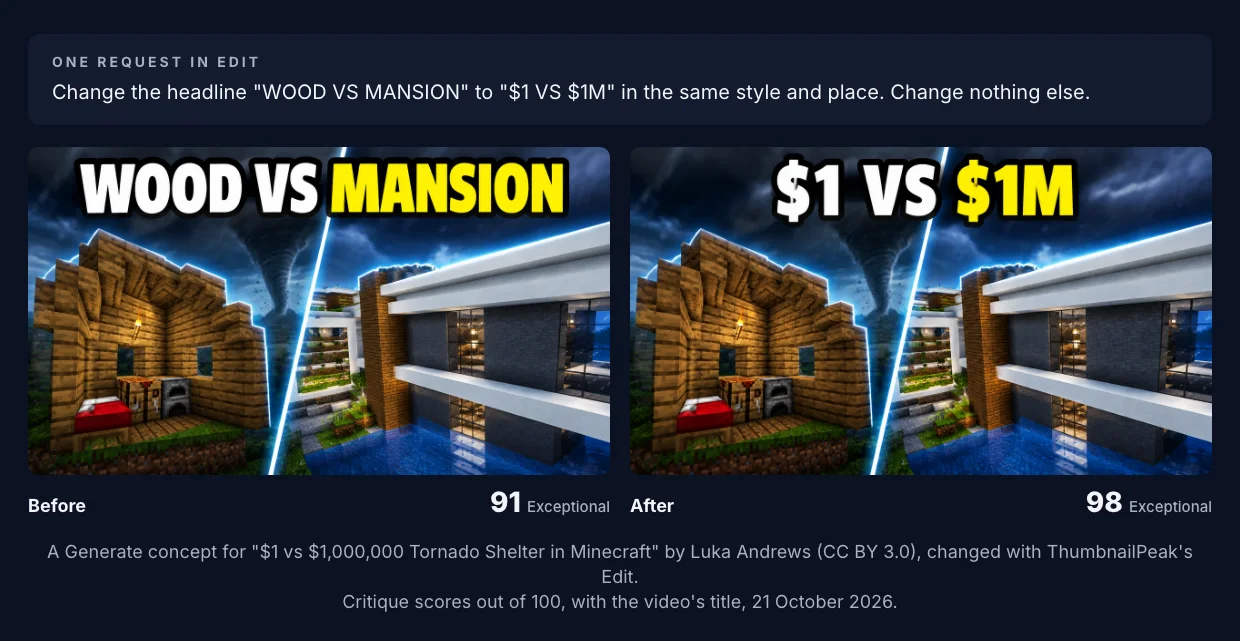
The new words came out in the same letters, in the same place, and nothing else moved. The critique's score went from 91 to 98, with the top grade on all three title-fit checks. It took about 20 seconds.
That's the fair comparison. If you built the thumbnail in Canva, changing its words in Canva is easier. If AI made it, a sentence is easier.
Using both
The two tools fit together better than they compete:
- Design in Canva, check with ThumbnailPeak. Export your Canva thumbnail, run it through the AI critique for a score and what to fix, and preview it in a real YouTube feed next to the videos it'll compete with. Preview is free without an account, and the free plan includes 2 critiques a month.
- Get the idea from Generate, finish it your way. Run your link through Generate, pick the concept you like, then rebuild it in your own Canva template with your fonts.
- Change details with a sentence. For small changes to an AI thumbnail, Edit keeps the rest of the picture intact.
What they cost
Canva, from its pricing pages:
- Free: US$0. Its AI tools are limited to "Up to 20 uses of Standard AI tools, OR Premium AI tools" a month.
- Pro: US$12 a month billed yearly (US$144), or US$18 month to month, with "10x more AI than Canva Free".
- Background removal is listed as a Pro feature in the pricing table, while the background remover's own page offers "a limited number of free high-resolution downloads" to try it.
ThumbnailPeak: Generate needs a free account, and the free plan includes 1 generation a month, which makes one concept. Free downloads carry a small ThumbnailPeak mark. The free plan also includes 2 critiques and 1 edit a month, and Preview needs no account at all. Paid plans raise the allowances and remove the mark.
Which to choose
Canva suits you if you like designing, you want exact control over every element, you already have a template your channel uses, or you make lots of other graphics too.
Generate suits you if you'd rather not design at all, you want the thumbnail to show what's really in your video, you want several different ideas to choose from, or you want your face in it without a photo shoot.
And whichever made it, check it: a critique for what to fix, and a preview in a real feed for how it looks next to the competition.
Key takeaways
- Canva is an editor; Generate is a generator. One gives you control, the other gives you finished options.
- Canva's AI works from what you type. Its pages don't mention starting from a YouTube link or a video.
- Words on an AI thumbnail are pixels. Retyping them is a Canva strength only for designs made in Canva; for AI images, a sentence in Edit worked, 91 to 98.
- Canva's free plan is strong for design; its AI allowance is up to 20 uses a month.
- Use both: make it where you're comfortable, then check it before you upload.
Canva's details are quoted from its YouTube thumbnail page, its template gallery, its AI thumbnail maker page, its pricing page and its help centre, read signed out on 21 October 2026. We didn't sign in to Canva or use its editor for this post. Canva is a trademark of Canva Pty Ltd, and ThumbnailPeak is not affiliated with it.
The Minecraft example is from "$1 vs $1,000,000 Tornado Shelter in Minecraft" by Luka Andrews, published under the Creative Commons Attribution licence (CC BY 3.0). The thumbnail is an adaptation made by Generate from frames of that video, then changed with Edit as described, and Luka Andrews did not make or endorse it. Minecraft is a trademark of Mojang.