Disclosure: we make ThumbnailPeak, and this post tests its critique, Improve and Edit. Every score below is what those tools returned on 22 October 2026, on our own account. The thumbnail is Noah Banks', published under a Creative Commons licence; the blurry versions are ours.
A blurry YouTube thumbnail almost always has one of three causes:
- The picture is too small. A screenshot, a zoomed-in crop or a low-resolution frame, stretched to fill 1280×720.
- The file was squeezed too hard. Saved as a low-quality JPG, or saved again and again, until edges turn into blocks.
- The frame itself is soft. A paused video frame caught mid-movement, or slightly out of focus.
We made all three from one real thumbnail and tested them. Here's what we found:
- Our own AI critique caught only one of the three. It flagged the blurred frame as "visibly soft", and called the stretched one and the over-compressed one "sharp".
- The blur hides at small sizes and shows at large ones. At 160 pixels wide the stretched version looks fine. On a phone, which draws a full-width thumbnail with about 1,180 real pixels, it doesn't.
- AI made the blurriest one sharp again, by redrawing it. Improve and Edit both returned a crisp thumbnail that scored higher than the real original. But up close, his face had been redrawn: new eyebrows, a new beard, a warmer skin tone.
The three kinds of blur
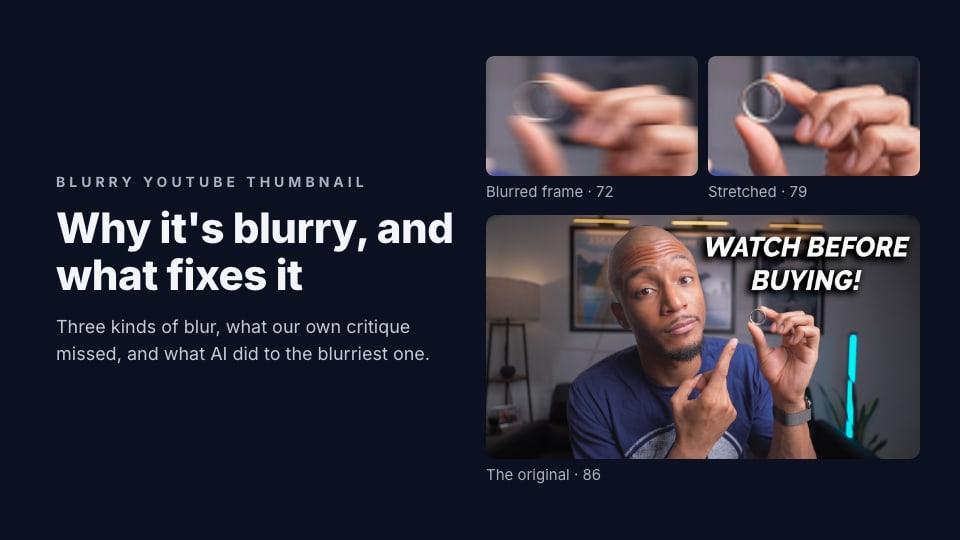
We started from Noah Banks' thumbnail for "Oura Ring 4 | 10 Things to Know Before You Buy It": him holding up the ring, the words "WATCH BEFORE BUYING!" beside him. Then we made three blurry versions of it, one for each cause, and ran all four through ThumbnailPeak's AI critique with the video's title.
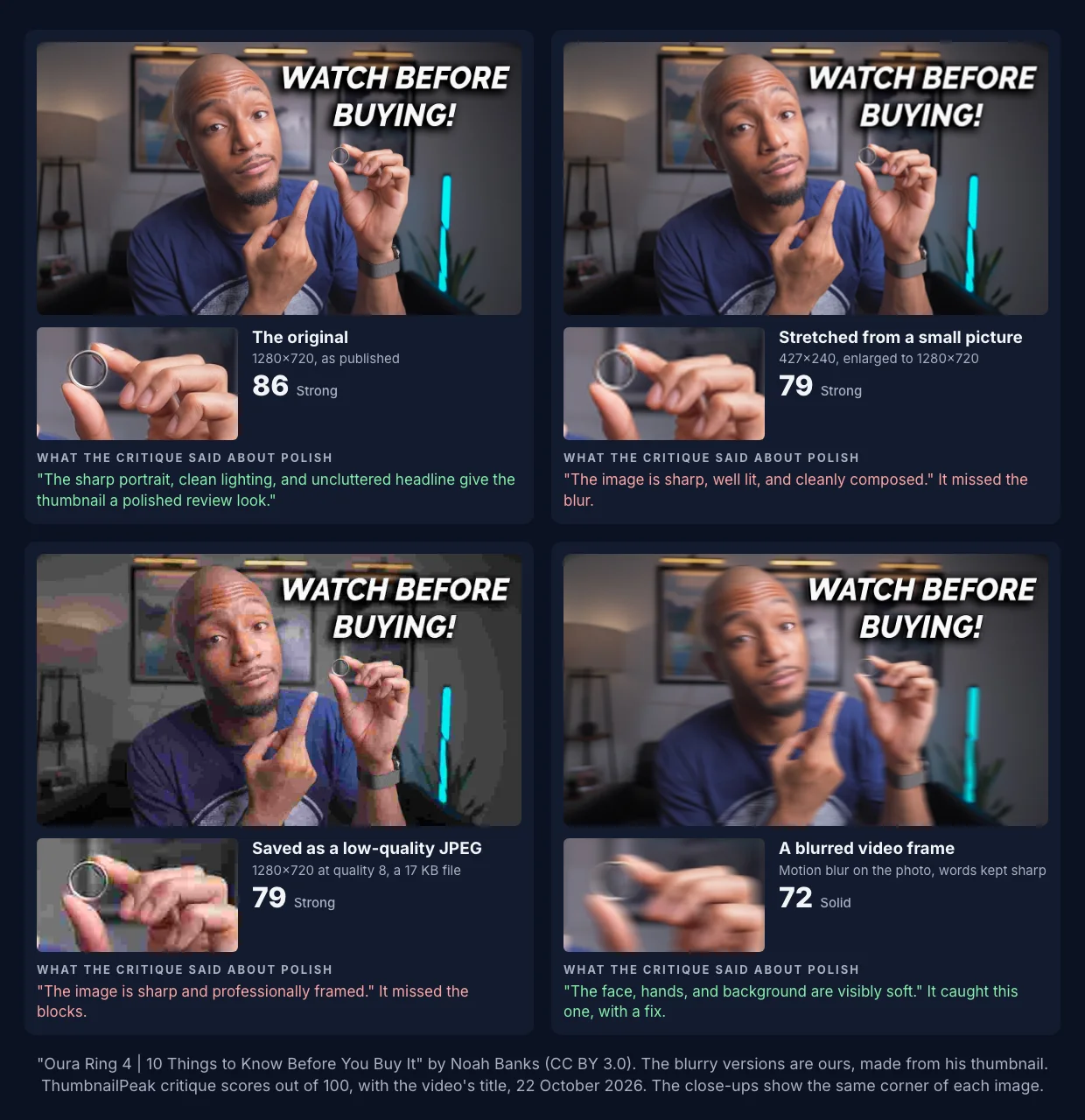
Stretched from a small picture. We shrank the thumbnail to 427×240, a third of its width, then enlarged it back to 1280×720, the way an editor does when you drop a small image into a big canvas. Enlarging can't add detail that isn't there, so every edge goes soft. This is what happens to a screenshot of a paused video, a crop from a 1080p frame, or a picture saved from somewhere at a small size.
Saved as a low-quality JPG. We saved the full-size thumbnail once at JPG quality 8 out of 100. The file went from a 1.3 MB PNG to a 17 KB JPG, and the picture broke into blocks and smears, worst on the skin and in the dark wall. Real thumbnails rarely get this bad in one save. They get there by being saved over and over, sent through messaging apps, or squeezed to fit a file limit.
A blurred video frame. We smeared the photo sideways, the way a frame looks when the camera or the hand was moving, and kept the words sharp, because thumbnail text is usually added on top afterwards. This is the classic problem with pausing your video to grab a thumbnail: the frame that shows the right moment is often the one where everything is moving.
What our own critique caught, and what it missed
The critique scored the original 86. It scored the blurred frame 72, marked its polish down two grades, and said: "The face, hands, and background are visibly soft, which makes the product presentation look less precise." Its fix was the right one: "Use a sharper source frame and apply selective sharpening or a cleaner product close-up."
It didn't notice the other two. It called the stretched version "sharp, well lit, and cleanly composed" and the 17 KB JPG "sharp and professionally framed". Both still scored 79, 7 points below the original, but the points came off hierarchy and distinctiveness, checks that have nothing to do with sharpness. The JPG did lose a grade on polish, but the reason the critique gave was the generic headline, not the blocks.
We think the reason is that the critique judges a thumbnail mainly at feed size, and at feed size these two kinds of blur barely show. That makes it the wrong tool for this one job. Look at your thumbnail at full size yourself.
Across real critiques the picture is similar. Between 15 August and 22 October 2026, ThumbnailPeak critiqued 4,942 thumbnails, counting each picture once and leaving out our own. In 214 of them, 4.3%, the critique called the picture blurry, pixelated, grainy, low-resolution or compressed and marked down its polish. Their median score was 79, against 85 for the rest. Some blurry thumbnails will be among the others, unnoticed, like our two.
Why it can look fine on one screen and blurry on another
A thumbnail is shown at very different sizes. When we measured YouTube in October 2026, the smallest were 160×90 on a channel's Videos tab on a phone, and Home on a computer showed them 291 to 556 pixels wide.
At those sizes, YouTube shrinks your thumbnail so much that blur disappears. The trouble is the big views:
- Phones. On Home and in search, a thumbnail fills the width of the screen. A phone packs two or three real pixels into each one, so an iPhone 15 draws that 393-wide thumbnail with 1,179 real pixels across: nearly your whole 1280×720 upload, at full detail.
- TVs. In YouTube's TV app a thumbnail takes about a quarter of the screen's width. YouTube now recommends uploading at 3840×2160 for exactly this reason.
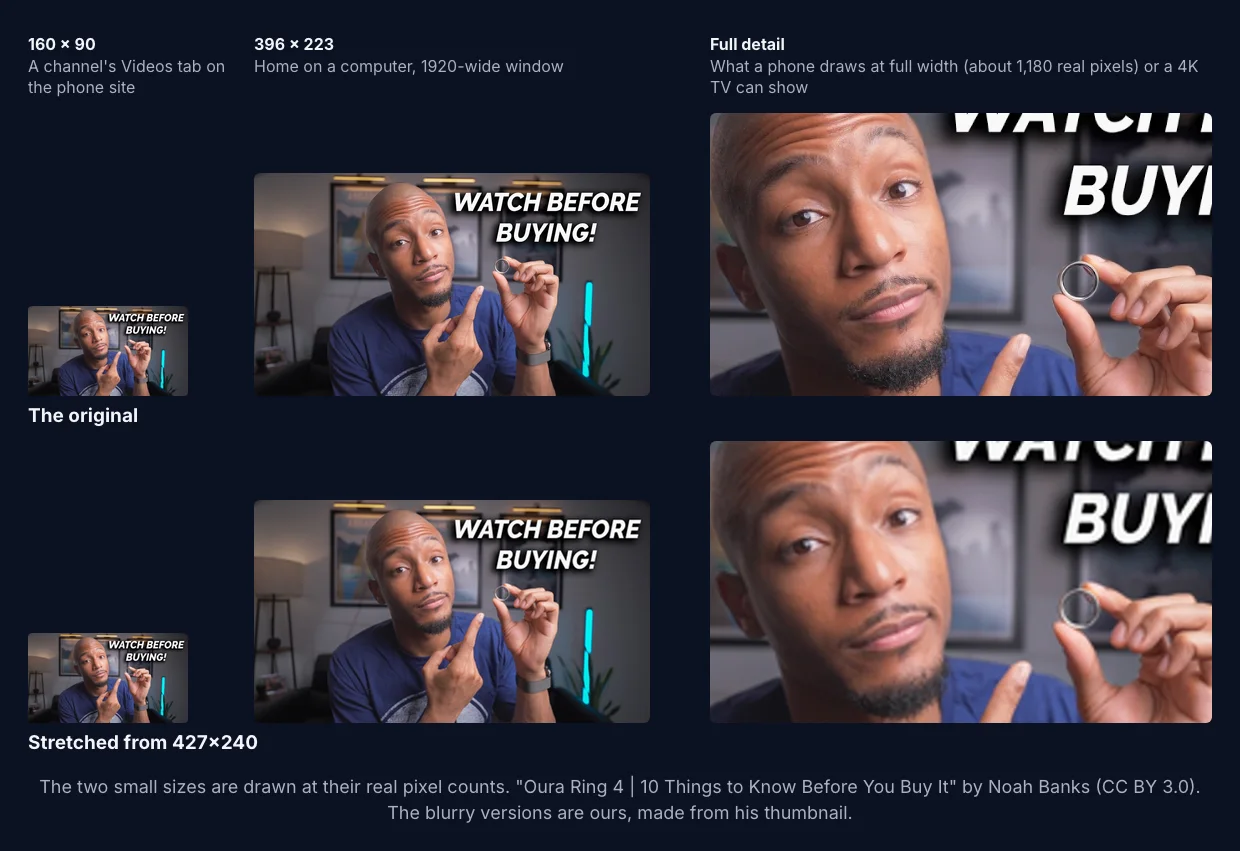
So a thumbnail can look fine in your editor's small preview and blurry on a viewer's phone. Before you upload, open it at 100% zoom, or look at it on your own phone at full screen width.
How to fix a blurry thumbnail
Find the cause first. Check the image's size in pixels (on a Mac, Get Info; on Windows, right-click and Properties, then Details), and look at it at 100% zoom.
If the picture is smaller than 1280×720, go back to a bigger source. Enlarging a small image makes a bigger file, not a sharper picture.
- Export from your design tool at 1280×720 or larger, at 16:9. If your source is 4K, export at 3840×2160.
- Take the frame from your original footage, not from a screen recording or from the compressed upload on YouTube.
- Keep the subject big in the frame you shoot, so you don't have to crop in later. A 1080p frame cropped to a third of its width leaves you 640 pixels.
If the file is over-compressed, export it once more from the original.
- Save a JPG at high quality, about 85 to 90%, or a PNG for flat graphics and text.
- Don't open a JPG, change it and save it as a JPG again. Each save loses a little more.
- If you upload from your phone, YouTube's limit there is 2 MB, against 50 MB from a computer. A detailed image squeezed under 2 MB can turn blocky, so upload from a computer, or export a 1920×1080 or 1280×720 JPG. We measured which files fit under 2 MB.
If the frame is soft, choose a different frame or take a new picture.
- Step through the video one frame at a time around the moment you want. A frame where nothing is moving is usually a few frames away.
- Better still, take a still photo while you film. A camera's photo mode, or a phone on a tripod, beats any paused frame.
- Sharpening helps a little with slight softness. It can't undo motion blur: the detail was never recorded.
Then check the result where it counts. ThumbnailPeak's thumbnail tester puts your thumbnail in a YouTube feed at real sizes, on a computer, a phone and a TV, free and without an account.
Can AI fix a blurry thumbnail?
Sometimes there is no better source. The video is old, the footage is gone, or the only good moment was the blurry one. So we tried AI on our blurry versions, with ThumbnailPeak's thumbnail improver, Improve, and its AI thumbnail editor, Edit.
- Improve on the blurred frame, with only the critique's "fix the technical flaw" ticked: 89.
- Edit on the blurred frame, with the request "Make the man, his hands and the ring sharp and in focus. Change nothing else.": 94.
- Edit on the stretched version, "Make the whole picture sharp and clear. Change nothing else.": 92.
- Edit on the 17 KB JPG, "Remove the blocky compression marks and make the picture clean and sharp. Change nothing else.": 89.
Every result was sharp, the words came back intact, and every one scored higher than the blurry version it started from. Most scored higher than the real original's 86. Each took 15 to 20 seconds.
Then we looked closer.
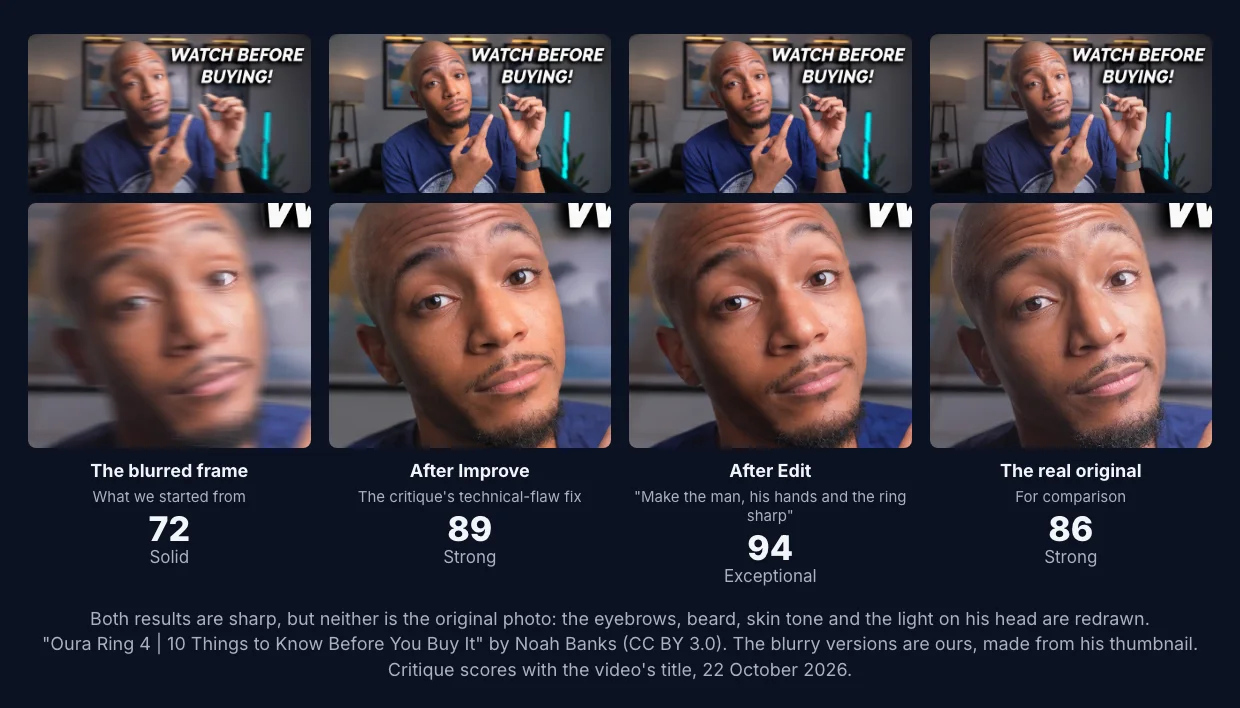
The face is sharp, and it's clearly him, but it isn't his photo. The eyebrows are a different shape, the beard is fuller in one and thinner in the other, the skin is warmer, and the light falls differently on his head. The AI didn't recover the detail the blur destroyed. It drew new detail that looks right.
That matters more where the details are the point. In one more try we ran Improve the way it starts, with both of the critique's fixes ticked, including "make the ring larger". It made the ring big and drew green lights inside it. No version of the photo showed the inside of the ring. They might even match the real product; the AI had no way to know.
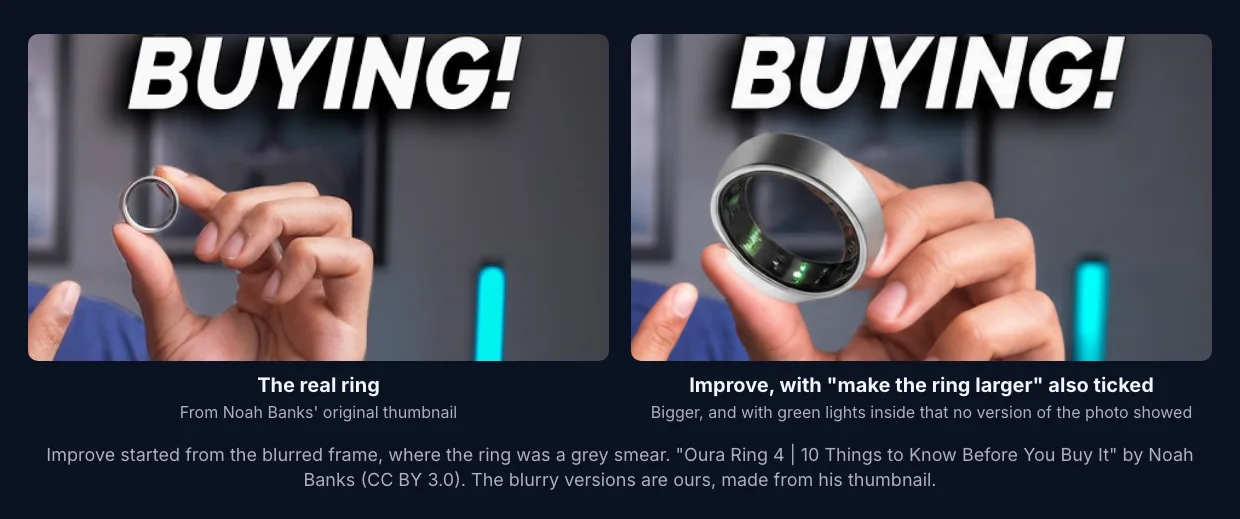
So, honestly: Improve and Edit are not upscalers.
- They don't make the image bigger. Every result is 1280×720, a third of the 3840×2160 YouTube recommends for TVs. A 4K source exported at 4K will still look better on a big screen.
- They redraw the whole picture. That's how they make a soft frame sharp, and also why a face, a product or small text can come back slightly different.
- They don't restore the original. What looks like recovered detail is new detail. A dedicated AI upscaler is built to enlarge a picture while staying as close to it as it can. It also has to guess at what was lost, but changing the picture is not its job.
When to use AI, and when not to
AI redrawing is a reasonable fix when:
- the blurry frame is the only one you have of the moment that sells the video
- the subject is a thing or a scene rather than your own face, or you're happy with a close likeness
- the thumbnail is going to be seen mostly in feeds, not inspected on a TV
Go back to the source instead when:
- you still have the footage, the photo or the design file
- the thumbnail shows a real product whose details have to be right
- it's your face on your channel, and "close" isn't good enough
If you do use AI, keep your original, check the result at full size, and compare the two before you upload. ThumbnailPeak keeps the image you started from beside the result, and Compare will tell you which of the two the critique prefers. Remember that it judges how a thumbnail looks, not whether it's still your photo.
Frequently asked questions
Why does my YouTube thumbnail look blurry?
Usually because the image is smaller than 1280×720 and was stretched to fit, because it was saved as a low-quality JPG one or more times, or because the frame itself is soft from movement or focus. Check its size in pixels and look at it at 100% zoom to tell which.
Why does my thumbnail look sharp on my computer but blurry on my phone?
On a computer's Home page a thumbnail is drawn a few hundred pixels wide, which hides blur. On a phone it fills the screen's width and is drawn with over 1,000 real pixels, so a stretched or soft image shows its blur there.
What size should a thumbnail be so it isn't blurry?
At least 1280×720 pixels at 16:9, made from a source that really has that much detail. YouTube recommends 3840×2160 if your source is 4K. Upscaling a smaller image to those sizes doesn't make it sharper.
Can AI fix a blurry thumbnail?
AI can make a blurry thumbnail look sharp by redrawing it, as Improve and Edit did in our test. But the new detail is invented: faces, products and small text can come back slightly different. Check the result up close, and use the original source if you have it.
Does sharpening fix a blurry thumbnail?
Only slight softness. Sharpening makes existing edges crisper; it can't bring back detail that was never recorded, as in motion blur or a heavily enlarged image.
Tests run on ThumbnailPeak on 22 October 2026, one try each, with the video's title and no description. The thumbnail is from "Oura Ring 4 | 10 Things to Know Before You Buy It" by Noah Banks, published under CC BY 3.0. The blurry versions and the AI results are our adaptations, and Noah Banks did not make or endorse them. The counts across all critiques cover ThumbnailPeak's current critique prompt, each picture once, our own account's critiques left out; we matched the words in the critiques' polish notes and technical-flaw fixes, and didn't look at the images or titles.