Disclosure: we make ThumbnailPeak, and this post uses its Edit. Every result below is what Edit returned on 22 October 2026, on our own account, one try each. The thumbnail is Alex Jones', published under a Creative Commons licence; the edited versions are ours.
Most thumbnail changes are small jobs that take a surprising amount of work in a layer editor. Making the car red means selecting the car first. A new background means cutting out everything in front of it. Moving a person means cutting them out, moving them and filling the hole they leave.
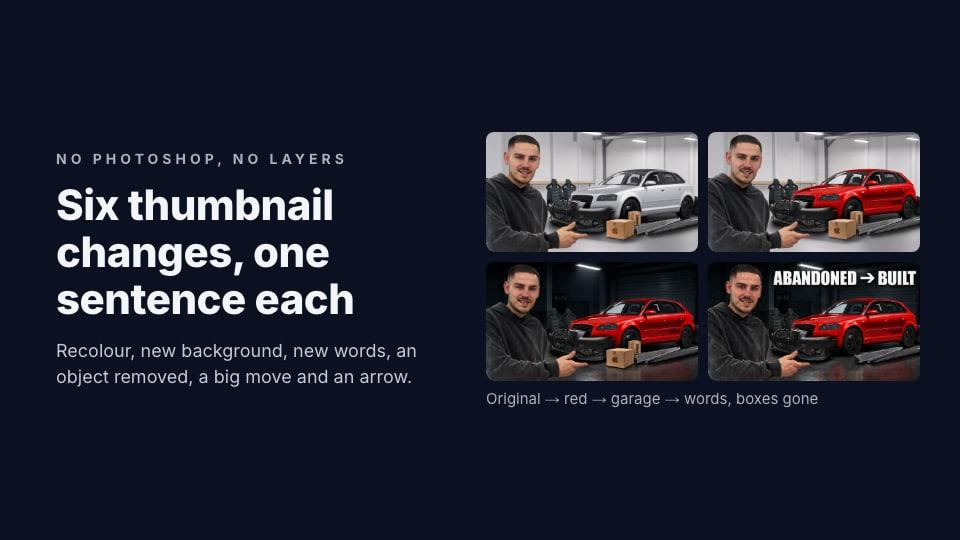
An AI image editor turns each of those jobs into a sentence. ThumbnailPeak's AI thumbnail editor, Edit, takes the thumbnail you already have and a change typed in plain words, and gives you a new version. We tried six common jobs on one real thumbnail. Here's what happened:
- All six did what we asked on the first try, in 20 to 40 seconds each.
- Even the big move worked. We swapped the man and the car from side to side, and the AI turned his pointing hand toward the car's new place, a detail you'd have to fix by hand in Photoshop.
- Each edit in a row moved his face a little further from the original. After four edits, one built on the next, it was twice as far from his real face as when we asked for all four changes in one request.
Six layer jobs, six sentences
We used Alex Jones' thumbnail for "Turning my CHEAP, ABANDONED Audi into Something it SHOULD have been": him on the left pointing at a silver Audi in a white studio, with seats, a front bumper, side skirts and two cardboard boxes of parts on the floor. No text.
We made four edits in a row, each one starting from the version before it, and then went back to the first version to try a fifth idea:
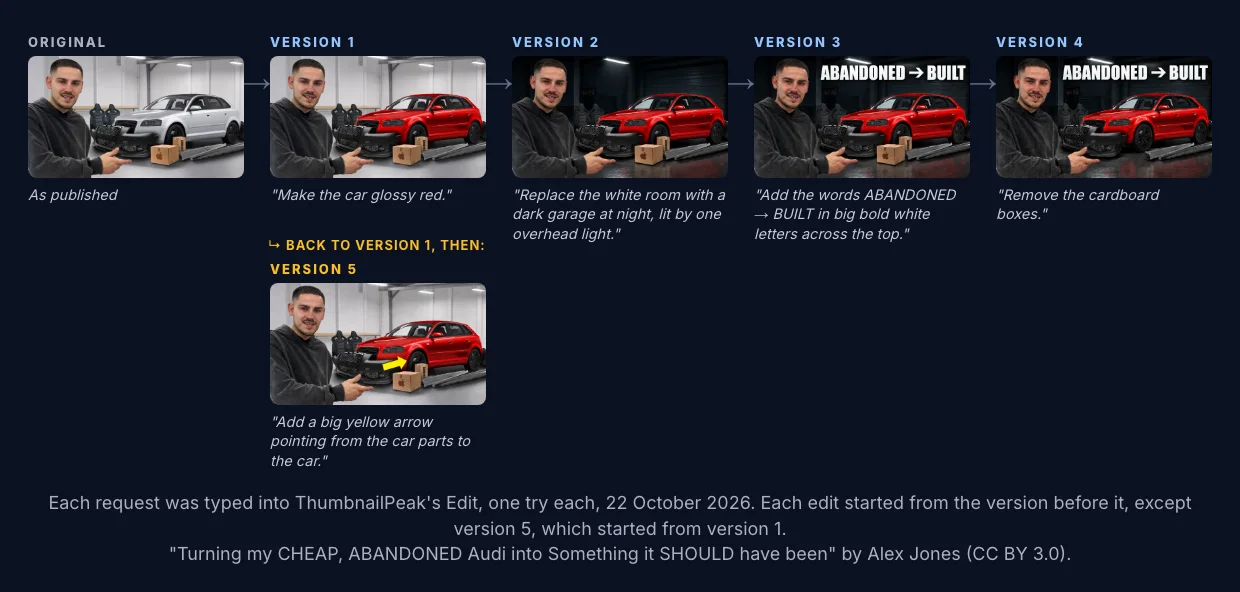
1. Recolour one thing. In a layer editor: select the car, add a colour adjustment limited to that selection, then clean up the edges and reflections it missed. Typed: "Make the car glossy red." What happened: a glossy red car, reflections and all, with the man, the parts and the room unchanged.
2. Replace the background. In a layer editor: cut out the man, the car and every part on the floor, put a new background behind them, then match the light and shadows so they look like they're in it. Typed: "Replace the white room with a dark garage at night, lit by one overhead light." What happened: a dark garage with ceiling lights and a shiny floor that reflects the car. Everything in front stayed, the boxes included, since we hadn't mentioned them.
3. Add a headline. In a layer editor: a text layer, a bold font, an outline or shadow so it reads, placed clear of the face. Typed: "Add the words "ABANDONED → BUILT" in big bold white letters across the top." What happened: the words in tall white capitals across the top right, clear of his head.
4. Remove clutter. In a layer editor: paint over the boxes with a clone or fill tool, and rebuild the floor and the side skirt behind them. Typed: "Remove the cardboard boxes." What happened: both boxes gone, the floor and side skirts filled in behind them.
5. Move people and things. In a layer editor: cut out the man and the car, swap them, fill both holes, and fix the shadows. Typed, on the original: "Move the man to the right side of the picture and the car to the left side."
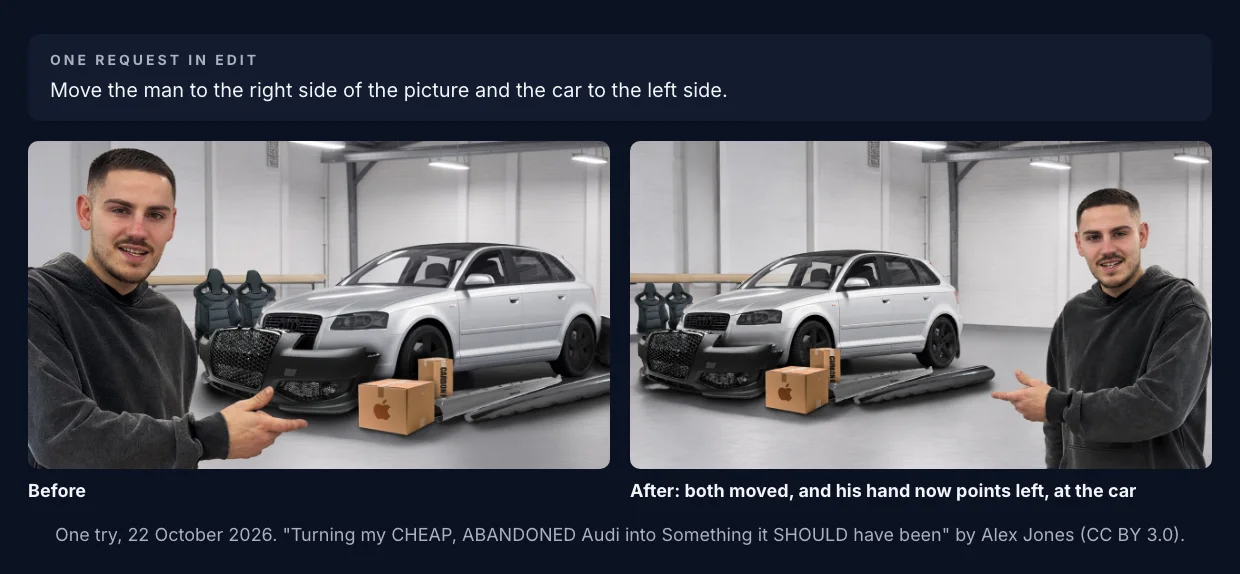
What happened: both moved, and both came out a little smaller to fit. His pointing hand now points left, at the car, so the picture still makes sense. Edit's own help warns that large moves often land short, and in our testing before launch none of 16 big moves landed fully. This one did, on the first try. It can work; don't count on it every time.
6. Draw an arrow. In a layer editor: a shape layer, coloured and angled. Typed, on version 1: "Add a big yellow arrow pointing from the car parts to the car." What happened: a yellow arrow from the parts to the car's front wheel. We asked for big; it came out medium. A follow-up edit, "make the arrow twice as big", is how you'd fix that.
Every version stays
A layer editor keeps your history in layers and undo steps. Edit keeps it as versions. Each one sits in a row under the result, with your original pinned first, and you can tap any of them to make your next edit from it.
That's how version 5 happened. After going down the garage-and-headline path, we went back to version 1, the red car in the white room, and tried an arrow instead. Version 5 is built on version 1, and versions 2 to 4 are still there. Nothing is overwritten, so trying an idea costs nothing but the edit itself.
One request or four?
Each version above was made from the version before it. So by version 4, the picture had been redrawn four times: every edit redraws the whole image, not just the part you asked about. We wanted to know what that did to the parts nobody asked to change, so we also typed all four changes as one request on the original:
Make the car glossy red, replace the white room with a dark garage at night lit by one overhead light, add the words "ABANDONED → BUILT" in big bold white letters across the top, and remove the cardboard boxes.
It made all four changes, in one go.
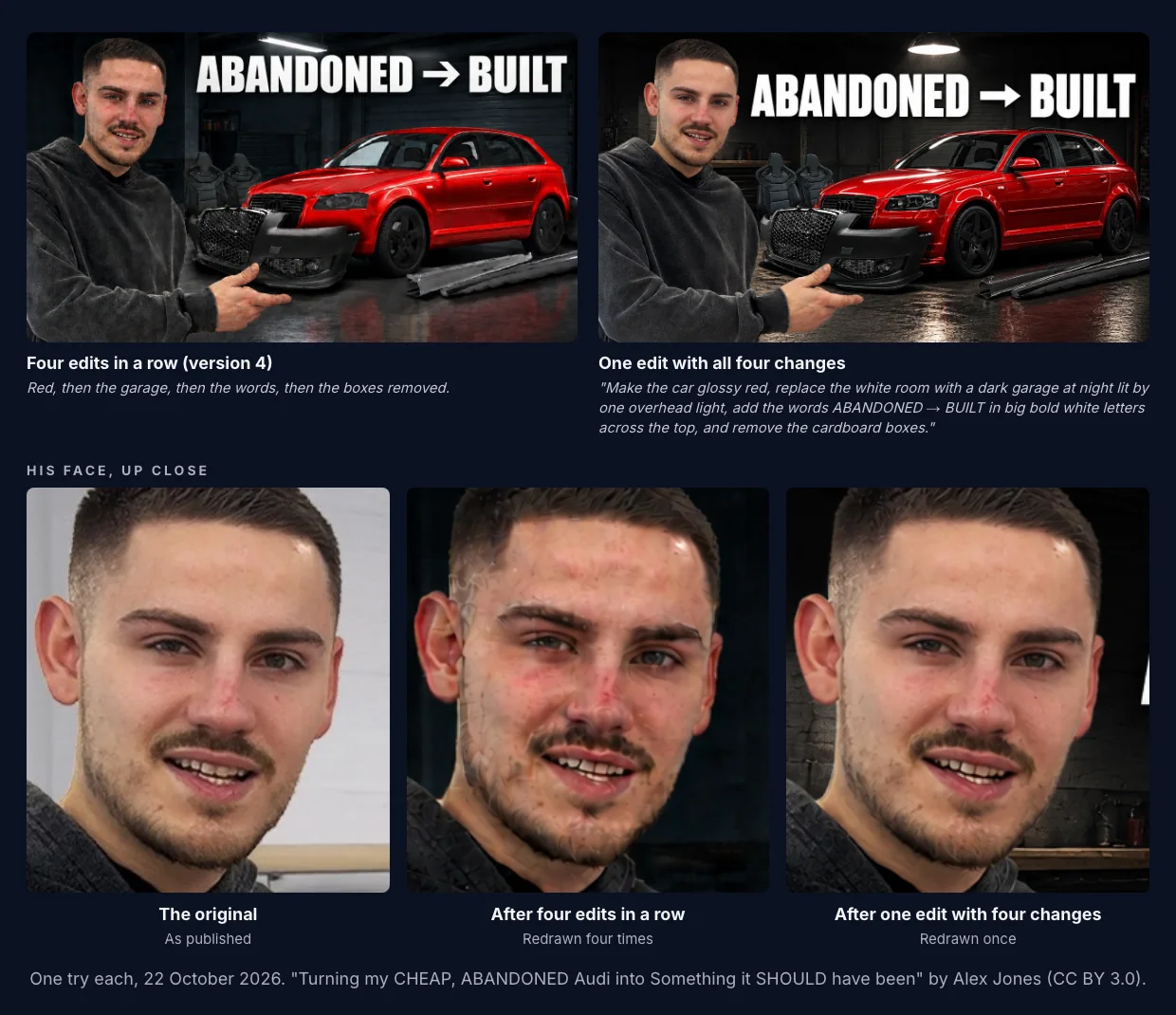
The two results look much alike at thumbnail size. His face doesn't. After four edits in a row his skin had turned grainier and redder, with blotches the original doesn't have. After one edit it was much closer to the photo. We measured how far his face had moved from the original after each step:
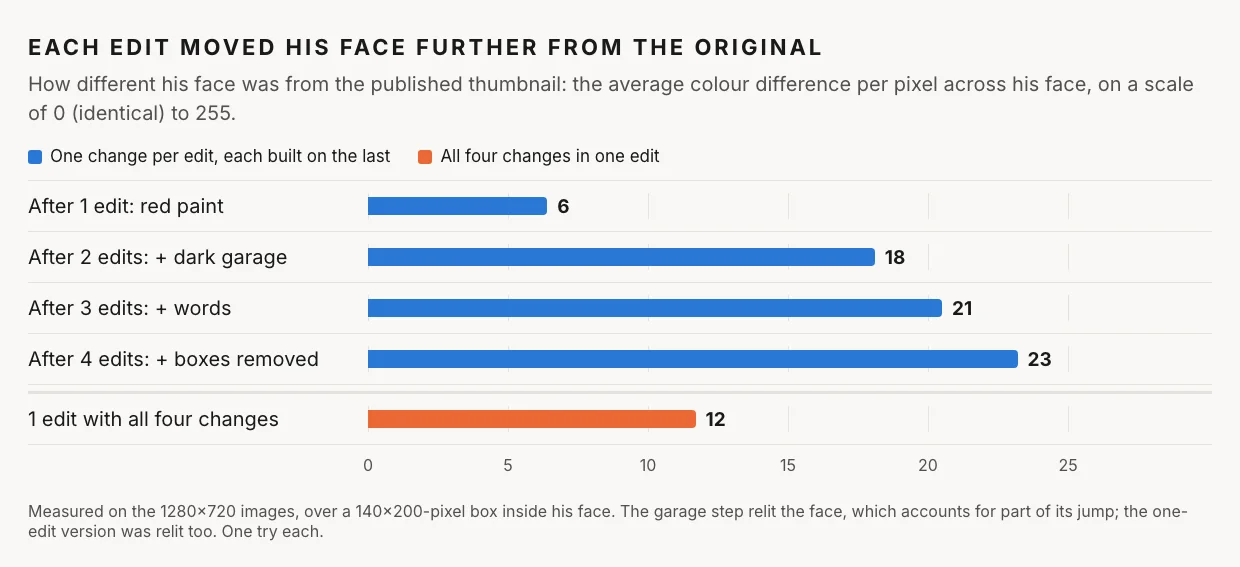
Part of the jump at step 2 is fair: the garage relit his face, and a darker room should change it. But the one-request version was relit too, and it ended at 12 against 23. The rest is redrawing piling up. Each redraw is a near copy of the version before it, and near copies of near copies drift. Edit says as much: once you're two edits into a chain, it shows a note under the versions, "Each edit redraws the whole picture. If text starts to soften, pick an earlier version and edit from there."
What we'd do with that:
- Put the changes you're sure of in one request. Our four-change request worked. Edit's own help says one clear change at a time works best, and with one try each we can't say how often a combined request drops something. If it does, make the missing change as a follow-up edit.
- Use follow-up edits for corrections and new ideas, not to build a whole thumbnail one small step at a time.
- When a chain gets long, go back. Tap an earlier version, or the original, and make the next edit from there.
- Watch faces most closely. People stay the same person, because Edit tells the AI to keep everyone's identity, but skin, grain and small features are exactly what shifts.
What a layer editor still does better
Typing is faster for most of these jobs. Layers still win when:
- The position has to be exact. "A little to the left" gets close. "40 pixels to the left" is a layer editor's job.
- The fonts and colours have to be yours. Your brand font and your exact colour codes are easy to set on a layer and hard to describe in words.
- Nothing else may change. A layer edit touches only what you touch. An AI edit redraws the whole picture, so every pixel is a near copy, not the original.
- You make the same layout every week. A template with swappable layers is the fastest way to do the same thing again.
- You want many tiny tweaks. Ten small adjustments are ten redraws in an AI editor, and as above, those add up.
Plenty of creators will use both: a layer editor for the template, an AI editor for the change they think of after it's exported.
How to do it in ThumbnailPeak
- Open Edit and upload your thumbnail, paste a YouTube link, or pick a thumbnail already in your Preview workspace.
- Type the change, up to 300 characters. Name things the way they look ("the man on the left", "the red sticker") and end with "Change nothing else" when you mean it.
- Check before and after. They sit side by side, so you can see what changed besides your request.
- Keep going, or go back. Tap any version to make your next edit from it. Your original always stays first.
- Download the 1280×720 PNG and upload it in YouTube Studio.
Edit doesn't score what it makes. To know whether a version is better, run it through the AI critique, or put two versions side by side in Compare. If you'd rather be told what to change than decide yourself, the thumbnail improver critiques your thumbnail first and suggests the fixes.
Edit needs a free account, which comes with 12 credits. An edit uses 3, from the same credits as your critiques and improves, and trying the same edit again uses 3 more. Pro is $20 a month for 300 credits a month, and a $10 credit pack adds 100 credits that never expire.
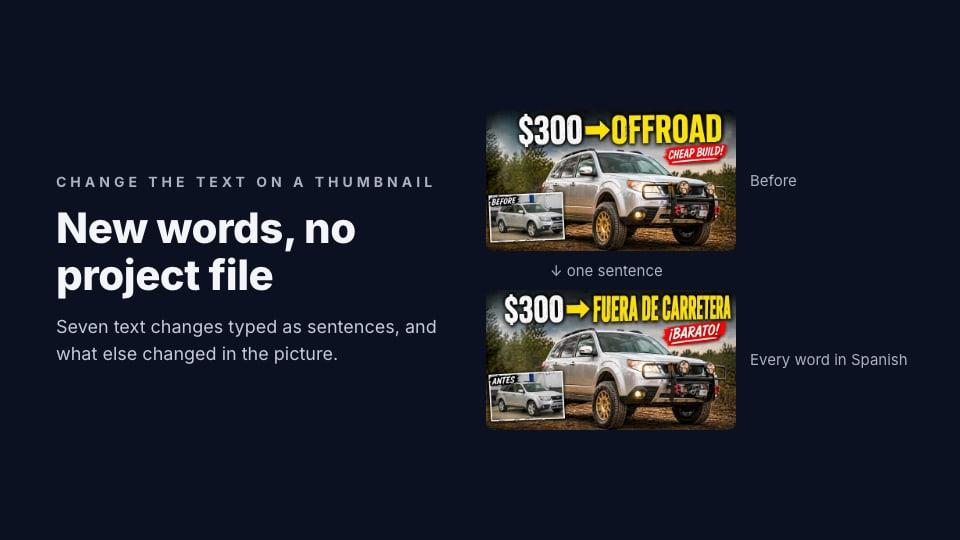
For changing the words in particular, how to change the text on a thumbnail has seven more examples, including a translation.
Frequently asked questions
Can I edit a YouTube thumbnail without Photoshop?
Yes. An AI editor changes a thumbnail from a sentence you type, such as "make the car red" or "remove the boxes", with no layers or selections. In our test, six common layer jobs each worked from one sentence on the first try.
How do I change the background of a thumbnail?
In a layer editor, cut out everything in front and put a new background behind it. In an AI editor, type something like "Replace the white room with a dark garage at night". The AI keeps the people and things in front and relights them to match.
How do I remove something from a thumbnail?
In a layer editor, paint over it with a clone or fill tool. In an AI editor, type "Remove the cardboard boxes" or similar; the AI fills in what was behind them.
Will AI editing change my face?
Your identity is kept, but each edit redraws the whole picture, so small details like skin texture can shift. In our test, his face drifted further with every edit in a row; one request with four changes kept it twice as close to the original. Fewer redraws keep a face closer to the photo.
Should I make one change per edit, or several at once?
One change per edit gives you the most control. Several changes in one request means fewer redraws, which kept our creator's face closer to the original. A good middle way: put the changes you're sure of in one request, then fix anything it missed in a follow-up edit.
Edits made on ThumbnailPeak on 22 October 2026, one try each. The thumbnail is from "Turning my CHEAP, ABANDONED Audi into Something it SHOULD have been" by Alex Jones, published under CC BY 3.0. The edited versions are our adaptations, and Alex Jones did not make or endorse them. The face measurement is the average absolute difference in red, green and blue between each 1280×720 version and the original, over the same 140×200-pixel box inside his face.