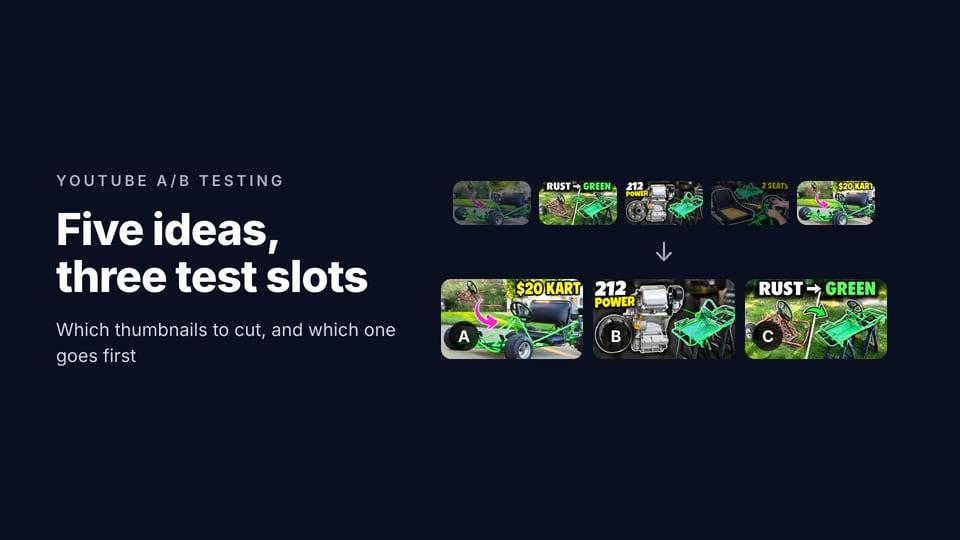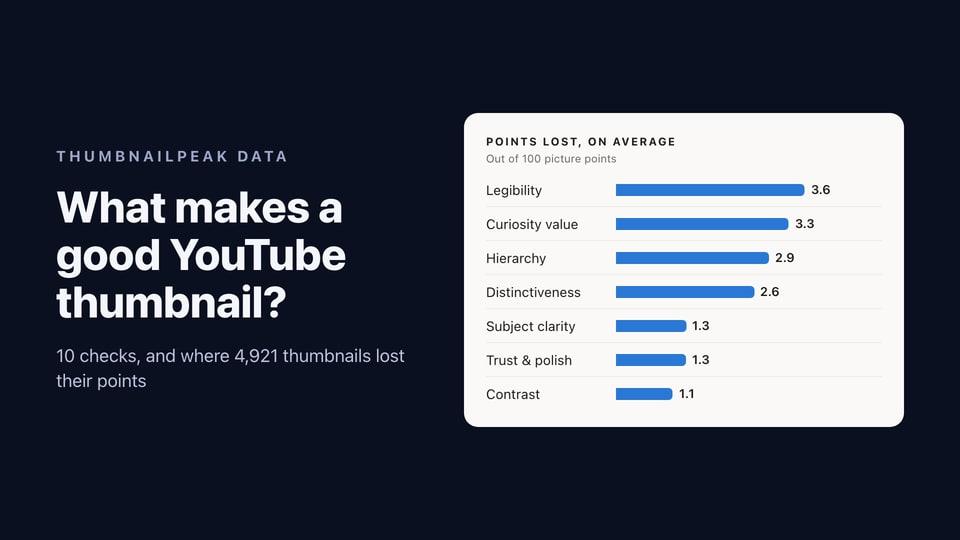
Disclosure: we make ThumbnailPeak. Projects are part of ThumbnailPeak Pro. The screenshots are of a real project on our own account, made on 21 October 2026.
Making one thumbnail usually means making six. You critique your first idea, improve it, change the words on the improved one, generate two more from the video, and by the end there's a 93 in one tab, a 96 in another and a file called final-2.jpg on your desktop. Which version scored highest? Which title was it scored with?
Projects keep all of it in one place. A project is one video: every thumbnail you make for it, the titles you're weighing, their scores, and the A/B test you'll run on YouTube at the end.
You don't have to set one up
Projects file themselves. On Pro, the first time you critique, improve, edit or generate a new picture, ThumbnailPeak opens a project for it. Every later version of that picture goes into the same project: an improve of it, an edit of the improved one, a critique of the edit. The project remembers which pictures came from which.
The result page tells you where it went, with Filed into and the project's name above the result. Open a tool from inside a project and the line reads Working on instead: everything you make there files back into that project. The buttons that carry a picture from one tool to the next, like Improve's Edit this version or a generated thumbnail's Critique, keep the project too.
Not every critique is a video you're working on. A one-off critique waits under Recent critiques not yet a video on your Projects page instead of filling your list, and Make this a video keeps it. To start from nothing, New video project asks for a name and, if you like, your channel.
Step 1: Thumbnails
A project page reads as four numbered steps. The first is the grid: every version made for the video, each picture once.
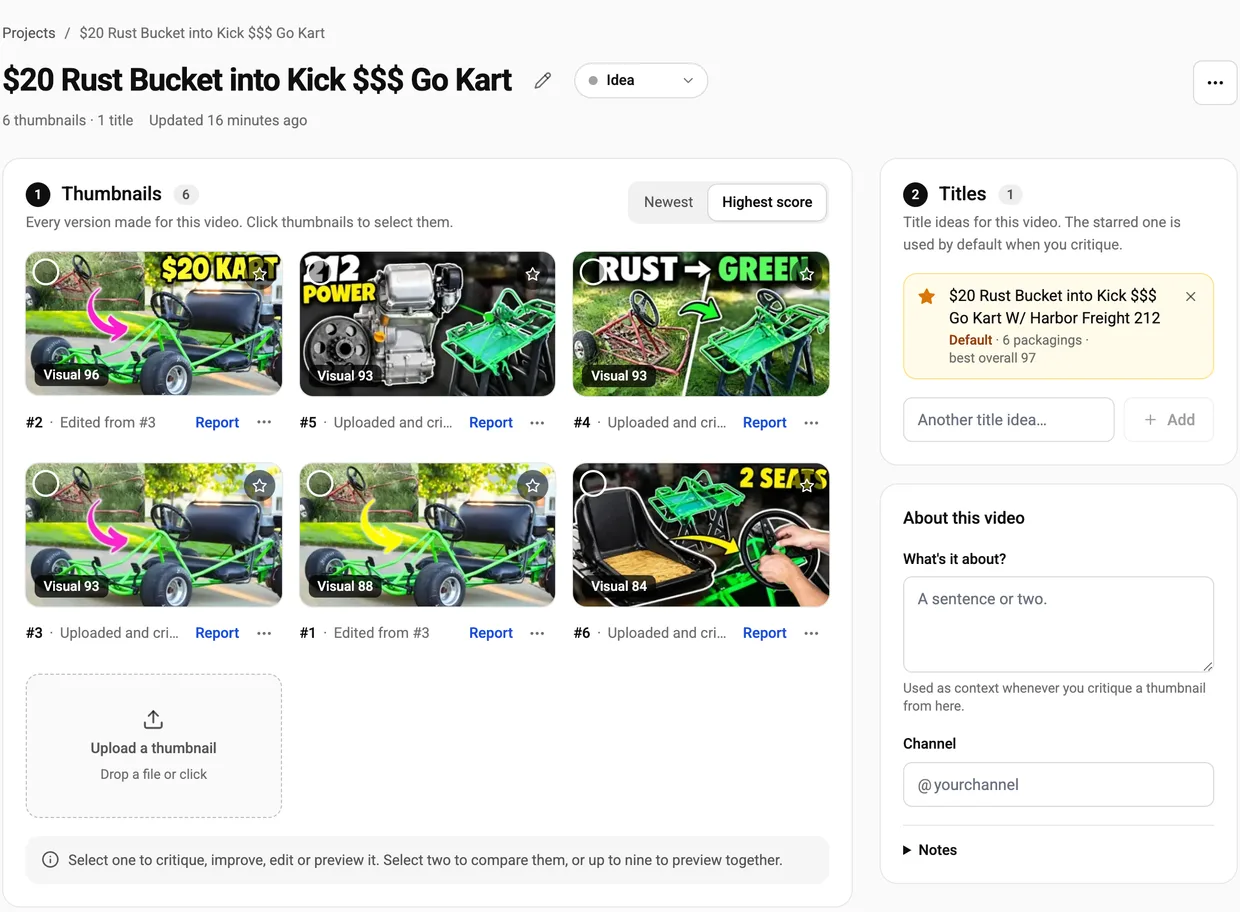
- Each tile shows a number, the visual score from the picture's latest critique ("Visual 96", or "Not scored"), and where it came from: "Edited from #3", "Improved from #1", "Generated" or "Uploaded and critiqued". Report opens its critique.
- Sort by Newest or Highest score.
- Star as many as you like. Your first star is the project's cover on your Projects page, and starred pictures go first in the A/B test.
- Upload a thumbnail you made somewhere else with the dashed tile at the end of the grid. It costs nothing until you critique it.
Click a picture to select it, and a bar under the grid offers what fits your selection:
- one picture: Critique (1 credit), Improve, Edit or Preview
- two: Compare (1 credit) or Preview
- three to nine: Preview, all of them together in a YouTube feed.

Critique and Compare start right away. Improve and Edit open their own page, where you choose the fixes or type the change before anything is spent. Whatever you make lands back in the grid as a new numbered tile that says where it came from.
Step 2: Titles
A viewer meets your thumbnail and your title together, so a project keeps your title ideas beside the pictures. The starred title is the default: every critique and comparison you start from the project uses it. To score a picture under another title, or with No title, switch the Title menu in the selection bar before you press.
Each title shows how many thumbnail-and-title pairs you've scored with it and the best overall score among them, like "6 packagings · best overall 97".
Step 3: Packagings
A packaging is a thumbnail and a title together. Packagings lists every pair you've critiqued, best overall score first, with three numbers from the same critique:
- Visual: the picture on its own.
- Fit: how well the picture and the title work together.
- Overall: the two together.
Click a row to open its report. A picture critiqued under two titles has two rows. Its Visual can differ between them by a few points, because each critique scores the picture afresh.
Step 4: A/B test
YouTube's A/B test runs up to three thumbnails against each other on real viewers. A project's last step fills the three options, A, B and C, from your stars first and then your best-scoring packagings. A matters most: if no option clearly wins, YouTube keeps it. Download all gives you three 1280×720 JPEGs named for their letters, and Open in YouTube Studio takes you to the video's page, or Upload as a new video if it isn't up yet. The section then lists what to click in Studio.
The default needs no changes, though you can swap any option or give it another title. Export a three-thumbnail A/B test from a project walks through the whole section with screenshots.
Around the four steps
- About this video holds a sentence or two on what the video is about, which every critique you start from the project uses as context, plus your channel and your notes.
- Status sits next to the project's name: Idea, Drafting or Published.
- Activity, at the bottom, lists every run the project holds, newest first, each opening its own result.
- Merge in…, in the project's ⋯ menu, folds another project into this one, for when two turn out to be the same video.
Your Projects page has one card per video, with its cover, its status and the latest improve's score change, like "82 → 91".
What it costs
Projects are part of Pro, at $9.99 a month, and Pro has no limit on how many you keep. Starring, sorting, titles, notes, uploads and the A/B downloads cost nothing. The AI runs you start in a project use your monthly allowances, which on Pro are 300 critiques, 50 comparisons, 50 improves, 50 edits and 50 generations.
On a free account every tool works the same way. Its results just aren't filed into projects, and your critiques are still saved in your history.
Frequently asked questions
Do I have to create a project before I start?
No. On Pro, critiquing, improving, editing or generating a new picture opens a project, and later versions of that picture join it. You can also start one by hand with New video project.
How many projects can I have?
As many as you like. Pro has no monthly or total limit on projects.
Can I use a project before the video is uploaded?
Yes, that's what it's for. A project doesn't need a video link, and when you're ready, its A/B test section can set up the test while you upload the video.
What happens to my critiques if I delete a project?
They stay. Deleting a project removes only the project: your critiques, improved versions and history are kept.
Two of my projects are the same video. Can I combine them?
Yes. Open the one you want to keep, choose Merge in… from its ⋯ menu, and pick the other.
The project and its screenshots are from our own account, on 21 October 2026. The video is "$20 Rust Bucket into Kick $$$ Go Kart W/ Harbor Freight 212" by DIY PRO, published under CC BY 3.0. DIY PRO's own thumbnail is shown as published; the other thumbnails are our adaptations of its frames and thumbnail, and DIY PRO did not make or endorse them. This post's cover was made by ThumbnailPeak's AI Generate from a short description of the post, and the critique scored it 93; the go-karts in it are AI-made.