Disclosure: we make ThumbnailPeak. Projects are part of ThumbnailPeak Pro. The screenshots are of a real project on our own account, made on 21 October 2026.
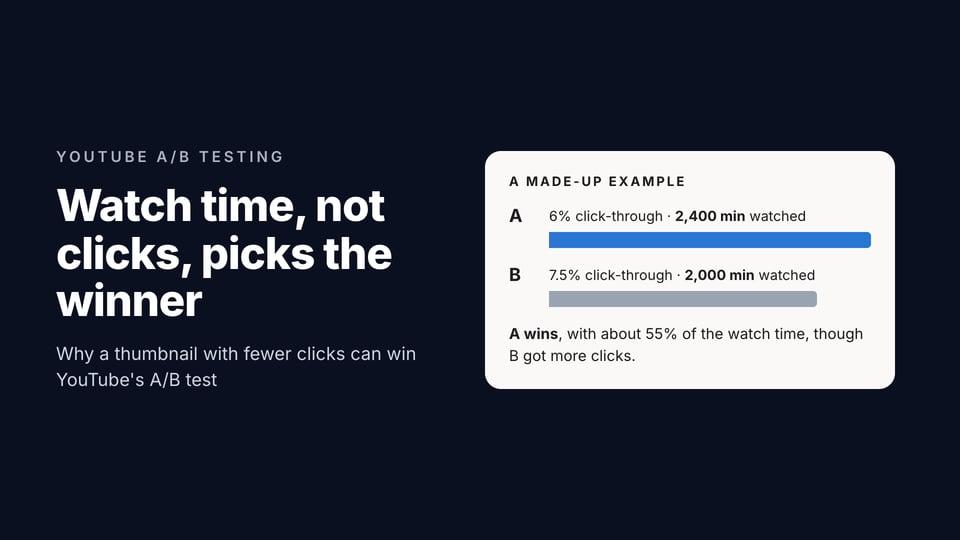
YouTube's A/B test takes up to three thumbnails, and there's no way for another tool to start one for you: YouTube doesn't offer that. What a tool can do is everything around it. Choose the three, put the safest first, make sure every file is the right size, and hand you exactly what to click in YouTube Studio.
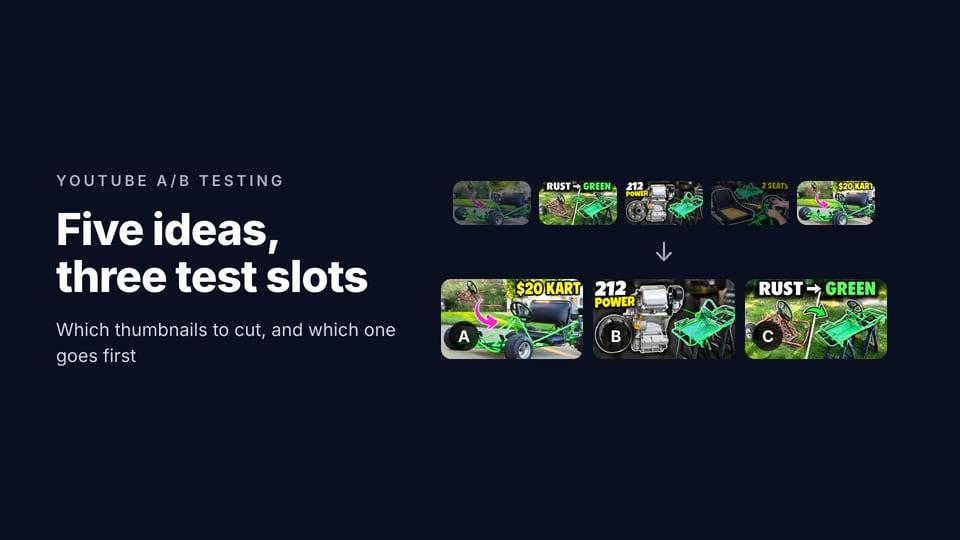
That's what the A/B test section of a ThumbnailPeak project does. Here is the whole export with a real project: five ideas for a go-kart video, the same five we narrowed down in how to choose which thumbnails go into a test.
What a project is
A project is one video. It keeps every thumbnail you make for it in one grid: the ones you critique, the versions you make with Improve or Edit, the ones Generate makes, and any you upload. Each tile shows the picture's visual score from its latest critique. You can sort the grid by newest or by highest score, and star the ones you like.
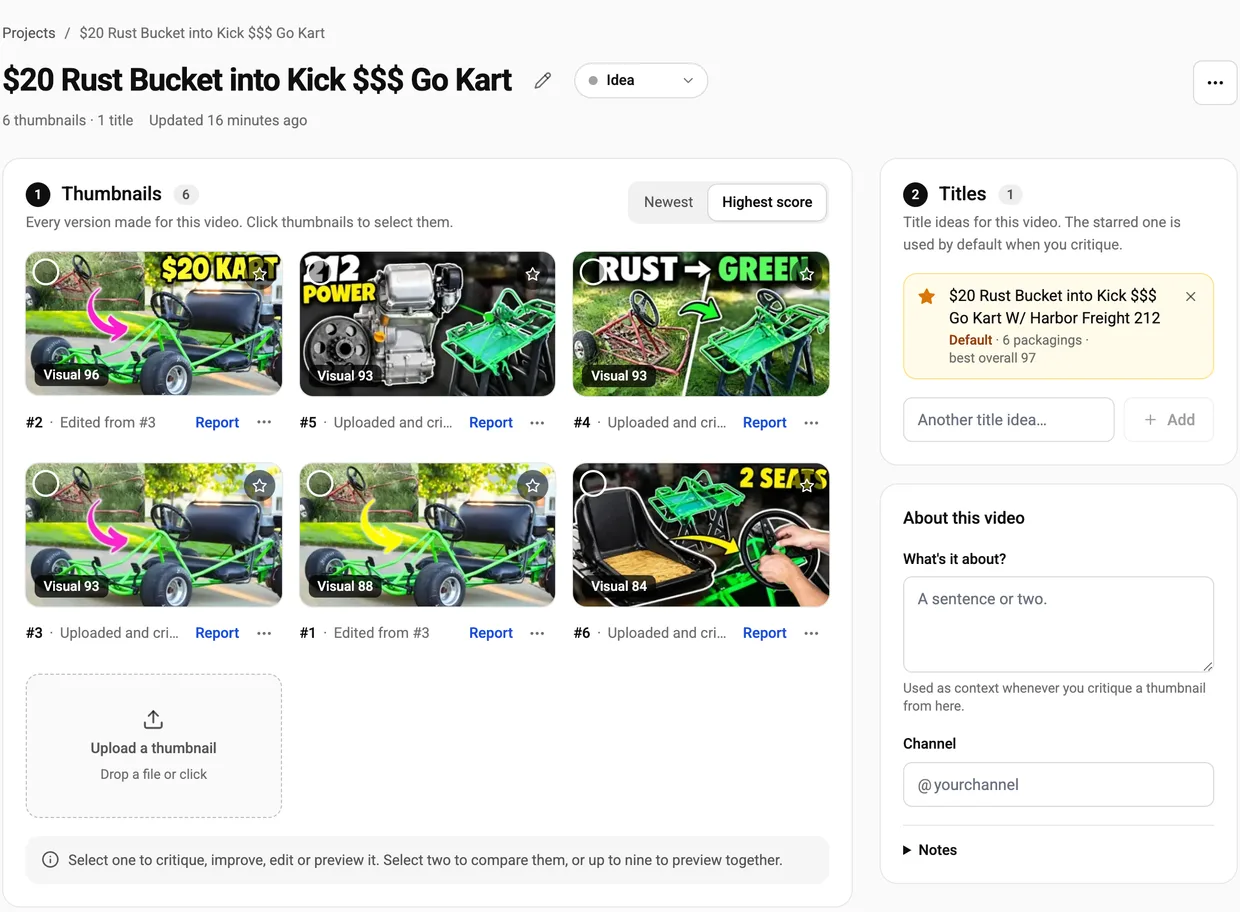
A project also keeps your title ideas, and the one you star is the title every critique from the project uses. Below the grid, Packagings lists every thumbnail-and-title pair you've critiqued, best overall score first.
You don't have to set any of this up by hand. A critique, an improve, an edit or a generate run of a new picture opens a project for it, and later versions of that picture file into the same one. Pro opens up to 10 new projects a month.
Step 1: score the candidates
The A/B test section builds its default from your stars and your scores, so the candidates need a critique with your title.
Click a tile to select it. A bar appears under the grid with what you can do with your selection: with one picture, Critique, Improve, Edit or Preview; with two, Compare or Preview. Each critique and comparison uses the project's starred title, which you can change in the bar.

In our go-kart project, all six pictures had a critique with the title, at 97, 93, 92, 92, 89 and 83 overall.
Step 2: check the three it picked
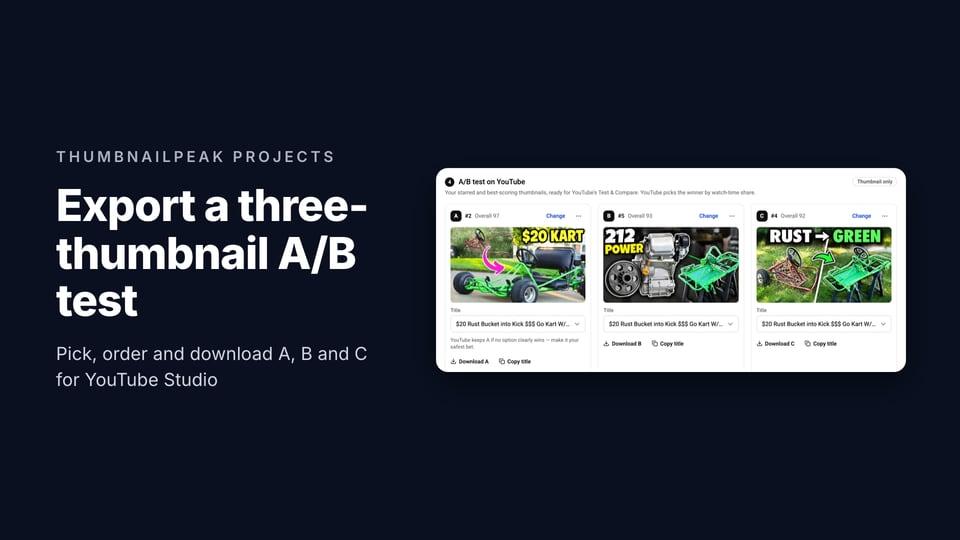
Scroll to section 4, A/B test on YouTube. It shows three options, A, B and C, already filled in. The default is:
- your starred thumbnails first, then
- your critiqued thumbnail-and-title pairs, best overall score first, then
- the rest, newest first.
On the way, it leaves out a picture whose full-size file can't be loaded, and a picture that's the same image as one already picked. When our project held only DIY PRO's own thumbnail and two edits of it, the section left out the original, with the note "1 picture left out — the same image as another option", because "$20 KART" is that picture with two words added.
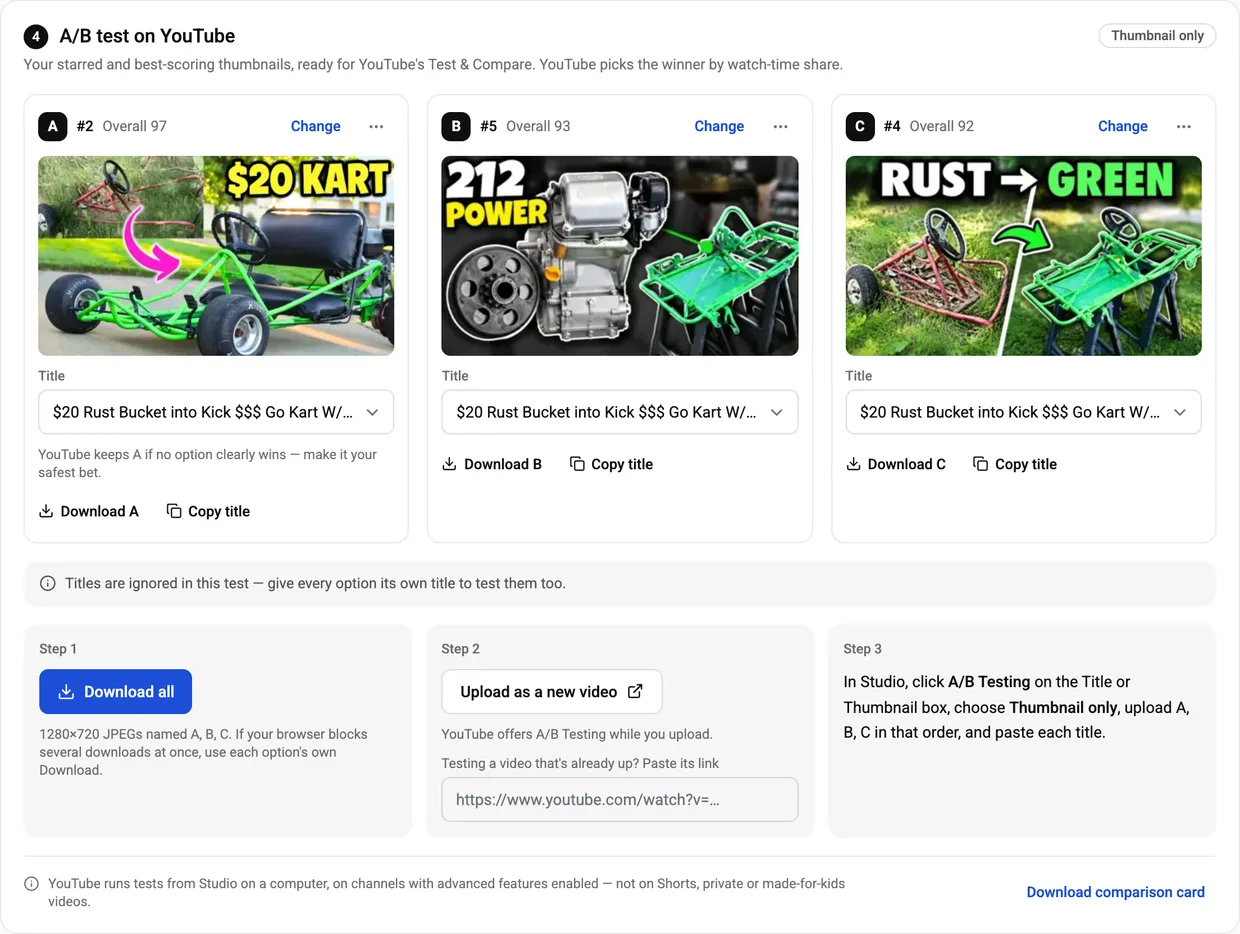
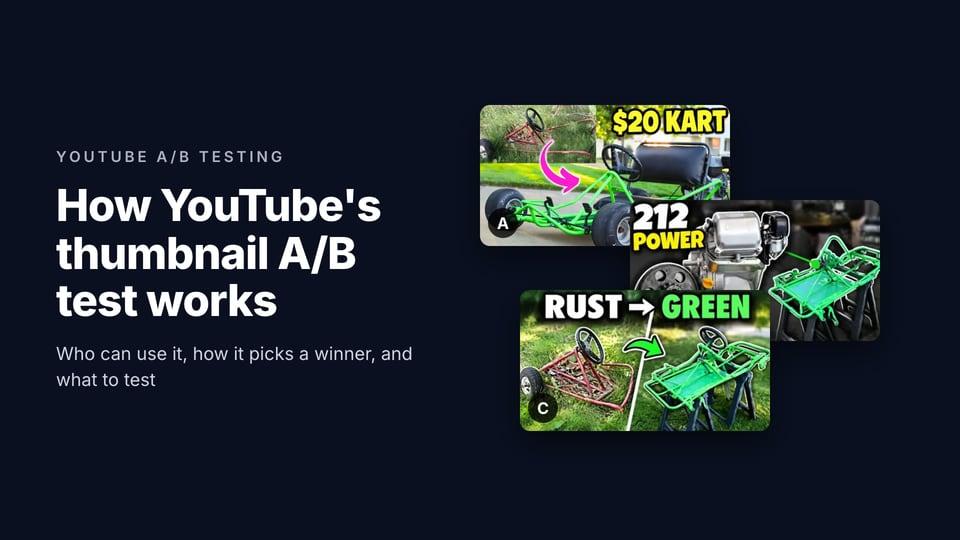
Ours came out as A "$20 KART", B "212 POWER", C "RUST → GREEN": the same three, in the same order, that we chose by hand with Compare.
To change it:
- Change on an option opens every picture in the project; click one to put it in that slot.
- The ⋯ menu on an option has Make A, to move it to the front, Use next best, and Clear.
- Each option has a Title menu with your project's title ideas, or "No title". In ours, C started with "No title", because that picture's best score came from a critique we'd run without the title. We picked the title from its menu.
The label in the corner tells you which kind of test you've built, and it changes as you edit: Thumbnail only when the pictures differ and the titles don't, Title only for one picture under different titles, and Title and thumbnail when both differ.
Step 3: download the files
Click Download all. You get one JPEG per option, named after the video and the letter, like 20-rust-bucket-into-kick-go-kart-A.jpg.
Every file is made in your browser to the same rules:
- Exactly 1280×720. YouTube shrinks every thumbnail in a test to 854×480 if any one of them is smaller than 1280×720, so a smaller picture is scaled up rather than left to lower the other two. Its option then warns you: "Smaller than 1280×720 — it will look soft."
- Under 2 MB, so the same file also works if you upload it from a phone.
- Fitted the way you chose, if the picture isn't 16:9: cropped to fill, or with black bars, the same as your critique saw it.
Our three came out at 240, 173 and 232 KB. If your browser blocks several downloads at once, each option has its own Download button.
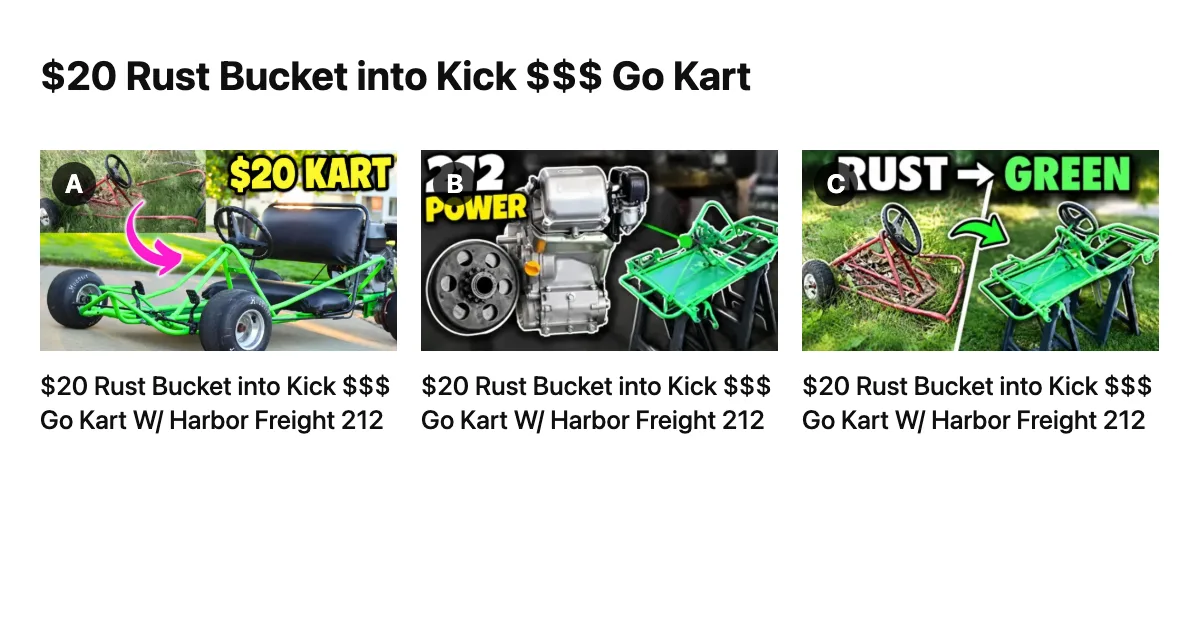
Download comparison card, at the bottom of the section, makes one image of the options side by side with their titles, which is handy for showing someone the test before you start it.
Step 4: start the test in YouTube Studio
Step 2 in the section opens YouTube in a new tab:
- If the project knows the video, the button reads Open in YouTube Studio and opens that video's details page, where the A/B Testing button is.
- If it doesn't, as in ours, the button reads Upload as a new video: YouTube lets you set up the test while you upload. For a video that's already up, paste its link in the field below, and the button switches to that video.
Then follow Step 3 in the section: in Studio, click A/B Testing on the Title or Thumbnail box, choose the kind of test the label named, and upload A, B and C in that order. The order matters, because if no option clearly wins, YouTube keeps the first one you uploaded. If your options have titles, Copy title on each option puts it on your clipboard to paste.
YouTube runs A/B tests only from YouTube Studio on a computer, for channels with advanced features turned on, and not on Shorts or on private or made-for-kids videos. The section says so too. On a phone, it reminds you to open the project on a computer. Our guide to YouTube thumbnail A/B testing has the rest of YouTube's rules and how to read the result.
What the export doesn't do
- It doesn't start the test. YouTube has no way for other tools to create one, so the last clicks are yours.
- It doesn't read the result back. When the test ends, YouTube shows the result in the video's Analytics, on the Reach tab.
- It doesn't remember your picks. If you change the options and come back later, you'll see the default again.
Frequently asked questions
Can ThumbnailPeak run a YouTube A/B test for me?
No. YouTube doesn't let other tools start a test. A ThumbnailPeak project prepares the three files, puts them in order and links you to the right page in YouTube Studio; you start the test there.
Do I need Pro to export an A/B test?
Projects, and so the A/B test section, are part of Pro. Without a project, you can still compare two thumbnails with Compare on a free account, and upload your files to YouTube Studio yourself. Just check that each is at least 1280×720.
What size should A/B test thumbnails be?
At least 1280×720, in 16:9. If any thumbnail in a test is smaller, YouTube shows all of them at 854×480 for the test.
Can I test titles from a project too?
Yes. Give each option its own title from the project's title ideas, and the test becomes "Title and thumbnail", or "Title only" if every option has the same picture.
The project and its screenshots are from our own account, on 21 October 2026. The video is "$20 Rust Bucket into Kick $$$ Go Kart W/ Harbor Freight 212" by DIY PRO, published under CC BY 3.0. DIY PRO's own thumbnail is shown as published; the other thumbnails are our adaptations of its frames and thumbnail, and DIY PRO did not make or endorse them.