Disclosure: we make ThumbnailPeak, which works in a phone's browser. The ThumbnailPeak screenshots are from our own account on 1 November 2026, in a phone-sized browser window. YouTube's steps are quoted from its Help pages, read the same day.
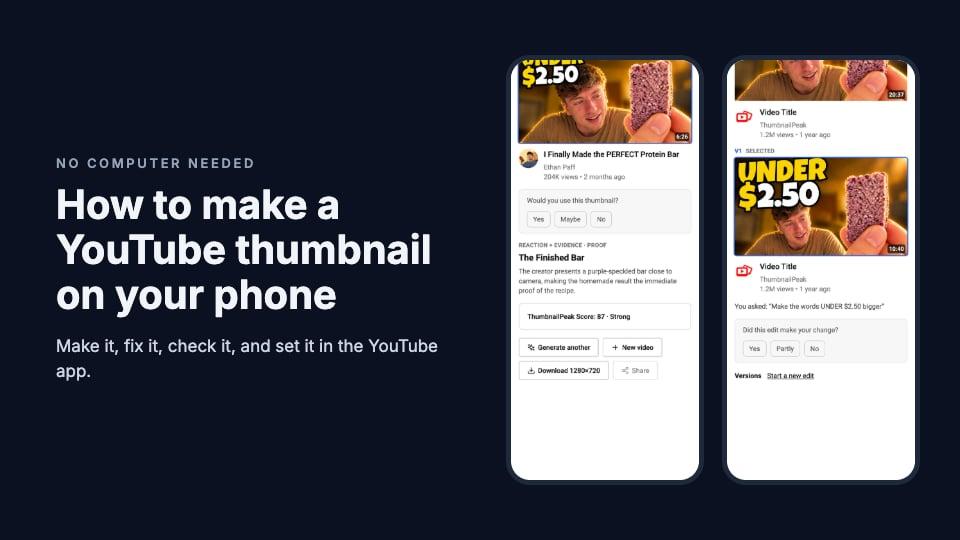
You can make a YouTube thumbnail, fix it and upload it without touching a computer. The short version:
- Make it in a design app or with AI, in your phone's browser or an app.
- Make it 16:9. 1280×720 is plenty; YouTube's minimum width is 640 pixels.
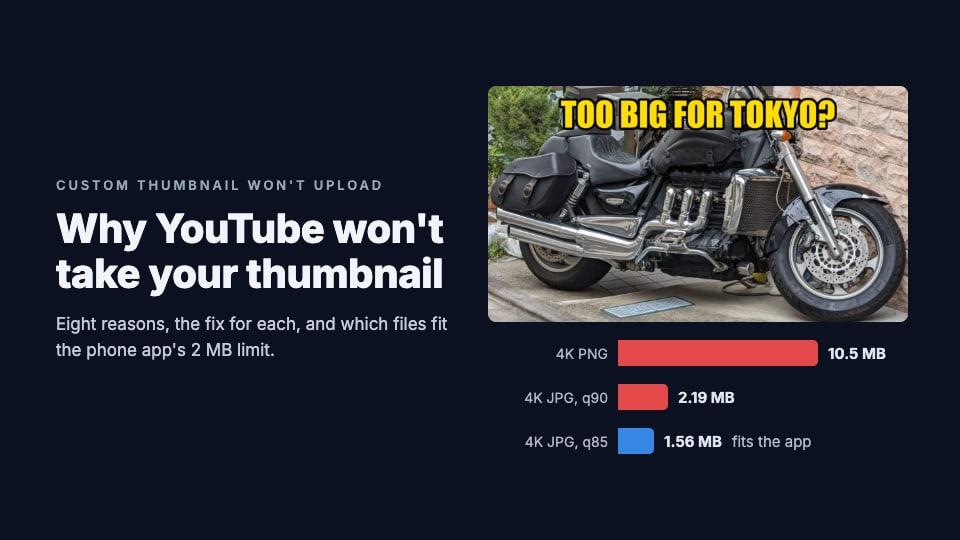
- Keep the file under 2 MB. That's YouTube's limit for thumbnails uploaded from a phone. From a computer it's 50 MB.
- Set it in the YouTube Studio app or the YouTube app: open the video, tap Edit thumbnail, then Custom thumbnail.
- Shorts are different. On a phone you can only pick a frame from the Short. A custom image for a Short needs a computer.
What YouTube needs from a phone
YouTube's custom thumbnail help page sets the rules:
- Size: it now recommends "3840 x 2160 pixels for videos", "with a minimum width of 640 pixels". 1280×720 still looks sharp in every feed.
- Shape: "For videos, try to upload a thumbnail with an aspect ratio of 16:9."
- File: "JPG or PNG", and "Mobile: 2 MB for video thumbnails". From a computer it's 50 MB.
- Account: you need a verified account, which means adding a phone number.
The 2 MB limit is the one that catches people. A detailed PNG can pass 2 MB, and AI-made pictures often come as PNG. If the app refuses your file, save it as a JPG: our thumbnail resizer works in a phone browser, saves a high-quality JPG at 1280×720 and warns you if it's still over 2 MB. Our post on why a thumbnail won't upload covers the other reasons.
Three ways to make one on your phone
1. A design app
Canva, Adobe Express and similar apps have YouTube thumbnail templates in their phone apps. The steps are the same in each:
- Start a 16:9 design, 1280×720.
- Get a picture from your video. Pause the video on your phone at the moment you want and take a screenshot, or use a photo you shot for it.
- Make the subject big. Crop in, and cut out the background if the app can.
- Add three words or fewer, in a thick font, and keep them out of the bottom-right corner, where YouTube puts the video's length.
- Export a JPG.
This gives you full control, and on a small screen it takes patience. Zoom out often: the thumbnail will be seen about the size of a stamp.
2. AI in your phone's browser
ThumbnailPeak runs in your phone's browser, with nothing to install. This is the route we took for a real video, Ethan Paff's "I Finally Made the PERFECT Protein Bar":
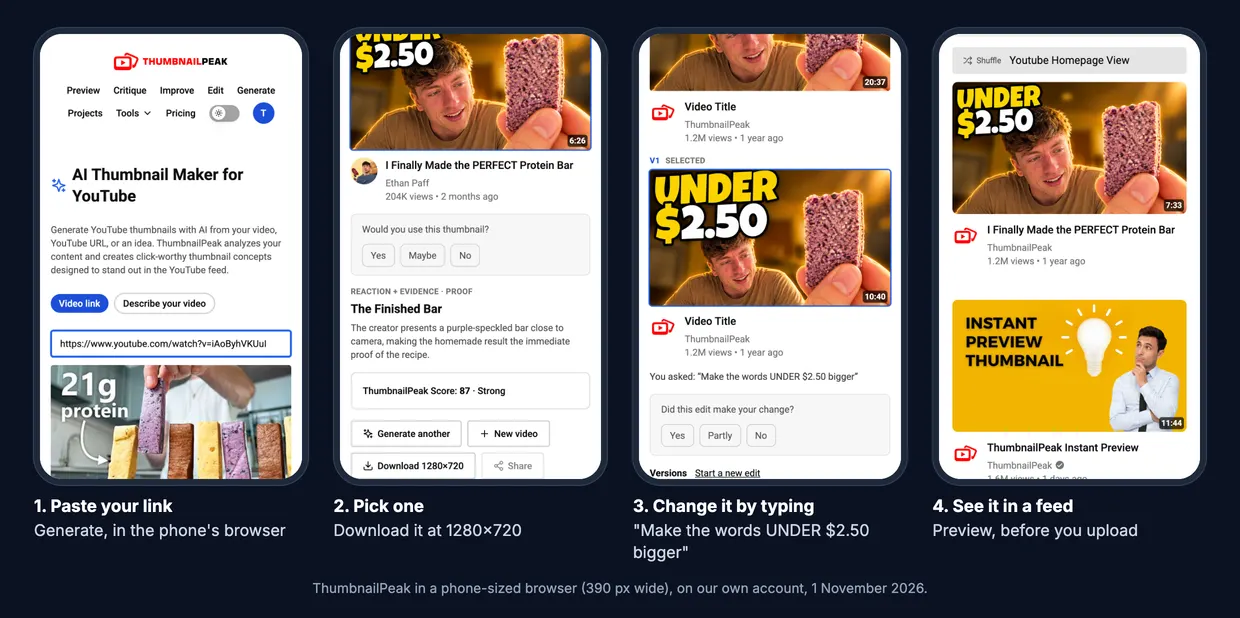
- Paste your link. Open the AI thumbnail maker, paste your video's YouTube link, and choose one thumbnail or three. If the video isn't up yet, tap "Describe your video" and write a few sentences instead.
- Pick one. Generate reads your video's title, description and frames and makes finished 16:9 thumbnails. Tap one to see its score, and download it at 1280×720.
- Change it by typing. Tap "Edit this one" and type what to change. We typed "Make the words UNDER $2.50 bigger", and Edit made them bigger; the rest of the picture stayed close to the original.
- See it in a feed. Preview puts your thumbnail and title in a YouTube-style feed on your phone, beside real videos, so you can see whether it still reads at that size.
It needs a free account, which comes with 12 credits; one thumbnail uses 3 credits, a batch of three 6, and an edit 3. Preview is free with no account.
3. A chatbot app
ChatGPT and Gemini can both make a thumbnail from a message on your phone. Two things to know from our tests: ChatGPT's pictures came back 3:2 rather than 16:9, so they need cropping, and both invent details your video doesn't have unless you attach a screenshot. Our prompt guide has messages that work, each one tested.
Making a thumbnail for a Roblox or Minecraft video on your phone? The same three routes work. Take your screenshots in the game on your phone, and follow the tips in our Minecraft and Roblox thumbnail post.
Set it on YouTube from your phone
YouTube's help page gives the same steps for Android and for iPhone and iPad.
In the YouTube Studio app:
- "Open the YouTube Studio app."
- "From the bottom menu, tap Content."
- "Select the video you want to edit."
- Tap Edit, then Edit thumbnail.
- "Select an auto-generated thumbnail or tap Custom thumbnail to create a custom video thumbnail from an image on your device."
- "Confirm your thumbnail selection and tap SELECT."
- "Tap SAVE."
In the YouTube app:
- "Open the YouTube app."
- Tap your profile picture, then Your videos.
- Next to the video, tap More, then Edit, then Edit thumbnail.
- Choose Custom thumbnail and pick your image, then tap SELECT and SAVE.
For a Short, a phone can only use a frame from the Short itself. YouTube says: "You can choose a frame from your Short to be used as the thumbnail … Keep in mind that you can only edit your thumbnail from the YouTube app and not from Studio." You can add text and filters to that frame. But "Custom Shorts thumbnails are currently only available to add in YouTube Studio on a computer." Our Shorts thumbnail guide explains how Shorts thumbnails are shown.
YouTube's own AI thumbnail tool is computer-only too. Its help page says Ask Studio "is available only on web browsers on your computer."
Check it before you publish
A phone is actually a good place to judge a thumbnail, because that's where most people will see it. Before you save:
- Hold the phone at arm's length. Can you read the words? Can you tell what the picture is?
- Look at the bottom-right corner. Nothing important should sit under the video's length.
- See it among other videos. Preview shows it in a YouTube-style feed, and a critique scores it and tells you what to fix first.
Key takeaways
- You can do it all on a phone: make the thumbnail, fix it, check it, and set it.
- Keep the file under 2 MB. That's YouTube's limit from a phone; save as JPG if it's bigger.
- Make it 16:9, at least 640 pixels wide; 1280×720 is plenty.
- Set it in YouTube Studio or the YouTube app: Edit thumbnail, then Custom thumbnail.
- Shorts and YouTube's AI tool need a computer for a custom image.
YouTube's steps and limits are quoted from its Help pages "Add video thumbnails" (answer 72431, Android and iPhone tabs), "Create YouTube Shorts" (10343433) and "Learn about Ask Studio" (16291691), read 1 November 2026. The ThumbnailPeak screenshots were taken in a 390-pixel-wide browser window on our own account the same day. The example uses "I Finally Made the PERFECT Protein Bar" by Ethan Paff, published under the Creative Commons Attribution licence (CC BY 3.0); the thumbnails are adaptations made from it by ThumbnailPeak's Generate and Edit, and Ethan Paff did not make or endorse them. ThumbnailPeak is not affiliated with YouTube.